
Step-by-step instructions
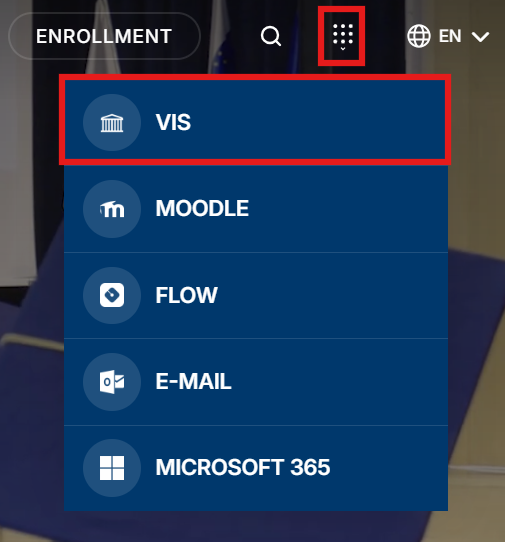
Sign in with your Alma Mater Identity
Sign in with your Alma Mater Identity (your @almamater.si username and password).
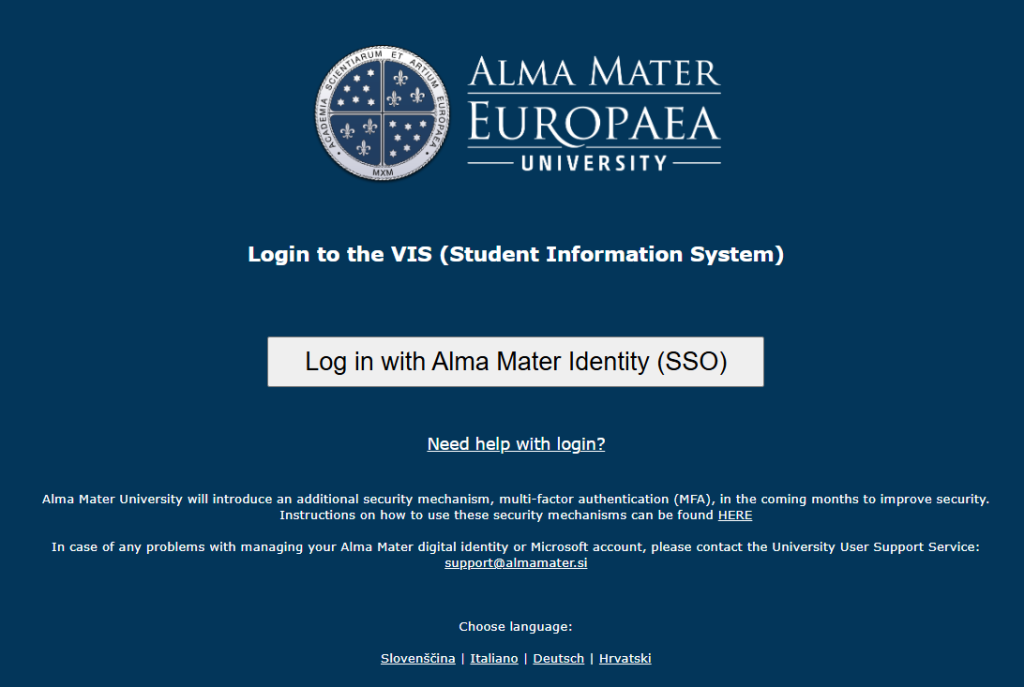
Important: If you use other Microsoft accounts (e.g. from other institutions or for personal use), we recommend signing in with your Alma Mater account either in incognito mode (private browsing) in your browser, or using another browser where you are not signed in to Microsoft services.
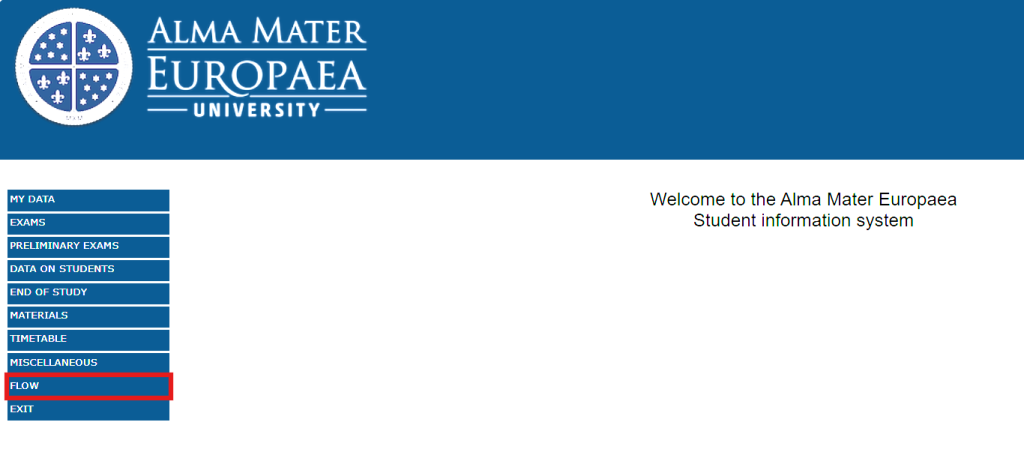
Open FLOW
Click “FLOW”.
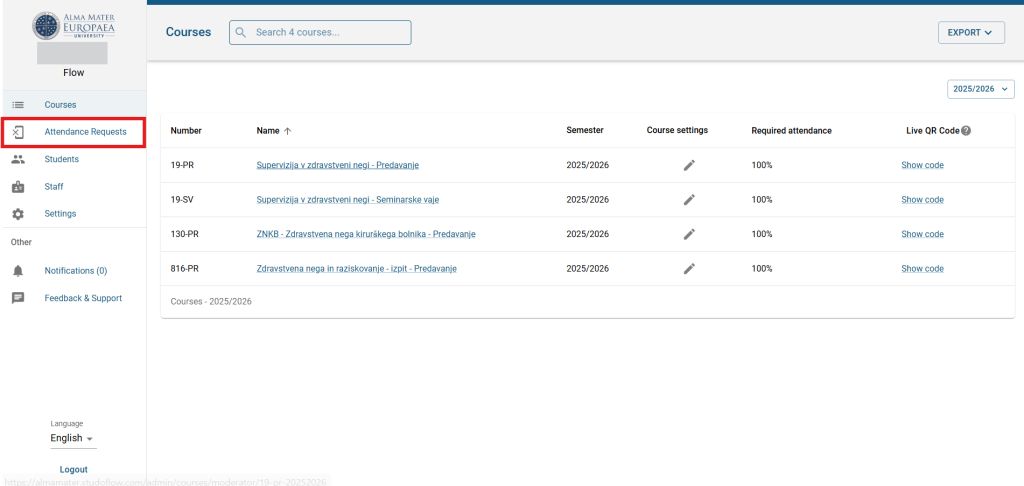
Open attendance recognition requests
Click the “Attendance requests” menu.
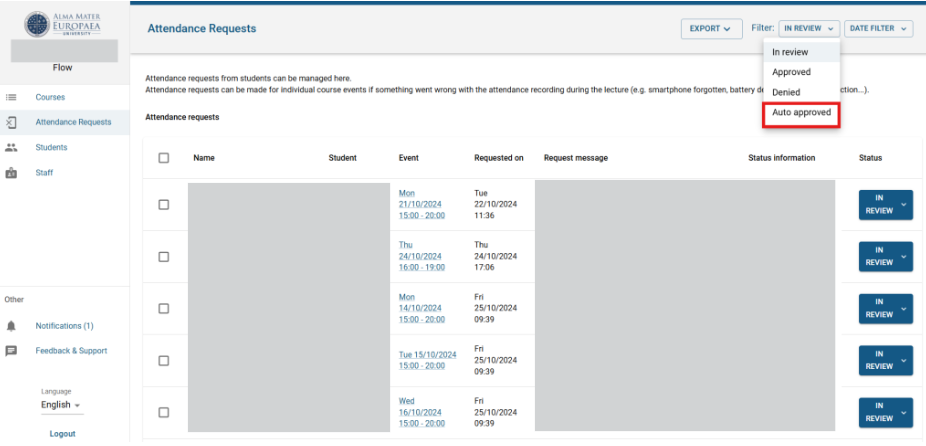
Set the filter
In the top left, set the “In review” filter to “Auto approved”.
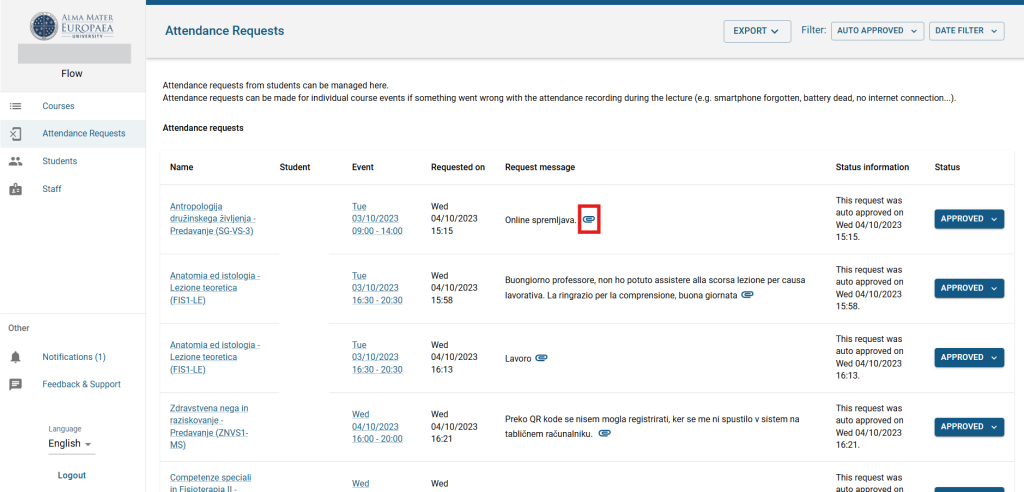
Open the summary (PDF)
Below each request message there is a paperclip that opens the summary as a PDF document.
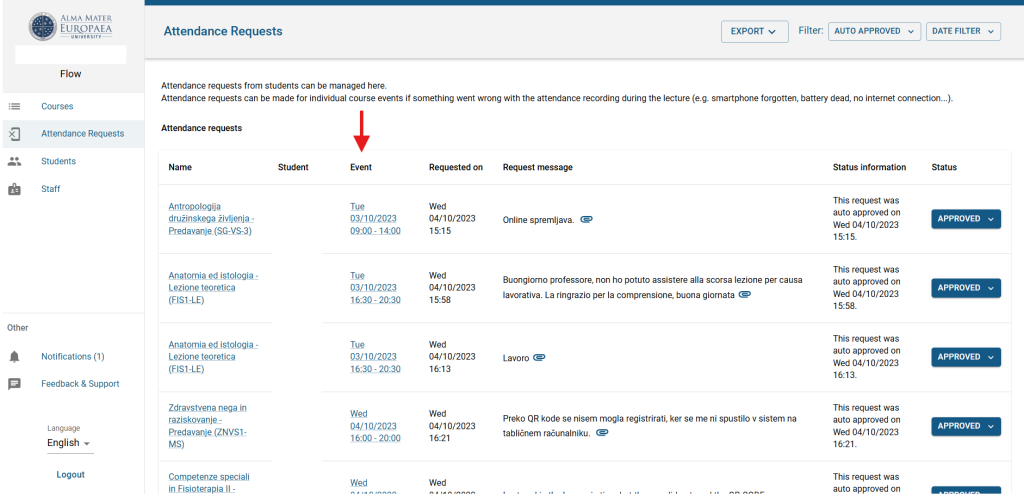
Revoke attendance
To revoke a student’s attendance, click the “Event” date.
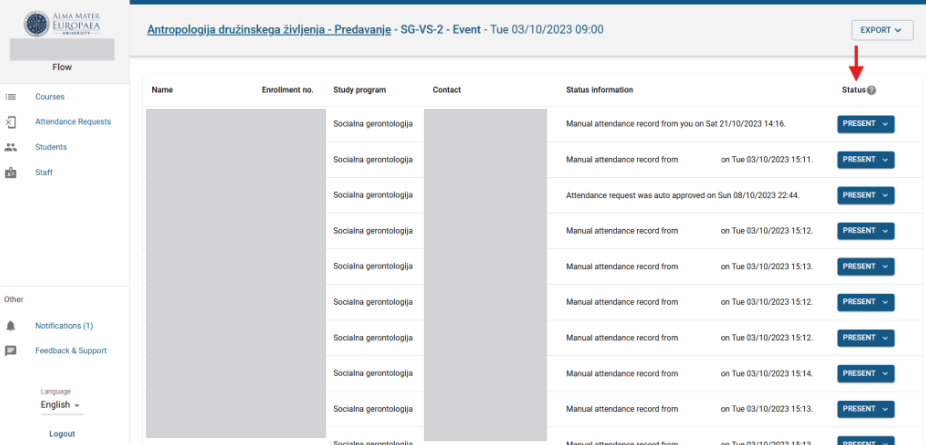
Change attendance
Find the student in the list and change their attendance (“Delete attendance”).
Was this article helpful?
Thanks for your feedback!