
In brief
- In Zoom you have two options: subtitles in Zoom or the translation in your browser. You can also use both at the same time.
- Subtitles in Zoom are in one language. Turn them on with the Show captions button (CC icon).
- The translation in the browser offers several languages. The technician posts the link to it in the chat.
Option 1: subtitles in Zoom
In the toolbar at the bottom of the Zoom window, click the Show captions button (CC icon). The subtitles appear below the lecture video and the button changes to Hide captions, which hides them again.
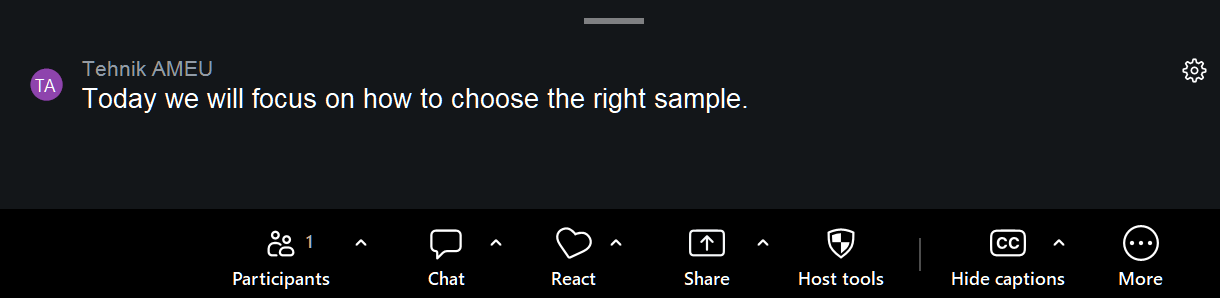
In a narrow window, the button is hidden under the More button. The subtitles are in the language set by the technician. If you want a different language, use option 2.
Option 2: translation in the browser
Open the chat. In the Zoom toolbar, click Chat. At the start of the lecture, the technician posts a link in the chat that begins with https://app.vox101.com/spectate/.
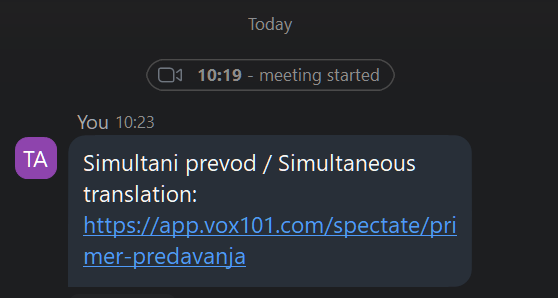
Click the link. The translation opens in your browser. Zoom stays open and the lecture continues.
Using the translation page
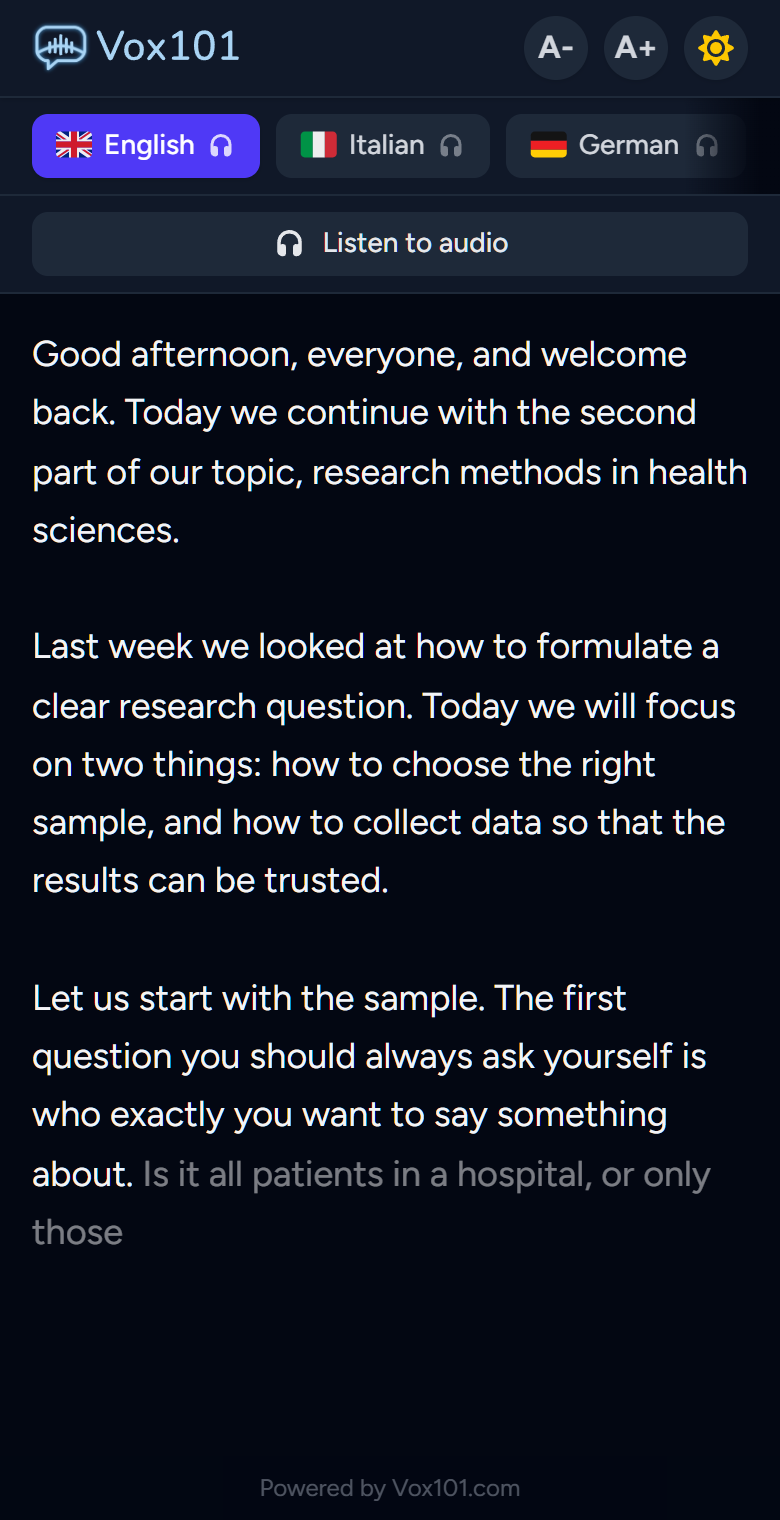
Choose your language. Below the logo there is a bar with languages. Click your language; the selected language is highlighted. When the page opens, the first language is selected. The translation appears below and scrolls down on its own.
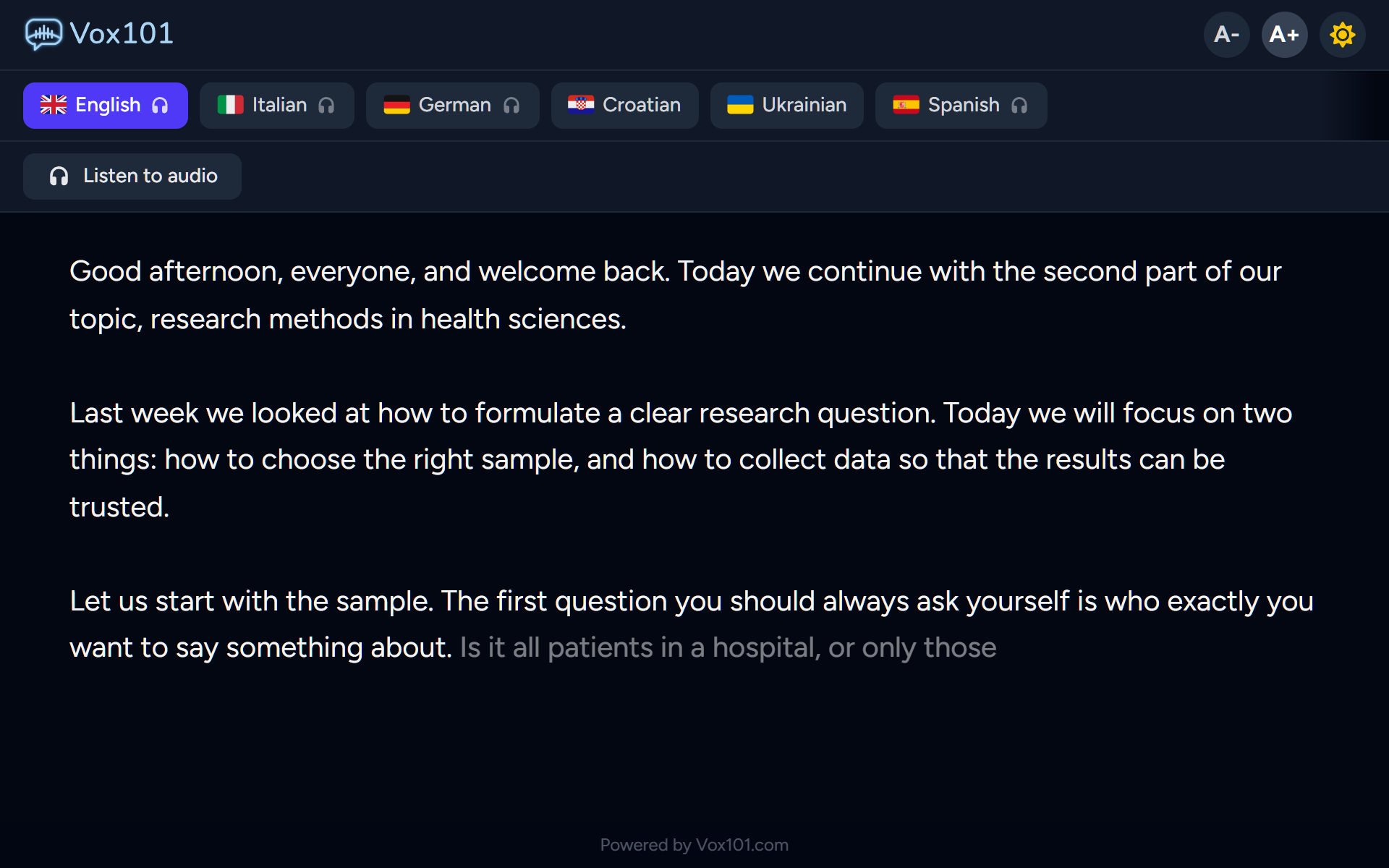
Adjust the text. Use the A+ and A- buttons in the top right to make the text larger or smaller. The page is dark; the sun button switches to a light background, the moon button back to a dark one.
The last, paler part of the text is still being formed and may change. The page is in English, and the translation is in the language you choose.
The lecture has not started yet? The page shows Event hasn’t started yet and the start time. Leave it open; it refreshes on its own when the lecture begins. After the lecture, it shows This event has ended.
How to arrange the translation window
Arrange the windows so that you can see the lecture and the translation at the same time. Choose whichever way suits you best.
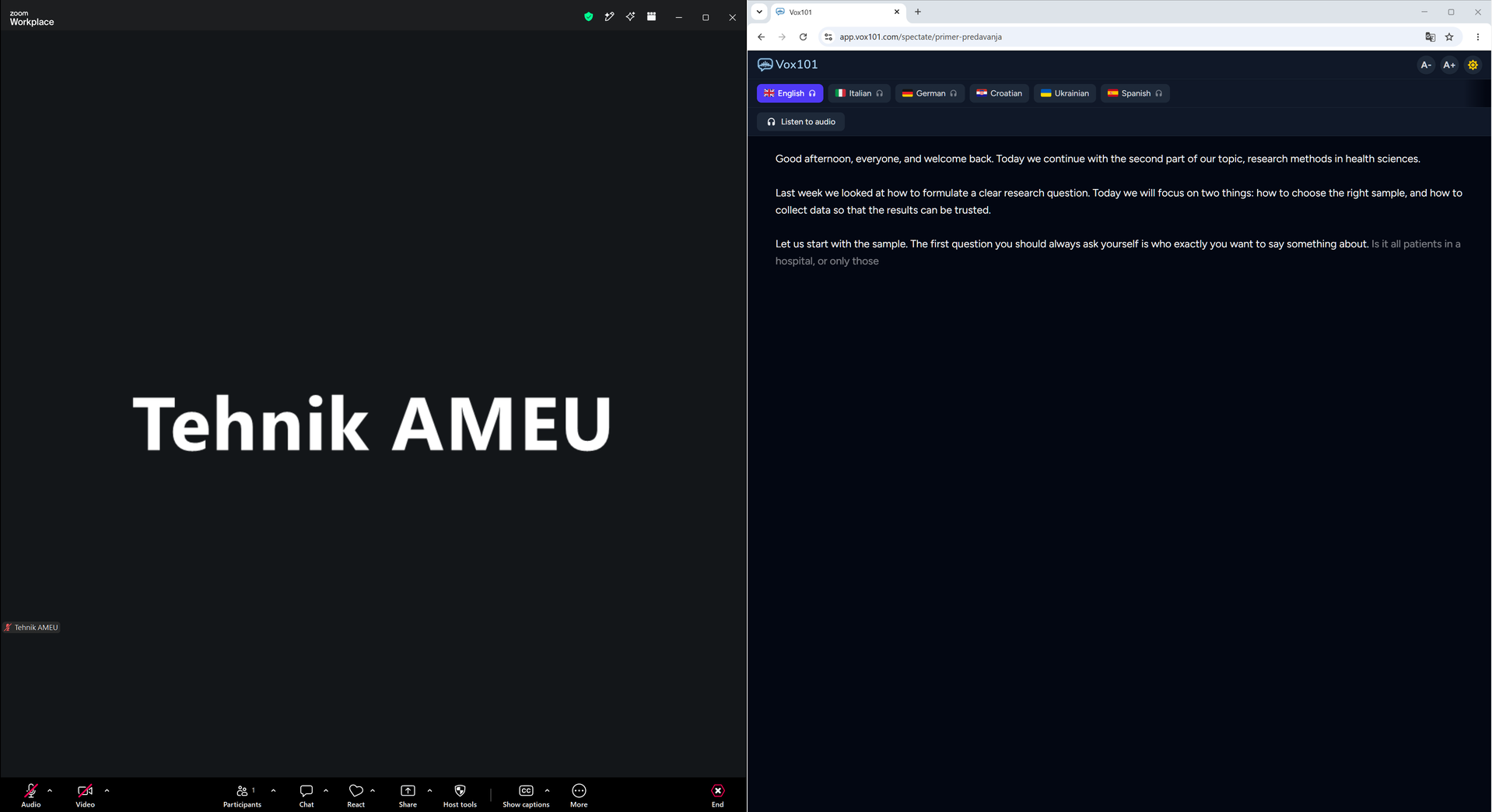
Split screen
Zoom and the translation each take half of the screen.
- Windows: click the translation window and press the Windows key and the right arrow. Windows offers the other windows for the left half; click the Zoom window.
- macOS: hold the pointer over the green button in the top left of the translation window and choose the layout on the right half of the screen. Then place the Zoom window on the left half in the same way.
Smaller window
Make the translation window smaller and place it next to or below the lecture video. Use the A+ button to enlarge the text so it stays readable. Zoom should not be in full screen mode, otherwise it covers the translation window; you can usually leave full screen with the Esc key.
Phone or tablet
Follow the lecture on your computer and the translation on your phone or tablet. Send yourself the link from the chat, for example by email, and open it on your phone. The page adapts to the smaller screen.
Following the lecture in a browser? The translation opens in a new tab. Drag the tab out of the tab bar to get a separate window that you can place next to the lecture.
Problems and help
- There is no Show captions button. In a narrow window, it is under the More button. The button only appears once the technician turns on the subtitles. If it is still missing then, update Zoom.
- The link is not in the chat. If you joined later, you may not see it in the chat. Write in the chat and ask the technician to post the link again.
- The page says “Could not reach the server. Retrying…”. Check your internet connection. If the message does not go away, the link is wrong or out of date; take a new one from the chat.
- The page says “Waiting for speech…”. The translation appears once the lecturer starts speaking.
During the lecture, write to the technician in the chat. For other problems, contact IT support; contact details are on the page IT coordinators by location.
How to join a lecture in Zoom is described in ZOOM video conferences.