
Step-by-step instructions
You can also add your newly created booking page to your signature in the MS Outlook app
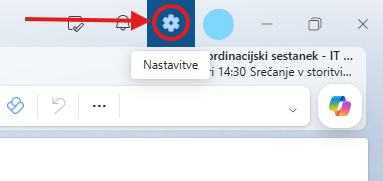
Open the MS Outlook app and click Settings in the top right corner.
A new window opens, where under the Accounts section you find the Signatures category and click it
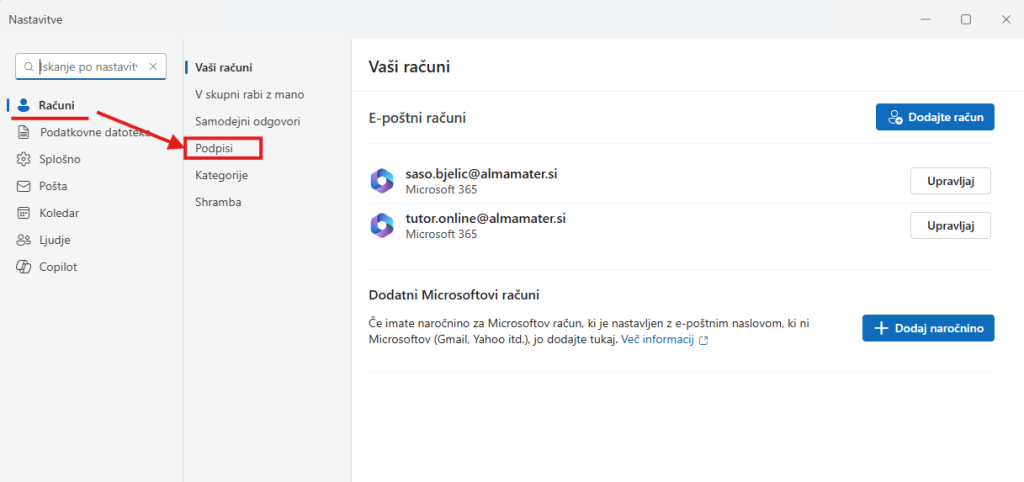
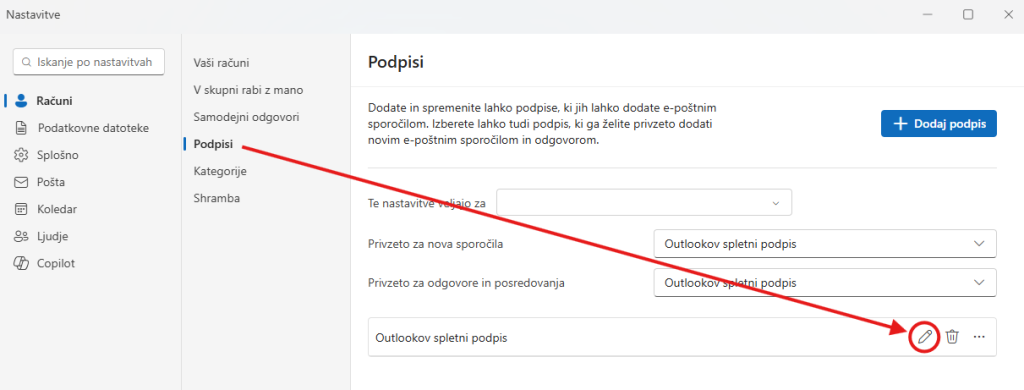
If you have not created your own signature yet, click Add signature and create it there
We recommend that you create it using the existing signature template for Alma Mater Europaea University. You can download the AMEU signature here.
Below the existing Outlook web signature, in the bottom right corner, click the pen icon, that is, Edit signature
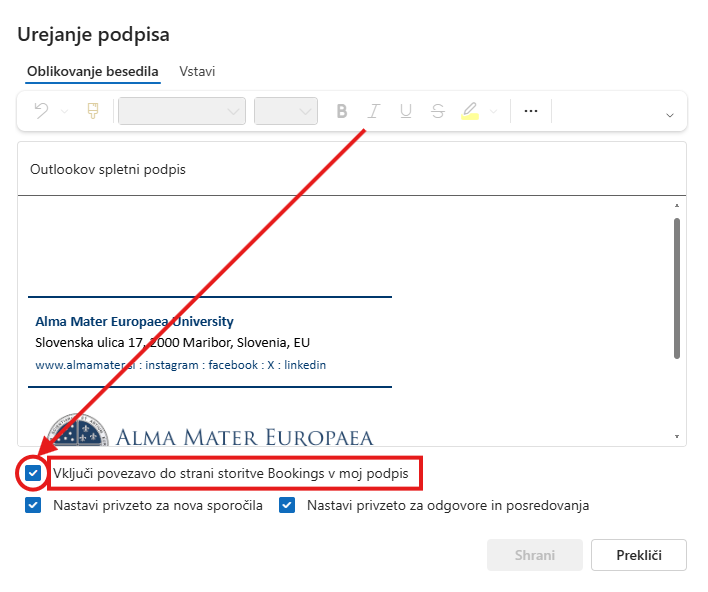
At the bottom of the signature, tick Include a link to the Bookings page in my signature
At the bottom of your signature you will now see a link called Book time to meet with me, which others will be able to click to book a meeting slot

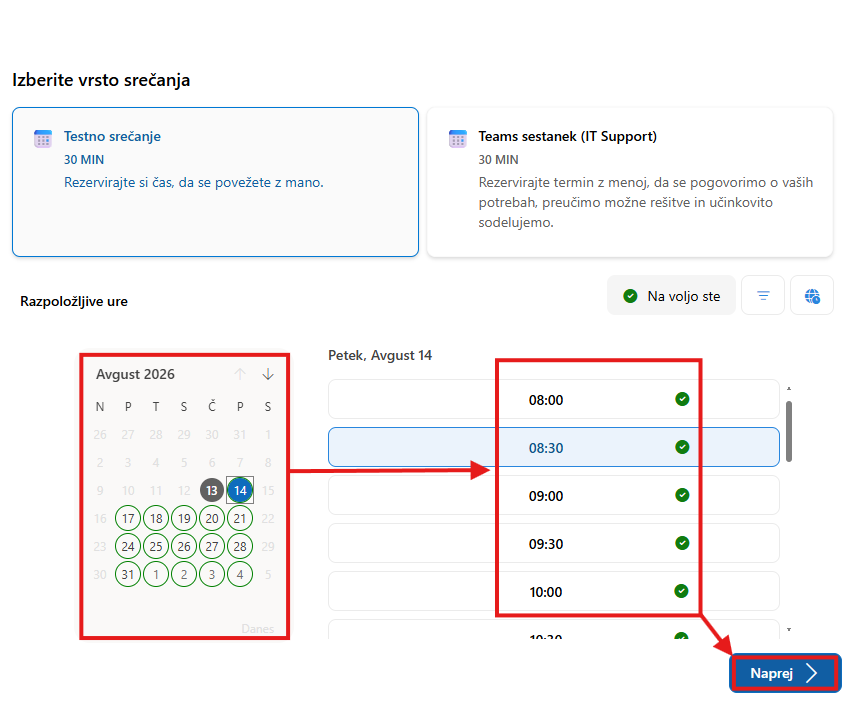
People who click this link will be able to book a meeting time with you in your MS Bookings app
Once the booking is complete, you will receive a meeting e-mail stating the meeting time and who made the booking.
Tip: General instructions for editing your signature are available in the manuals Signature in Outlook on the web and Signature in desktop Outlook.
Was this article helpful?
Thanks for your feedback!