
Step-by-step instructions
Download the signature
Click the “PRENESI PODPIS” (Download signature) link.
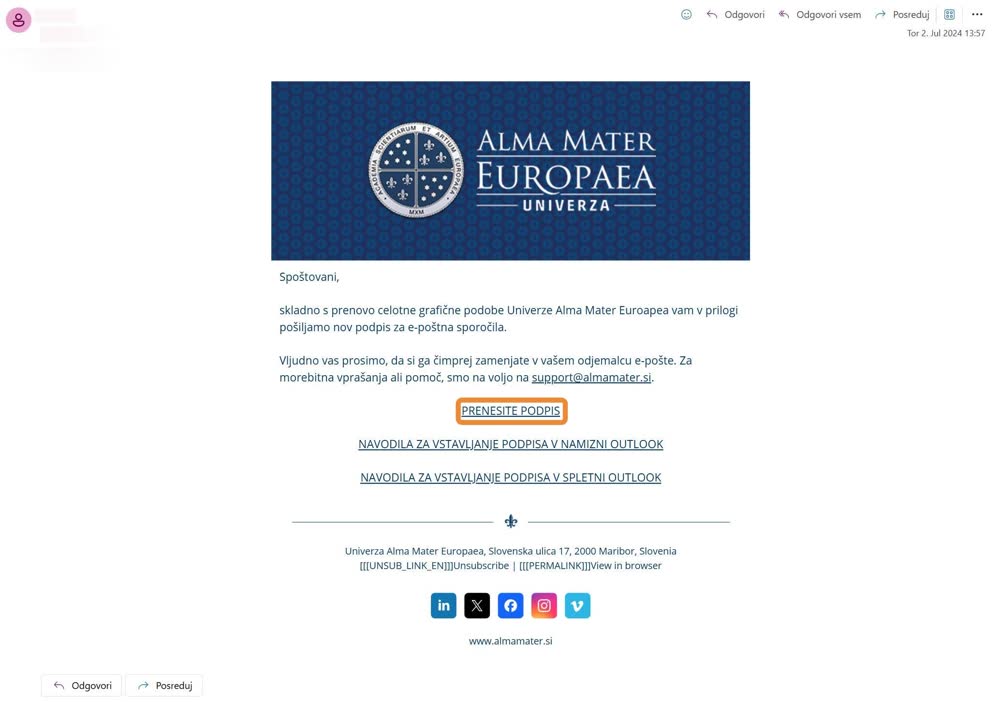
Select and copy
Select all the text and press Ctrl + C.

Open the settings (Outlook on the web)
In Outlook on the web, click the gear icon (top right) to open the email appearance settings, which include creating a signature.
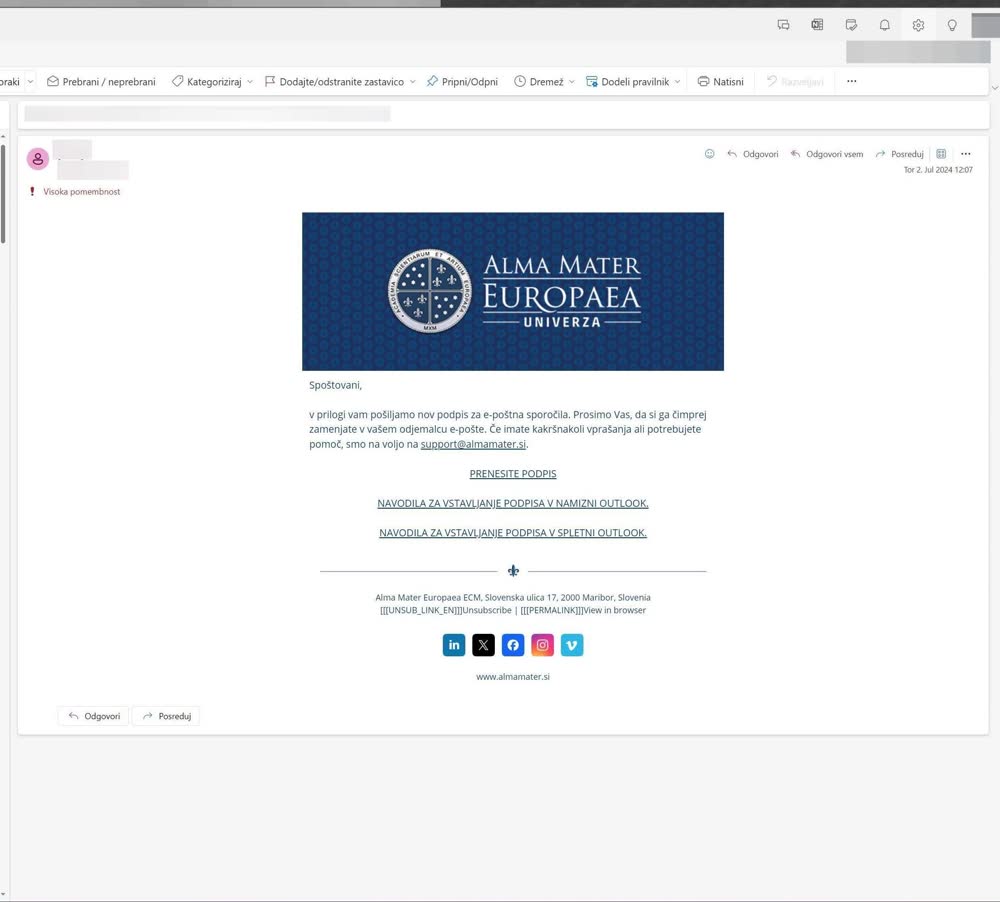
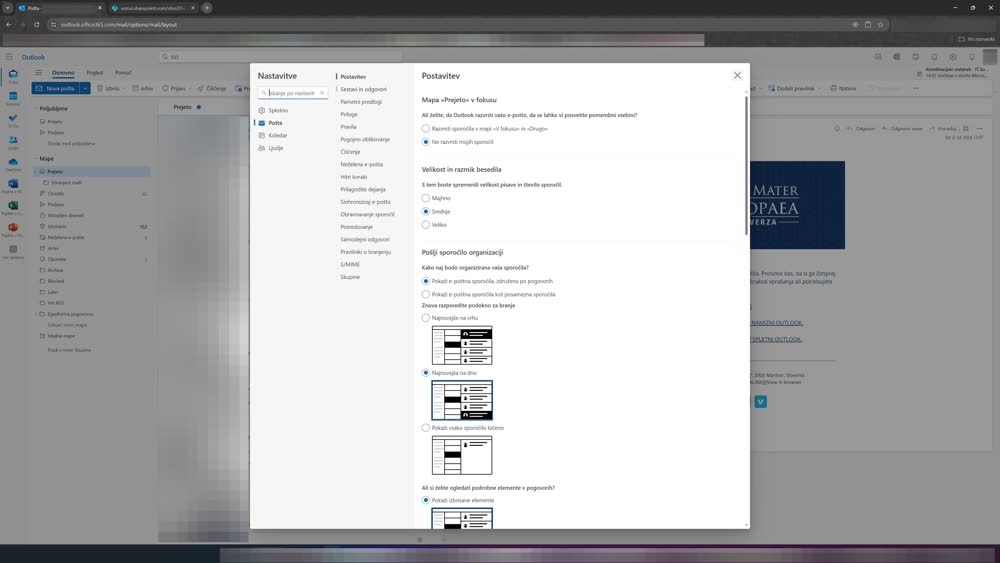
Open signatures
Select the “Sestavi in odgovori” (Compose and reply) menu.
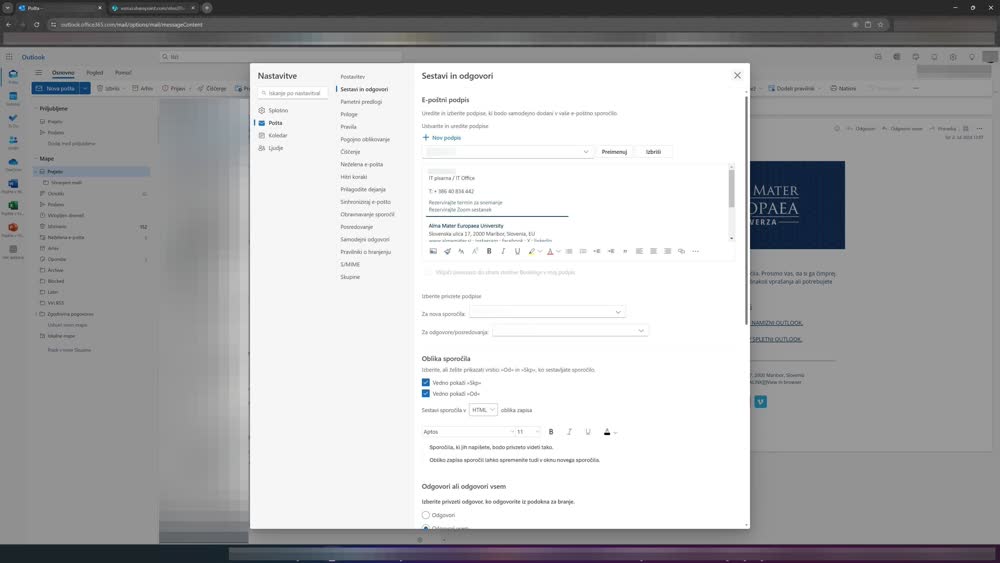
Create a new signature
Select “Nov podpis” (New signature).
Paste the signature
Click the empty field and press Ctrl + V. (To preserve formatting, do not use right-click and “Paste”.)
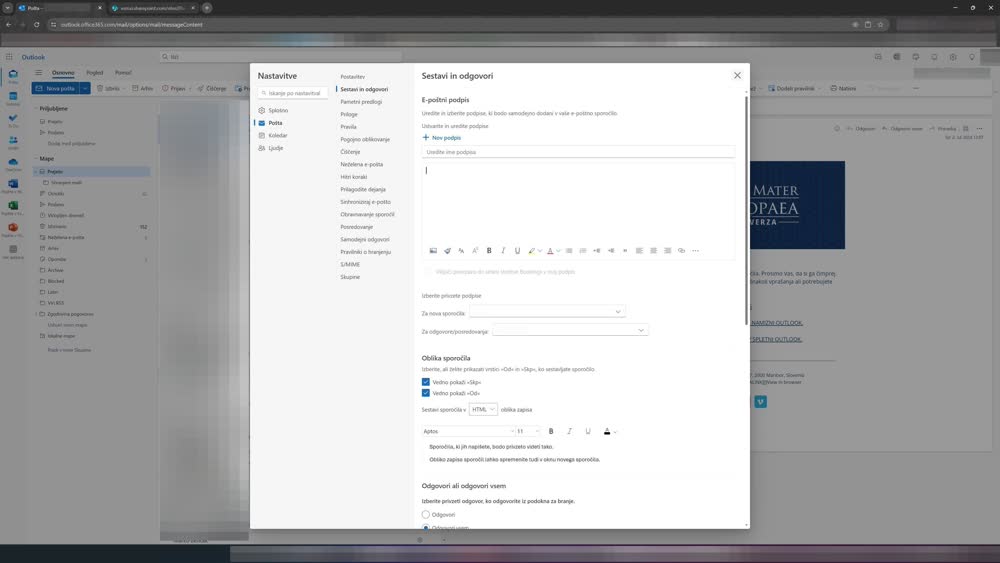
Enter your first and last name
To preserve formatting, first type your first and last name, then delete “Ime Priimek (Name Surname)”.
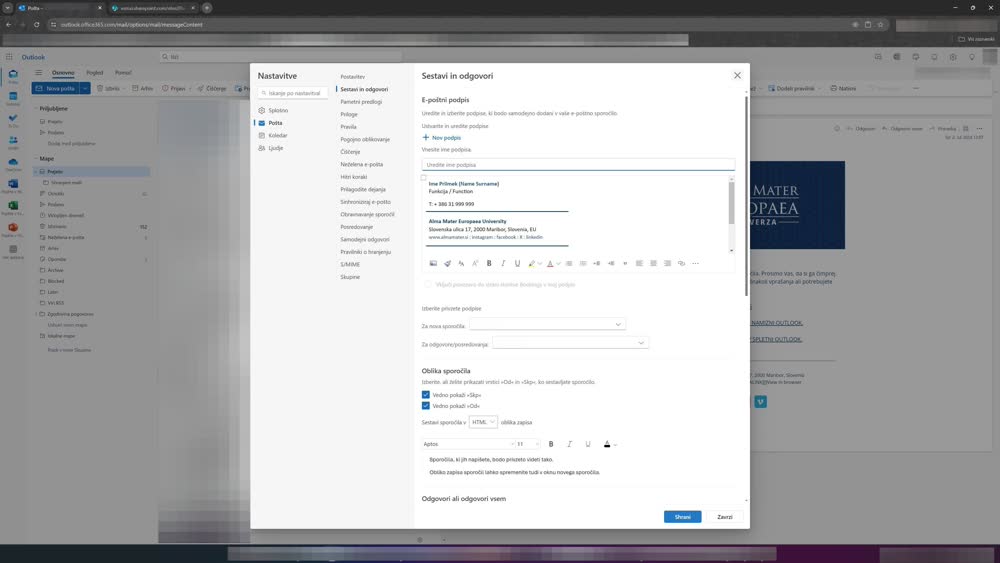
Check the entered name
Make sure your name is entered correctly and the original “Ime Priimek” placeholder is removed.
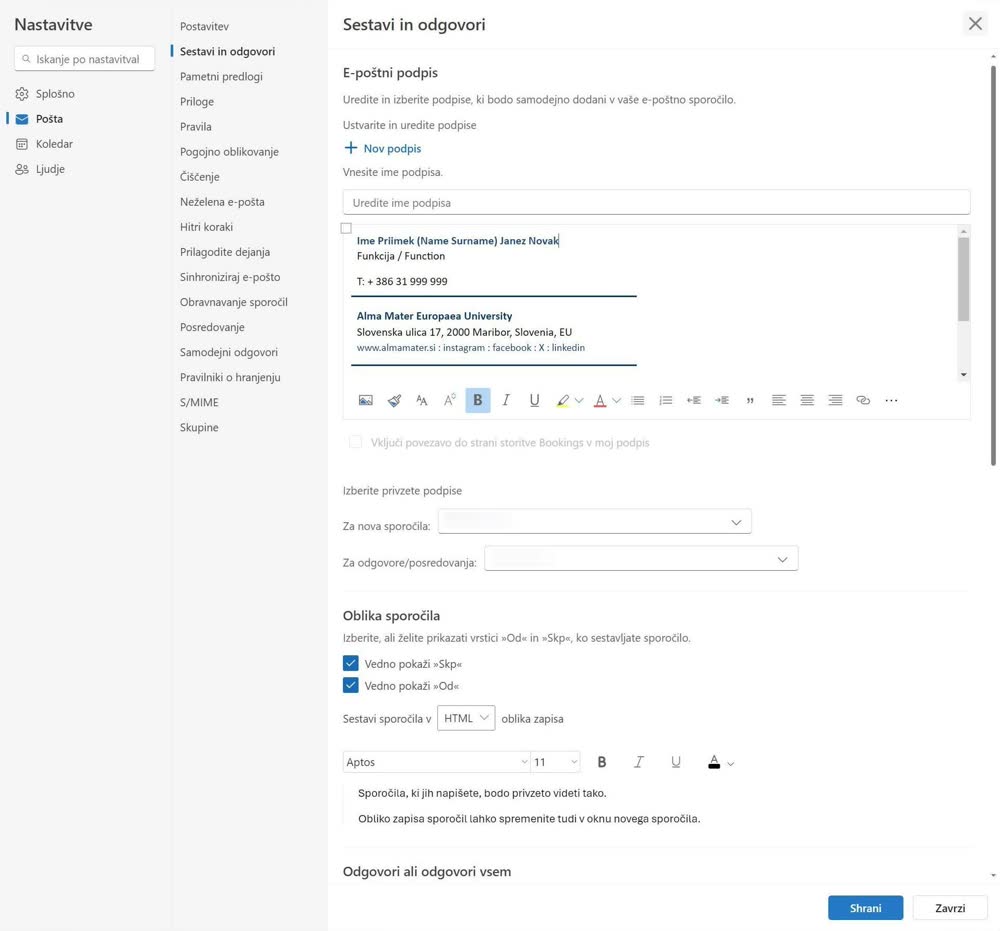
Edit your job title
Replace the “Funkcija / Function” field with your job title in Slovenian and English.
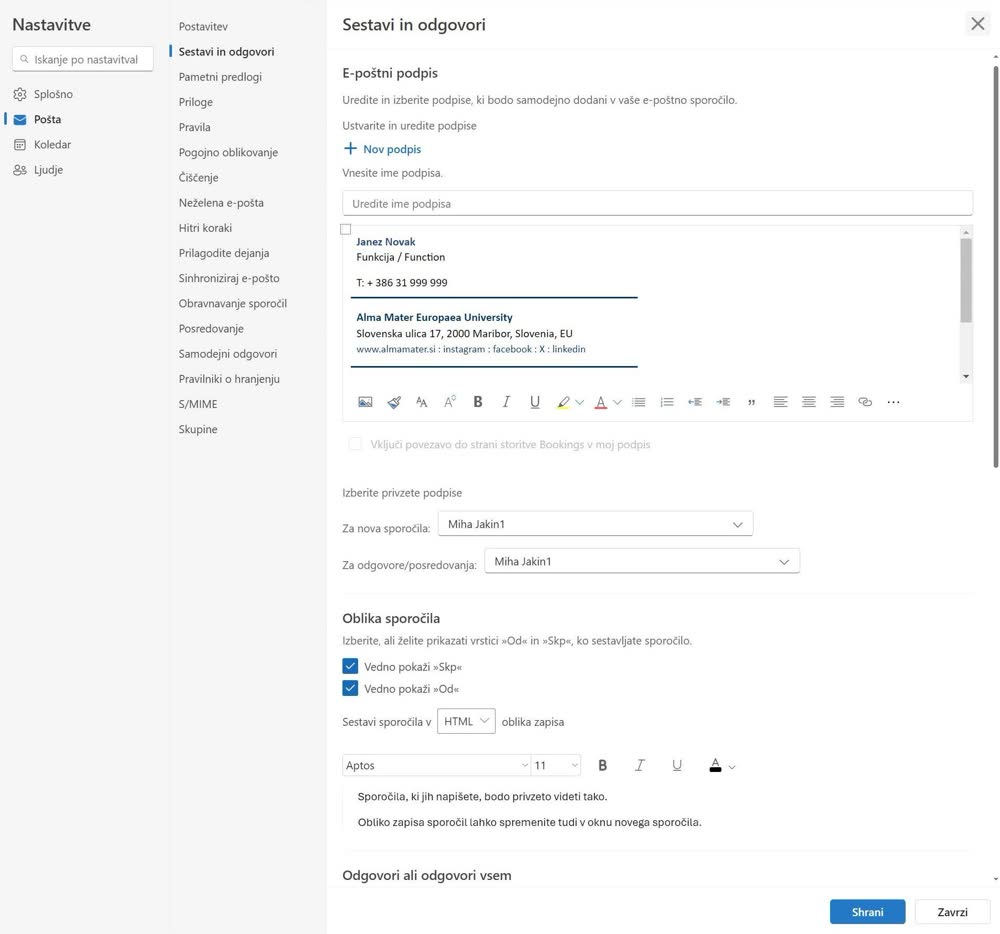
Enter your phone number
Replace the “T” field with your phone number.
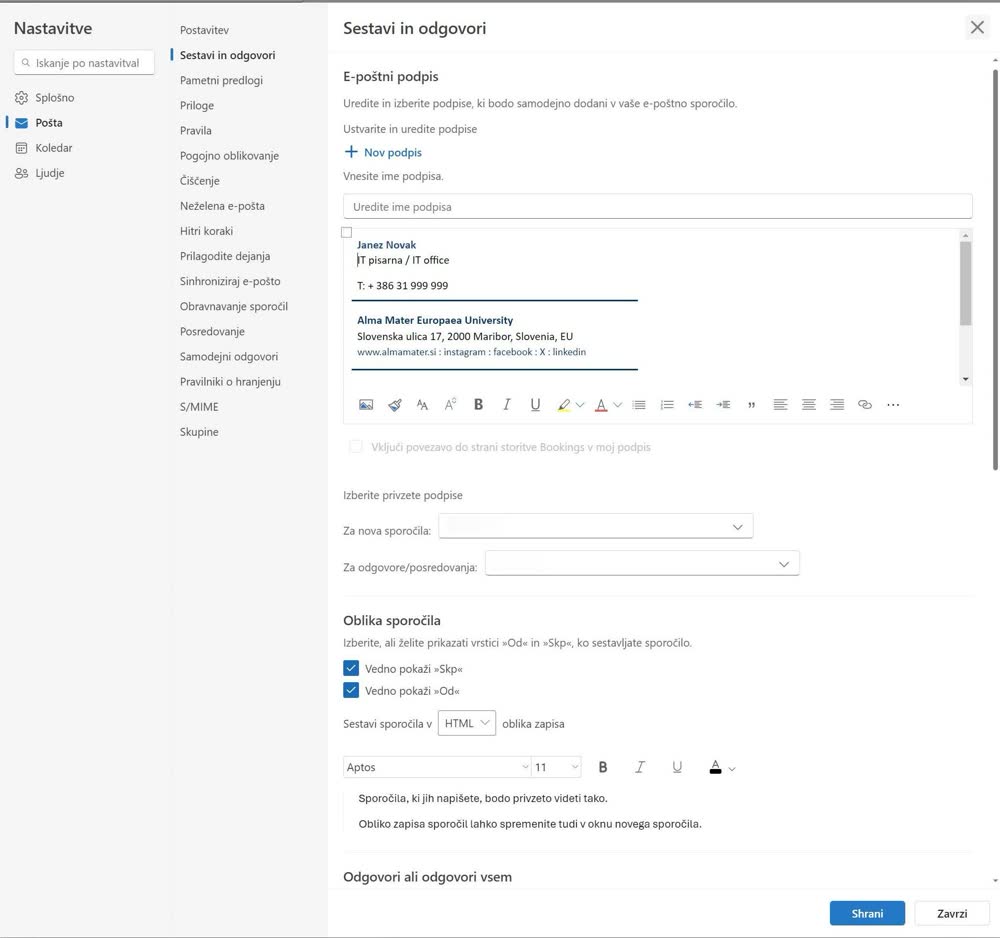
Name the signature
Edit the signature name.
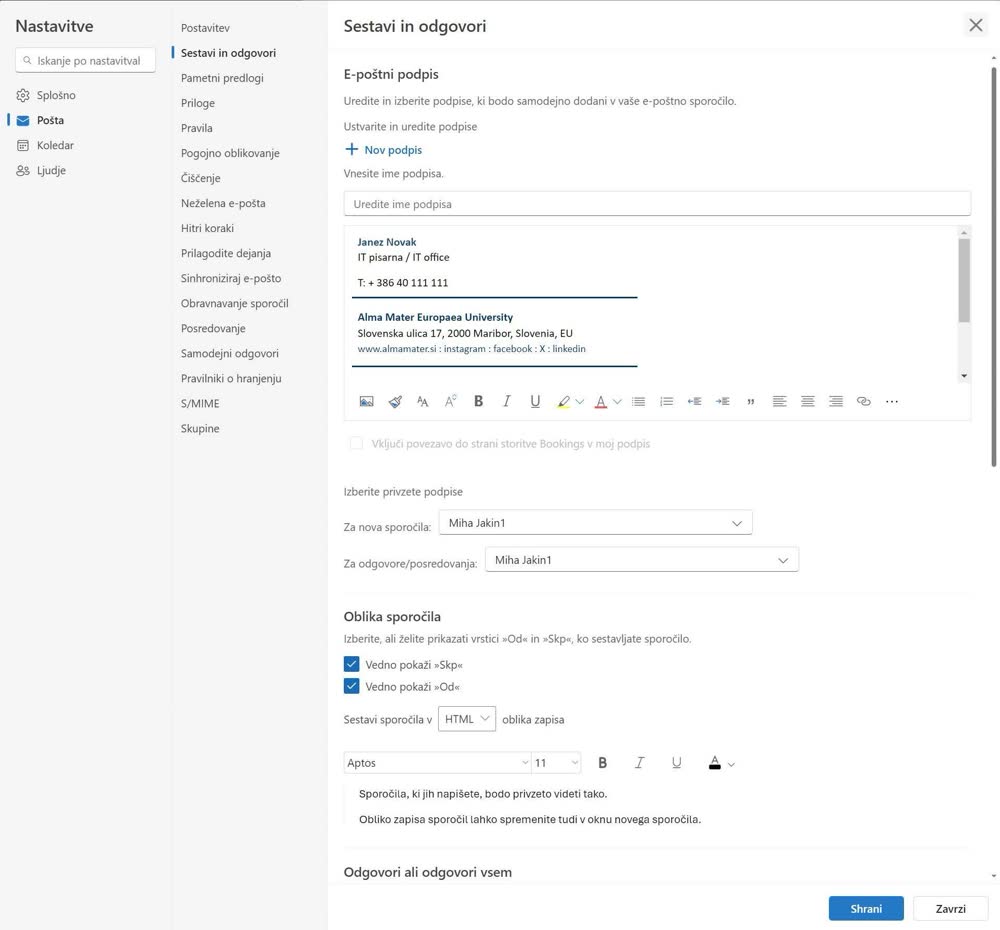
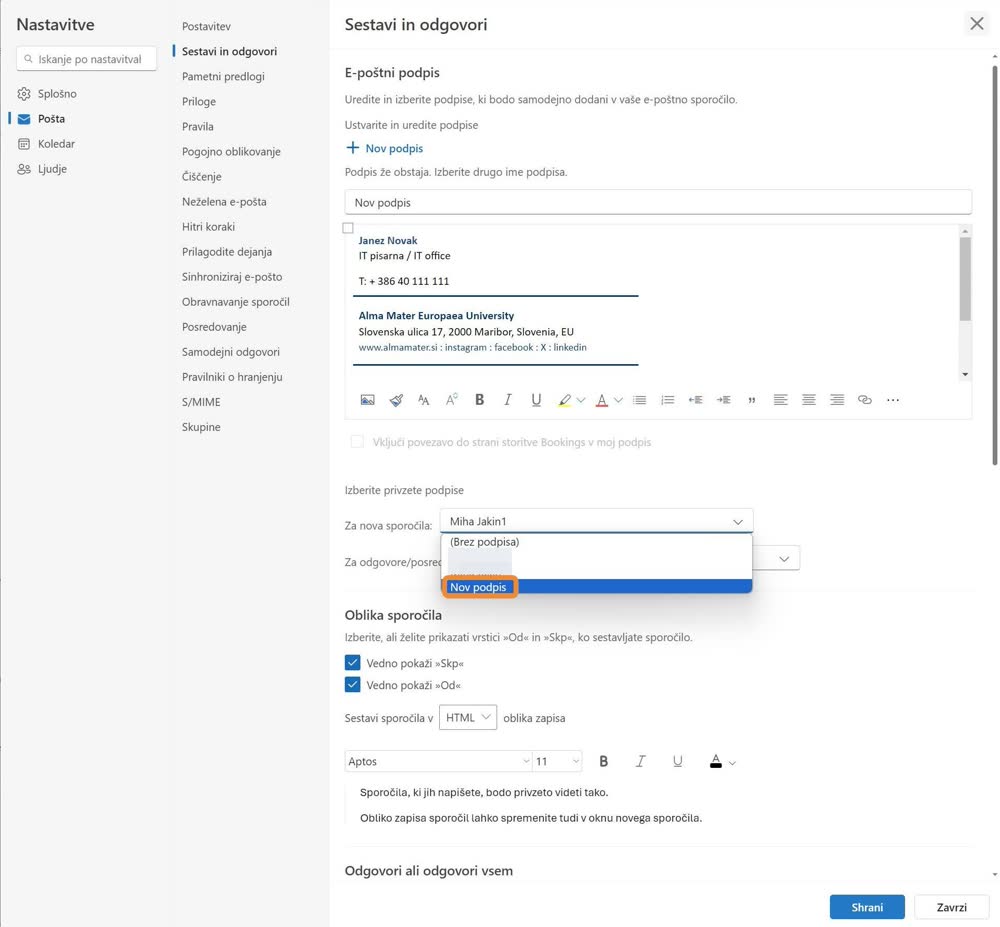
Default signature for new messages
Choose the default signature for new messages.
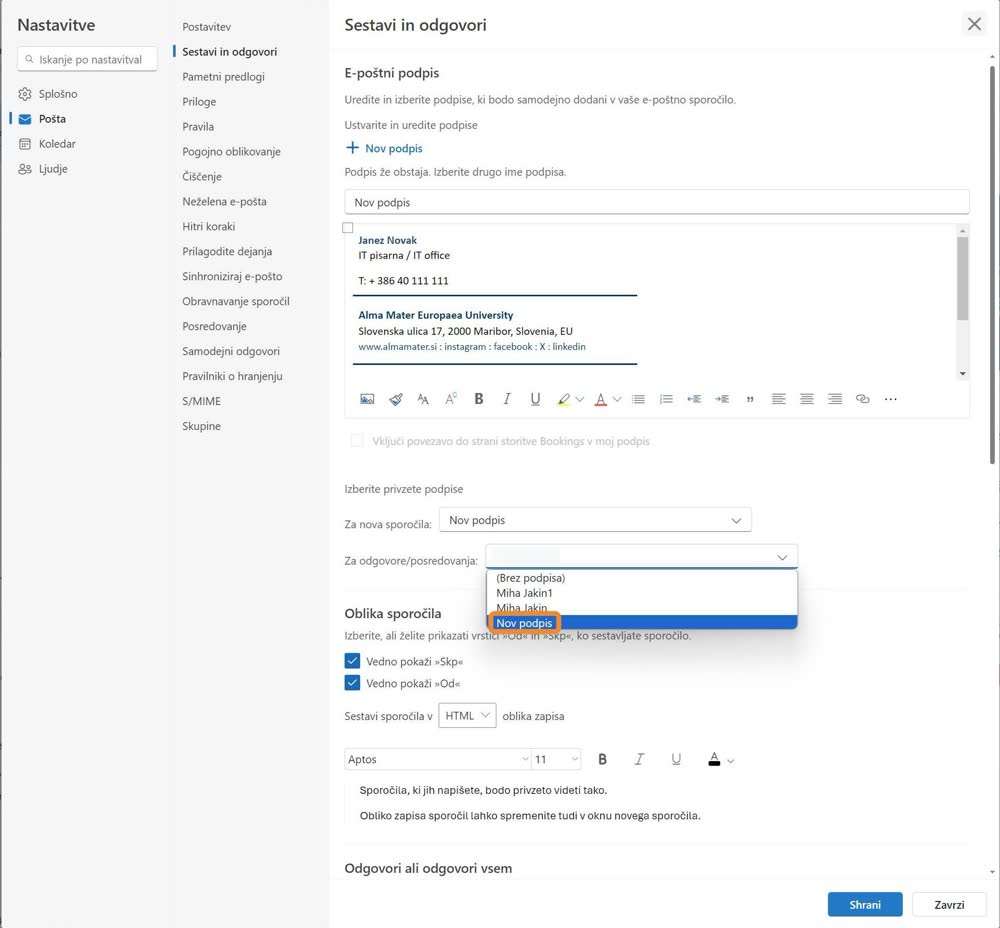
Default signature for replies
Choose the default signature for replies and forwards.
Save
Click “Shrani” (Save).
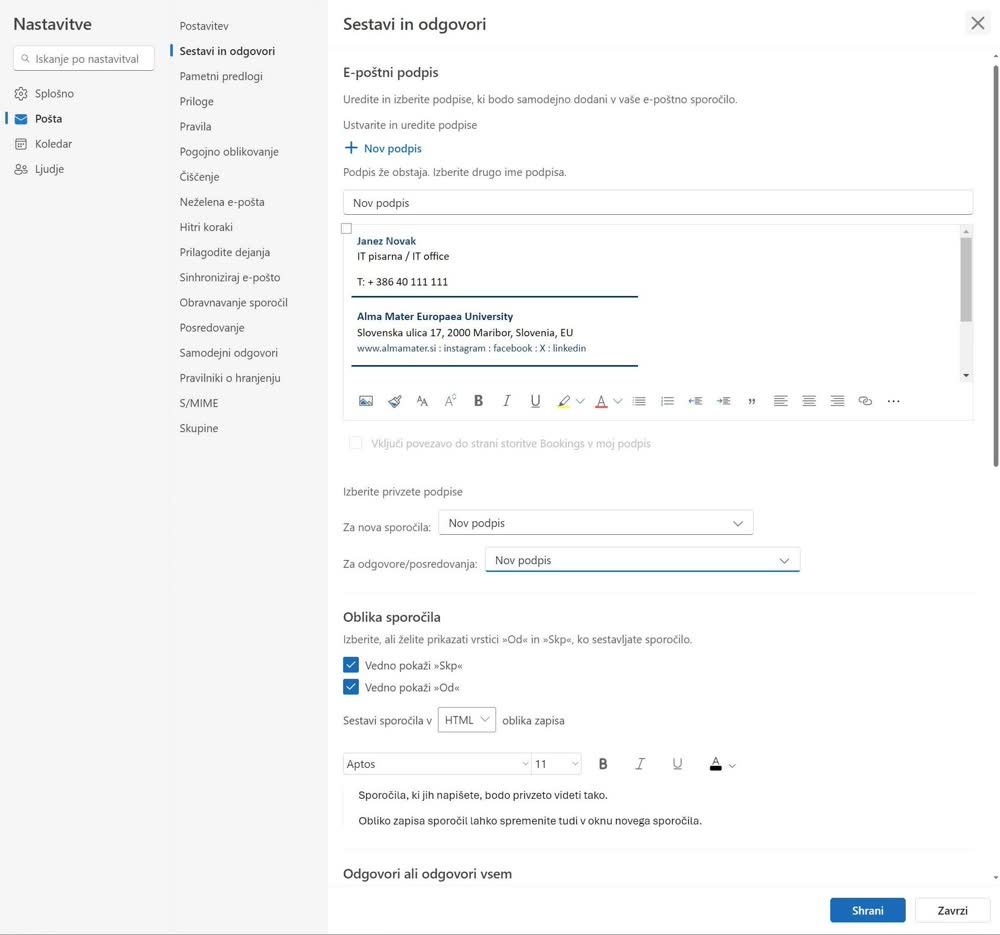
Your new signature is ready to use.