
Messages sent to your university address firstname.lastname@almamater.si can be forwarded automatically to another address, for example Gmail. You can set up forwarding yourself in Outlook on the web in a few minutes, or fill in a form and we will set it up for you.
Your university address remains your official address. Lecturers, the Student Office and university services write to it; forwarding simply delivers the messages to another address as well.
Step-by-step instructions
Sign in to Outlook on the web
In your browser, open outlook.office.com and sign in with your university email address and your digital identity password.
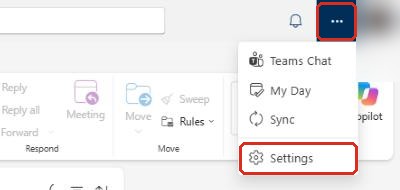
Open Settings
In the top right corner, click the three dots »…« and choose »Settings«. Shortcut: open the forwarding settings directly and continue with step 4.
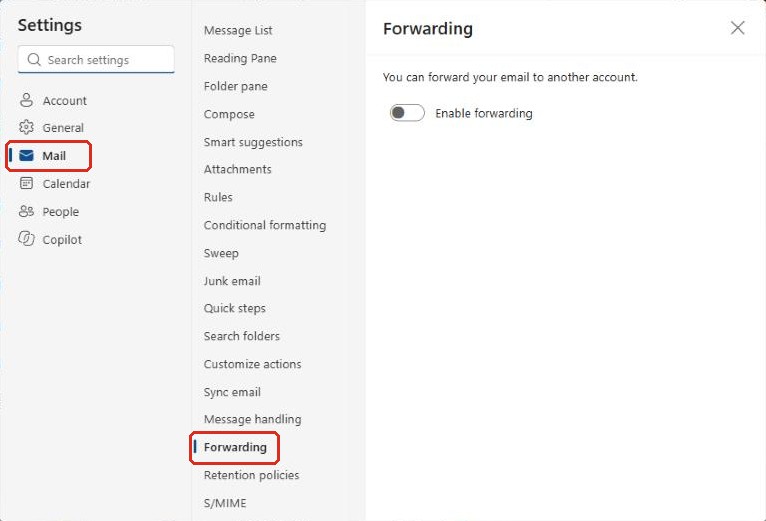
Choose Mail and Forwarding
In the left column, choose »Mail«, then »Forwarding«.
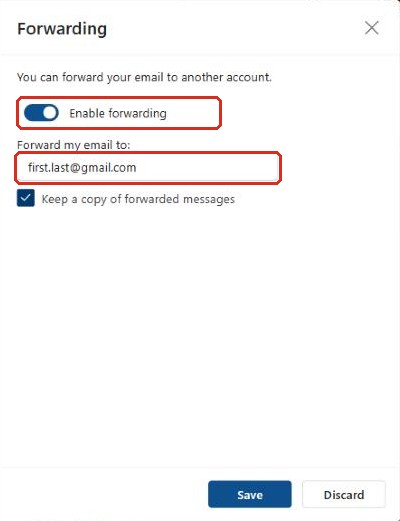
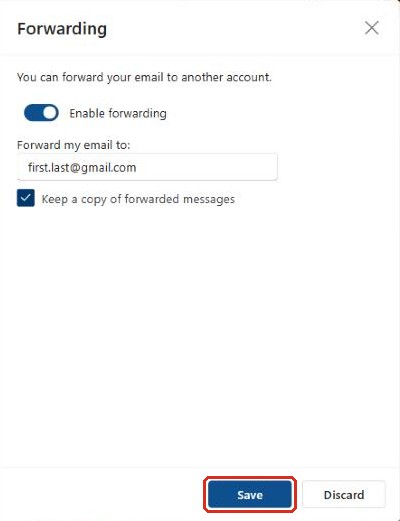
Turn on forwarding and enter the address
Turn on »Enable forwarding« and, under »Forward my email to«, enter the address where you want to receive your mail. Check that it is spelled correctly.
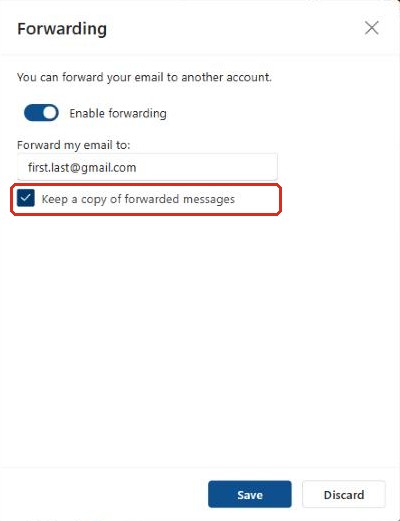
Keep a copy of your messages
»Keep a copy of forwarded messages« is already selected; leave it that way. All messages then stay in your university mailbox as well, so you do not lose any if the other provider rejects them.
Save
Click »Save«. Forwarding starts working within a few minutes.
To test it, send a message to your university address from a different address, not the one you forward to. Gmail does not show messages you sent to yourself in your inbox.
Turning forwarding off
Repeat the first three steps, turn off »Enable forwarding« and click »Save«. Messages will again arrive only in your university mailbox.
Would you like us to set it up?
Fill in the forwarding form and we will set up forwarding for you. To turn it off, write to support@almamater.si or use the »Report an issue« button.
Good to know
- You can forward your mail to one address only.
- The Outlook mobile app has no forwarding setting. Use Outlook on the web in your browser, also on your phone.
- If a message did not arrive at the other address, look for it in your university mailbox, including the »Junk Email« folder. Providers such as Gmail sometimes reject forwarded mail or mark it as spam.
- Did you receive a non-delivery report that mentions your other address (e.g. gmail.com)? The message did arrive in your university mailbox; only the other provider rejected it during forwarding.
- Reply to messages from lecturers and the Student Office from your university address. A reply from a private address is harder for the recipient to recognise and may end up in spam.