
IT services supporting the educational process
Increase the security of your account with an additional identity verification step.

In today’s digital world, security is crucial for businesses and their data.
The steady rise in cyber-attacks and identity theft poses a serious threat to organizations of all sizes.
In this situation, it is essential to ensure effective security measures to protect sensitive information such as business data, customer financial data, intellectual property and other important data.
One of the key methods to increase security is to use multi-factor authentication (MFA).
MFA is a security mechanism that requires more than one factor of identity verification when accessing accounts and systems.
While traditional authentication methods such as using only passwords are becoming less reliable, MFA provides businesses with additional protection against attacks and unauthorised access.
To make it easier to understand the content of the document, let’s define the terms that will be used in the following chapters.
|
The concept |
Explanation |
|
Authentication |
In computing, authentication is the process by which a server makes sure that a user is really who they say they are. |
|
Authentication app |
An app installed on your smartphone to confirm a new registration. |
|
Authentication method (enrollment method) |
The authentication method is the authentication security mechanism that will be used to authenticate new logins to your profile.
|
|
Multi-Factor Authentication (MFA for short) |
Multi-factor authentication is an additional security mechanism to give your profiles a higher level of security. |
|
PIN number |
A four- or multi-digit number that can serve as a security mechanism as an alternative to a password. |
The following section explains how to set up MFA for a service user account.
In the presented example, we used a mobile smartphone with Android operating system and a PC to add security mechanisms.
If you don’t have a smartphone, you can use a regular mobile phone (text, call) or a landline or security key.
Once you have set up MFA with at least one of the security mechanisms, please fill in the form on the link that manages user accounts to activate MFA validation on your user profile.
You can do this via the following form: https://bit.ly/MFA-aktivacija
If you have any problems, you can always contact IT Support: support@almamater.si
Open Office.com in the web browser of your choice and log in with your profile (user/student account):
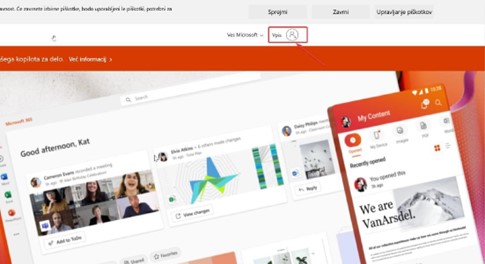
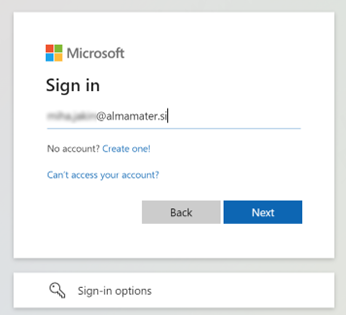
The website redirects you to the login screen, enter your username and select Next:
Once you’ve successfully logged in, you’ll be on the website, where you can select Options and then Update contact settings.

We are then redirected to the MyAccounts page (in case it doesn’t redirect us, we adjust the LINK) and select Security Details:

Select “Add a way to enroll”.
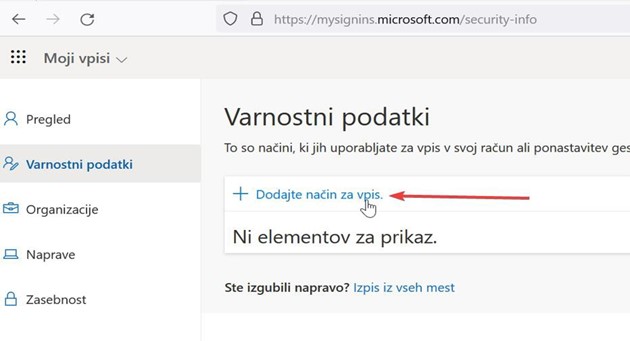
There are several ways to enroll:
|
Autentikator app |
Works on Android, iOS smartphone |
Recommended method |
|
Phone |
Code by SMS or call |
Recommended as an alternative instead of or in place of a smartphone |
|
Replacement phone |
Code by SMS or call |
Alternative in case you can’t use your mobile phone |
|
Business phone |
Call |
Alternative mode in case of inability to use the axle. |
|
Security key |
USB stick, biometric authentication |
The security key must be inserted in the device at the time of enrollment. |
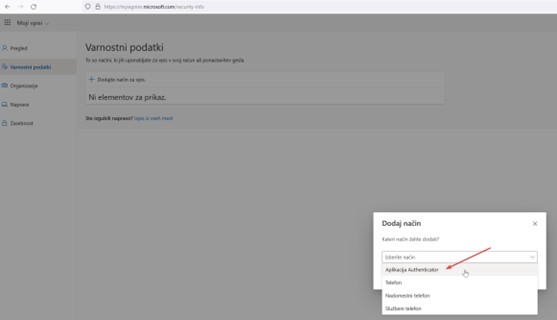
After selecting Add a method to sign in on your computer, we are presented with all the possible authentication methods that we can choose.
If we want to edit the authentication using the Authenticator application, we select the Authenticator application option:
And we continue with Add:
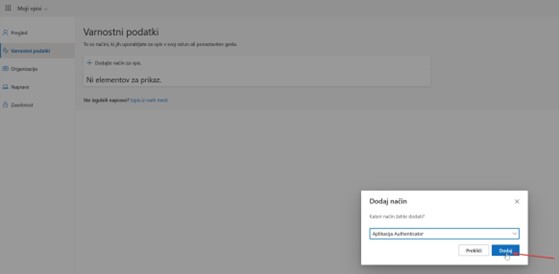
At this point, a window will pop up where we will select the next step, depending on the application we want to use.

We recommend that students use Studo instead of the default Microsoft Authenticator app.
Follow the steps below to add this method:
Click on “I want to use another authentication app” (I want to use a different authenticator app) (at the bottom of the dialog) and click Next.
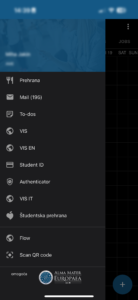
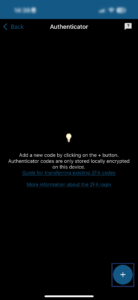
3. Scan the code that appears on your laptop.
→ The new authentication code will appear in the Studo app.
4. Click Next on your laptop, enter the code shown in the Studo app and confirm.
Read more about Studo Authenticator here: Studo Authenticator.
Leave the window open on your computer and take out your smartphone. You can download the Microsoft Authenticator app from HERE.
Once the app has been successfully installed, we open the app and accept the privacy terms:
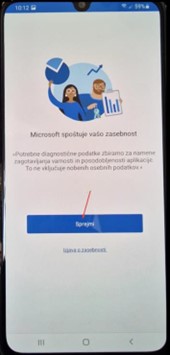
Leave it unticked and select Continue:
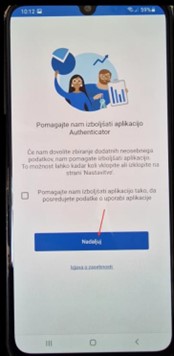
After successful installation, we open the application and accept the privacy terms:
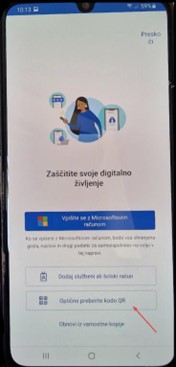
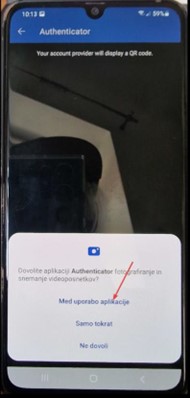
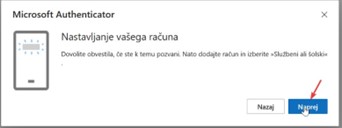
Go back to your computer to the window that is still open, select Next and the QR code will appear on your monitor.
Scan this QR code with your smartphone:
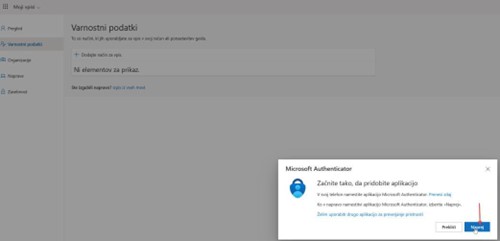
Once scanned, select Next on your computer and OK on your smartphone.

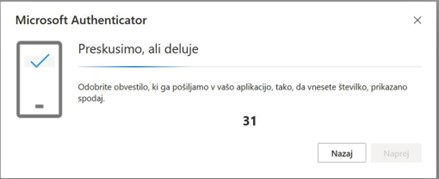
A number appears on your computer, which you enter into an app on your smartphone:

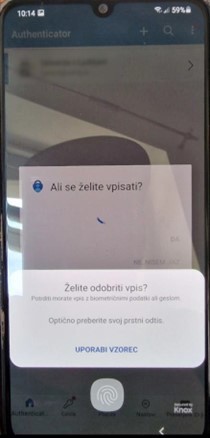
If we have configured a smartphone lock, we need to authorize enrollment using one of the pre-set security methods:
If we have done everything correctly, we are notified of the success on the computer:
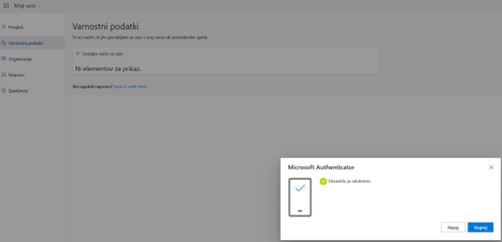
This is how we added the authentication method using the Authenticator application.
If you want to add SMS or some other method, you can continue reading the instructions.
You are on (https://myaccount.microsoft.com/settingsandprivacy/privacy) and select Add enrollment mode:
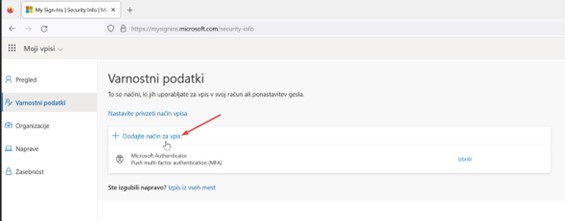
Select the Phone option:
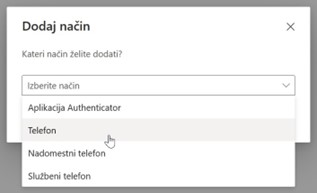
Enter the phone number and select “Send me the code in a text message”.

Take your mobile phone, wait for the SMS message to arrive and type the 6-digit, time-limited number into the window on your computer:

If the correct 6-digit code is entered, we get a confirmation that the added authentication method was successful:
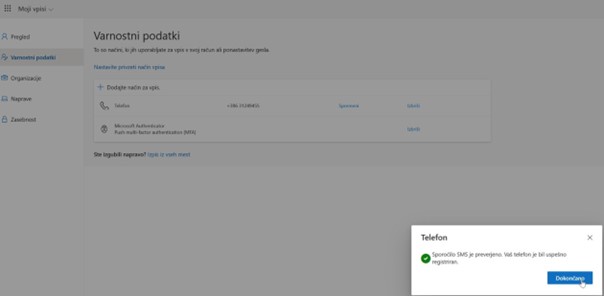
The authentication methods set up for our profile can be seen on the website (https://mysignins.microsoft.com/security-info), where we can change the default login method .
The default method will still be used as the first offered, i.e. preferred authentication method. In any case, you can always choose between the other modes you have previously set up each time you sign in.
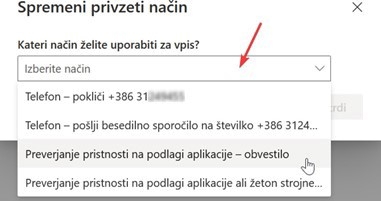
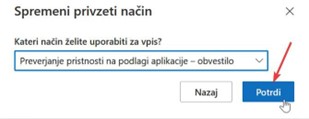
The default authentication method is set as follows:
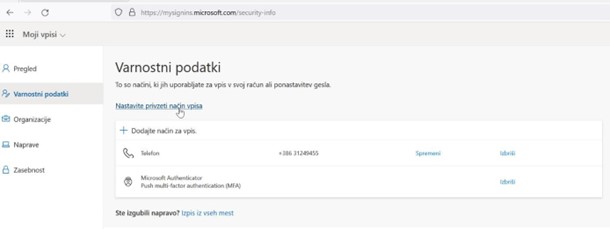
Select a mode from the drop-down menu:
If you have lost or had stolen the device you use for enrollment – MFA, click on “Logout from all sites” to log out of your devices.
Staff members should contact the ICT Service at support@almamater.si.
Have a question or issue? Submit a form and we'll get back to you as soon as possible.
Report an issueStart typing to search