
Important: If you use other Microsoft accounts (e.g. from other institutions or for personal use), we recommend signing in with your Alma Mater account either in incognito mode (private browsing) in your browser, or using another browser where you are not signed in to Microsoft services.
Step-by-step instructions
Sign in to Microsoft 365
On your computer, visit login.microsoftonline.com and sign in with your Alma Mater digital identity (email address and password).
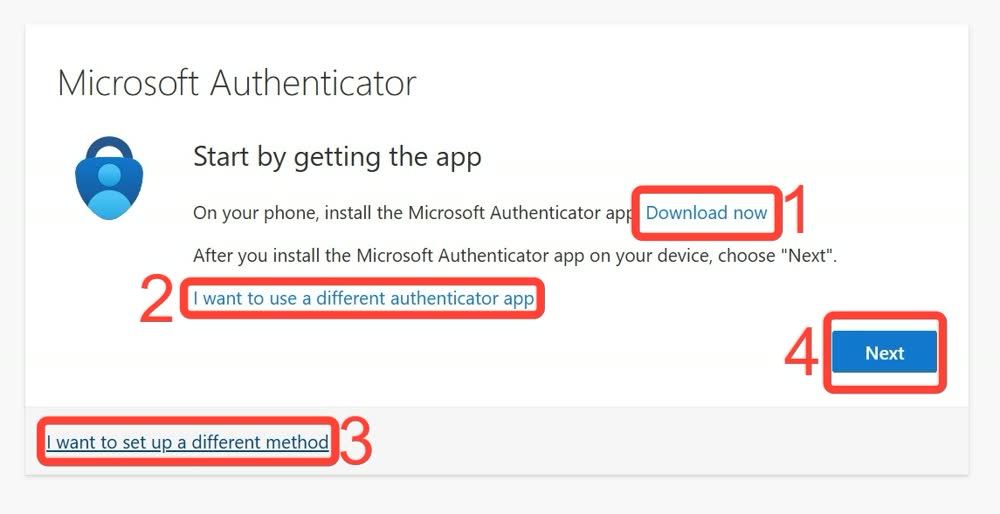
Install Microsoft Authenticator
If you haven’t already installed the free Microsoft Authenticator app, you can download it from this Microsoft website.
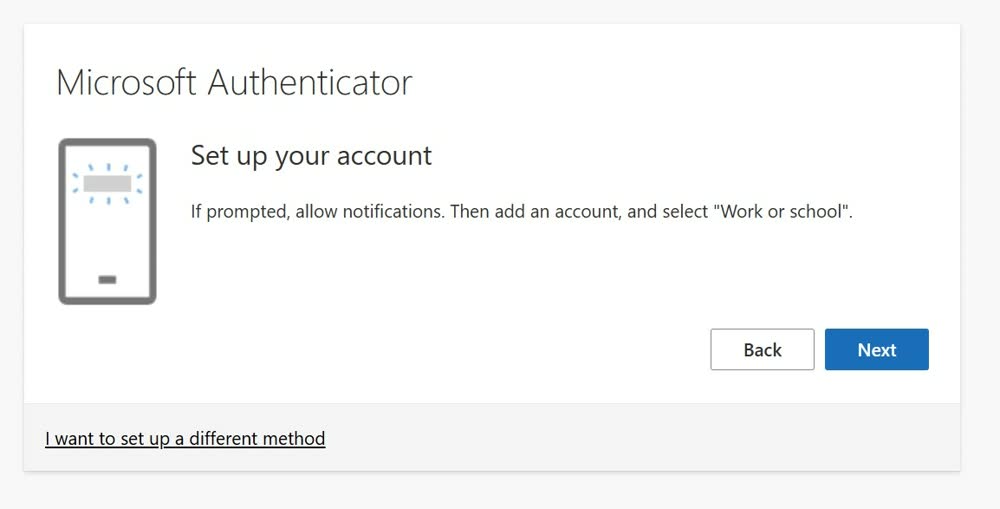
Approve notifications
This notification prompts you to approve notifications from Microsoft Authenticator on your phone. Click “Next”.
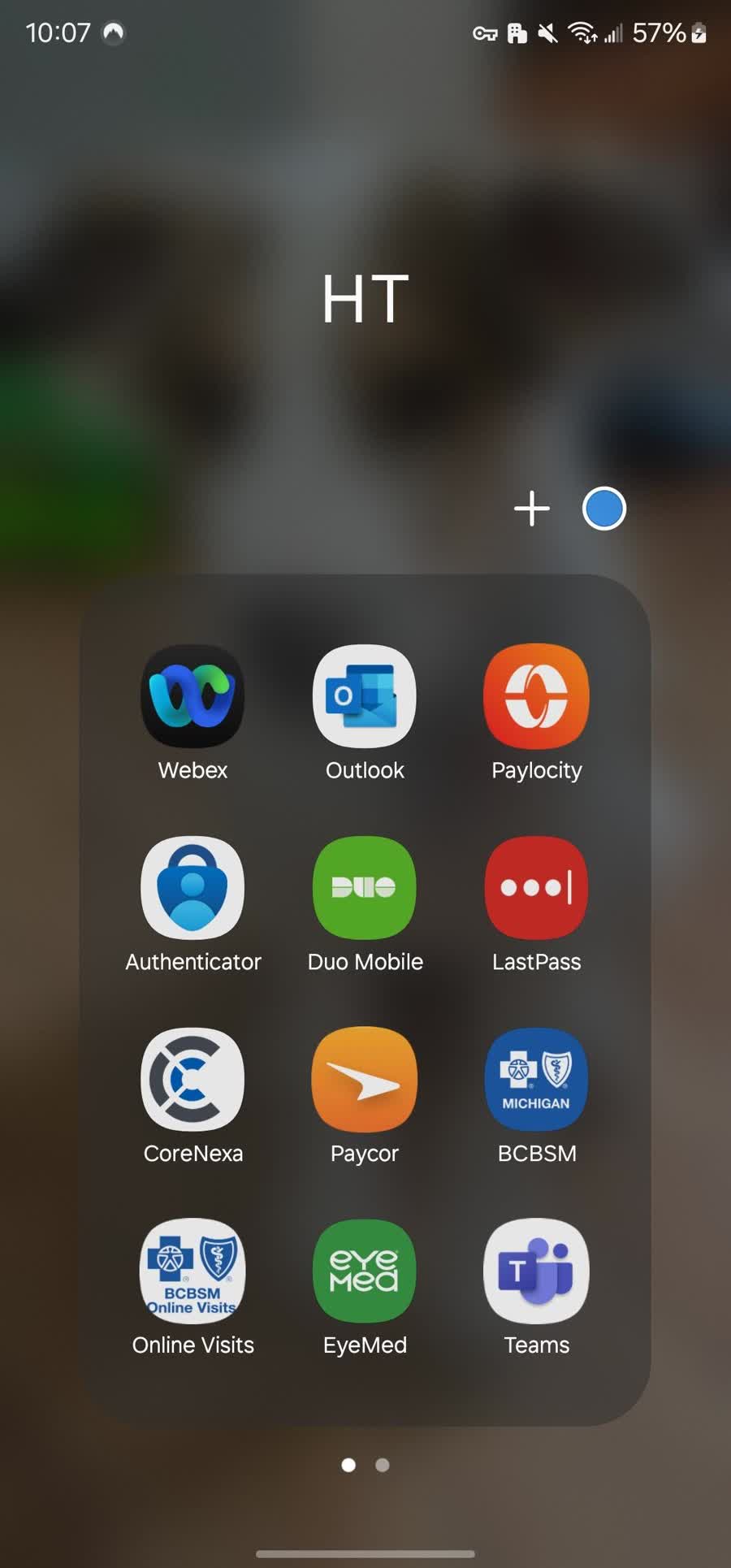
Open Microsoft Authenticator
Open the free “Microsoft Authenticator” app on your phone.
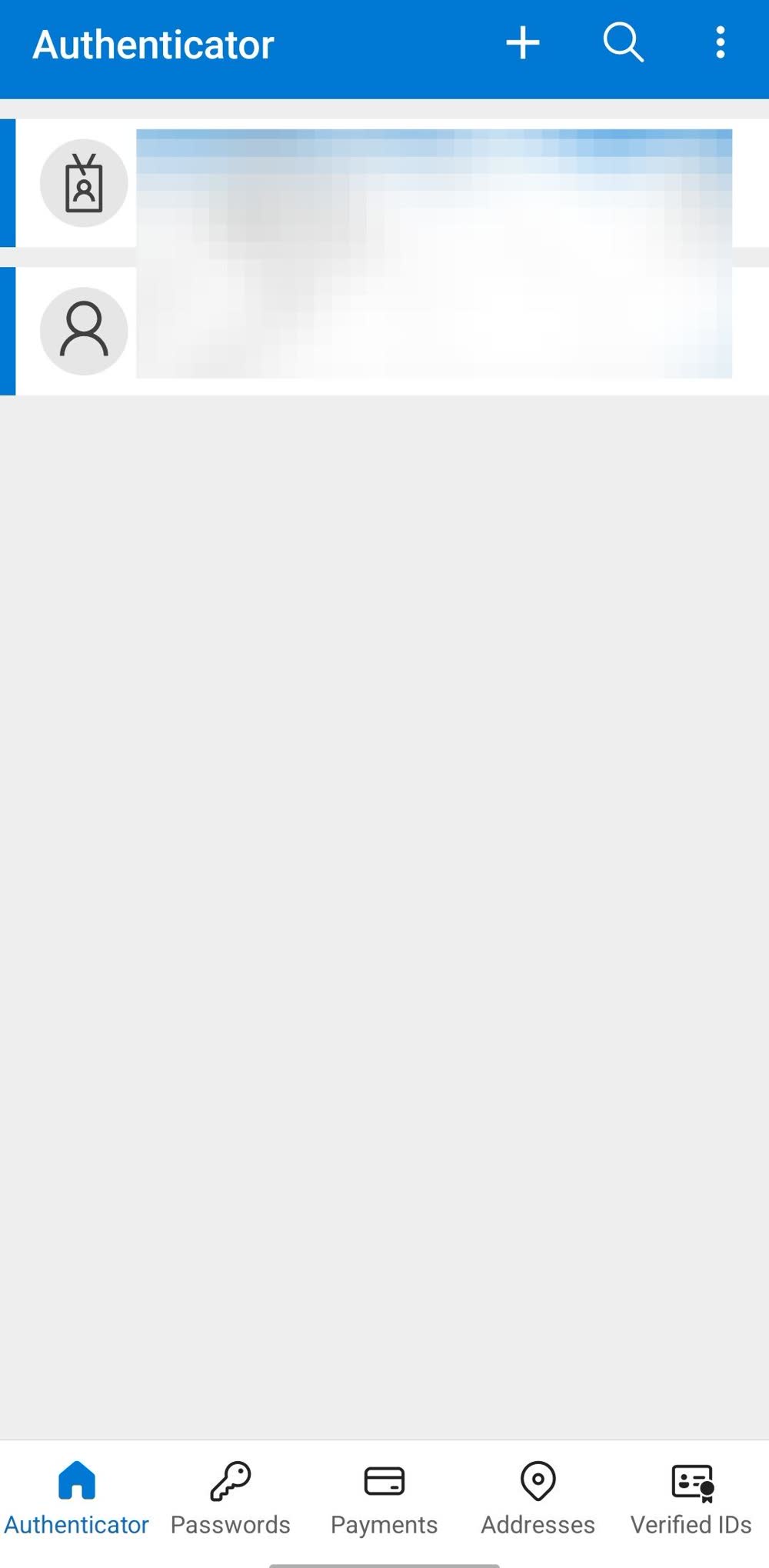
Add a new account
Tap the “+” sign to add a new account.

Choose work or school account
Tap “Work or school account”, then “Scan a QR code”.
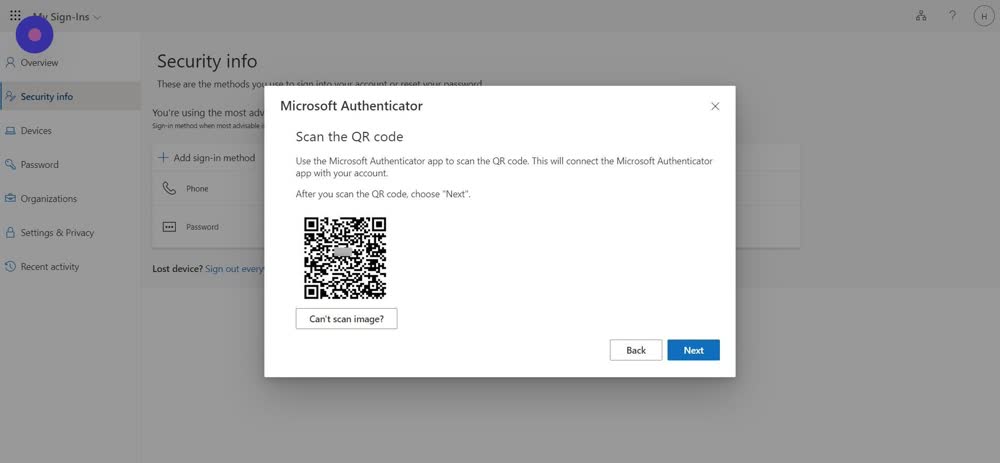
Scan the QR code
Using your phone, scan the QR code shown on your computer screen and select “Next”.
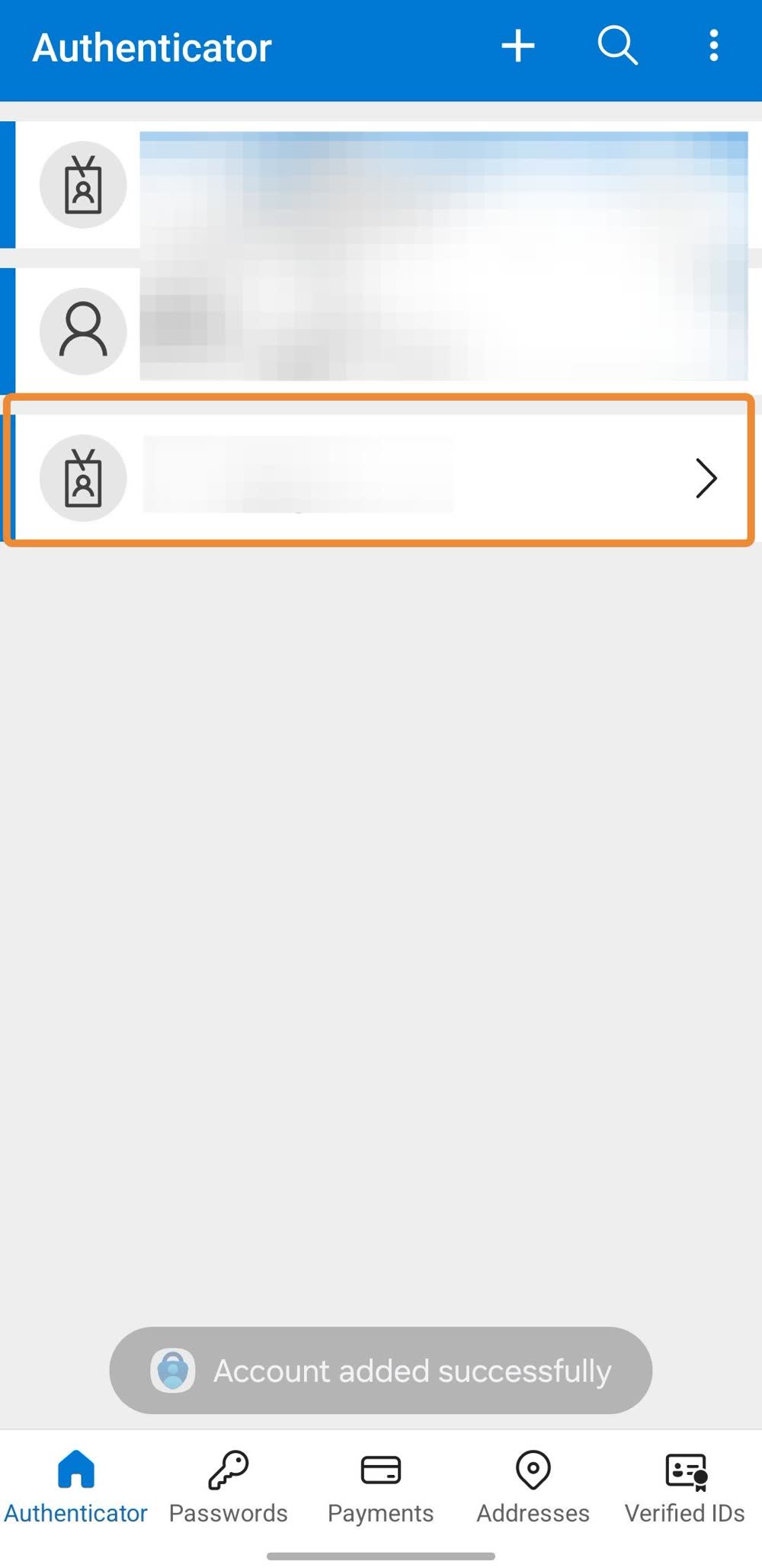
See the new account in the app
You should see the new account on the authenticator app’s home screen.
Enter the verification code
A two-digit code appears on your computer screen to confirm the setup works. Type the two-digit code into your authenticator app.
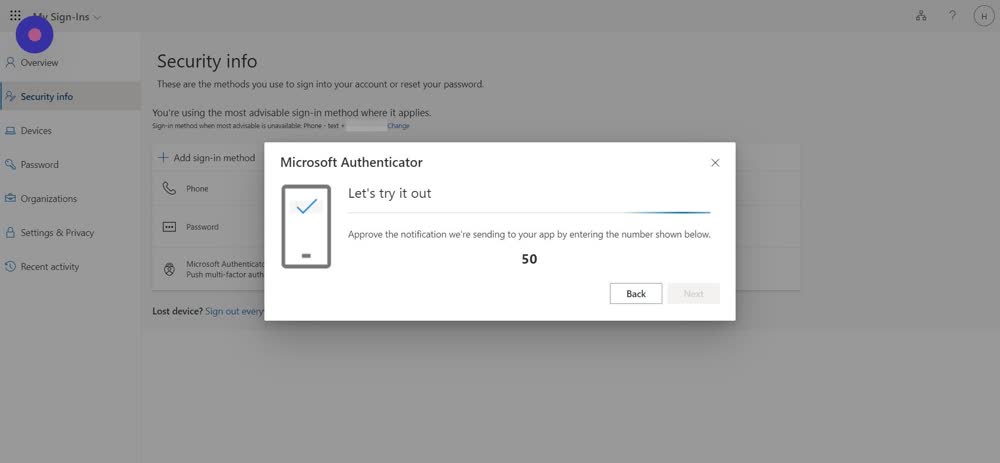
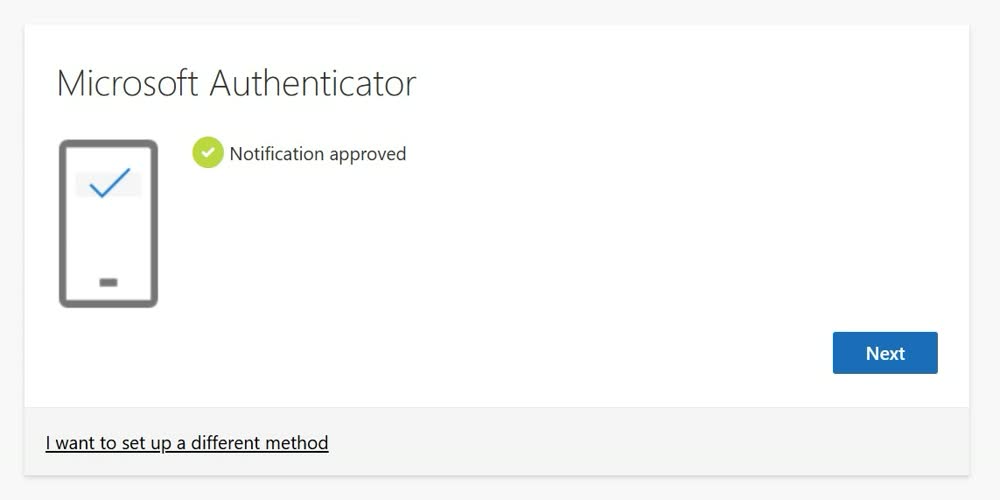
Approve the notification
Select “Next” once the notification has been approved.
Finish the setup
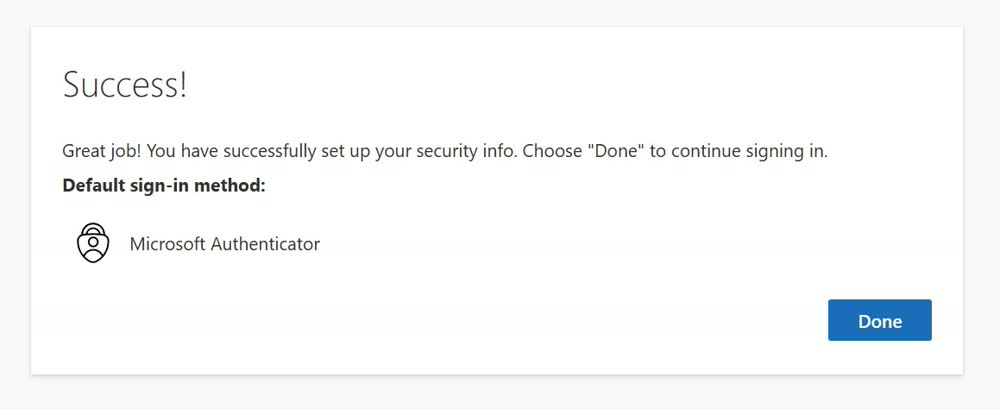
You have successfully completed the setup of multi-factor authentication (MFA) for your Alma Mater digital identity. To finish the process, click “Done”.
Change settings or get help
If you want to change your security settings (e.g. add another authentication method), you can do so at mysignins.microsoft.com/security-info. For issues with multi-factor authentication (MFA), contact support@almamater.si.