
The Studo app is a web browser that students in Slovenia, Austria and Germany love to use for organizing their studies and student life. The app is optimized for mobile devices and provides simplified access to all university systems. In the Studo app, students reach the important online hubs of their university and faculty and use other services independent of the university systems.
➤ Technical details of the Studo app
How do I get started with the Studo app:
1. Download the app (LINK): The Studo app is available on the Apple App Store, Google Play Store, Amazon Appstore and Huawei App Gallery. You can reach the app via the link or by searching for “Studo” in the store on your mobile device.
2. Studo user account: The first time you open the app, “I am new to Studo” appears on screen. Click the button to sign up, review the terms of use and create your Studo profile, linked to your personal phone number. For security, after entering your details you will receive a confirmation code by SMS to activate your account.
3. Select your country, place of study and your university.
4. Sign in: Sign in to the Studo app with your Alma Mater identity (SSO).
5. Action! Sign-in is complete and you can start using your Studo profile to easily organize your studies and student life.
STUDO support:
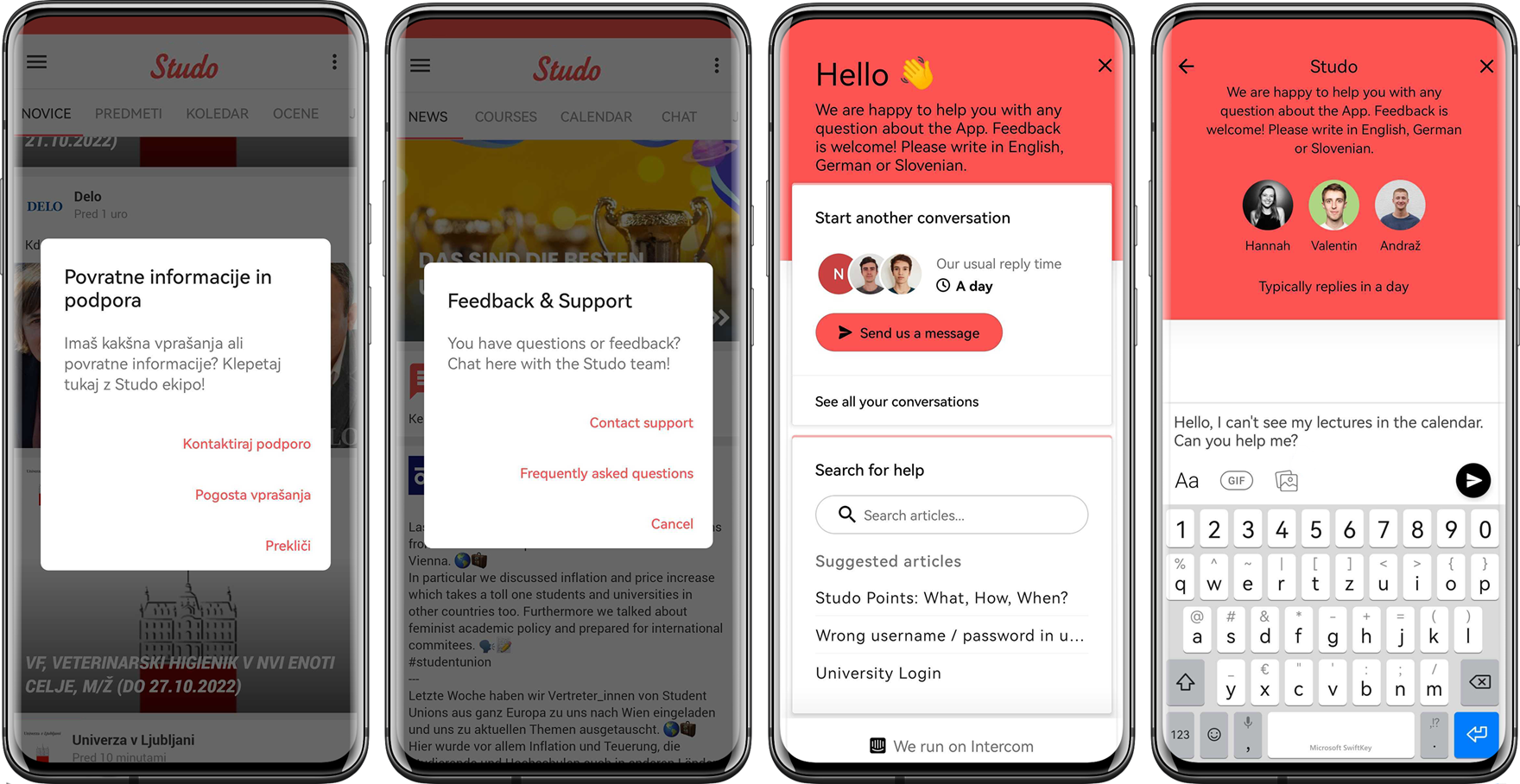
From left to right:
(1) In the top-right corner of the Studo app you can contact support.
(2) In the “Search for help” field you can find answers to frequently asked questions about the Studo app. You can also reach support from here.
(3) In this window you can contact us at any time with questions about the Studo app.
Studo app features:
📰 News: In the “News” tab students find information from their university and university representatives, plus news about everyday student life.
📧 Mail: Using the mail client, students can read, write and send university e-mail directly in the app. Students are also notified of important
e-mails via push notifications.
🎓 Courses: In the “Courses” category students find all their courses, organized by semester. A menu with information and dates for each course is also available.
📅 Calendar: The calendar shows all the courses and exams the student is enrolled in. The calendar fills in automatically.
🎓 Digital student ID: A digital student ID is available in the STUDENT ID menu.
FLOW: the web interface for recording attendance, confirming attendance and submitting attendance-confirmation requests.