Step-by-step instructions
Open the website
Open www.almamater.si.
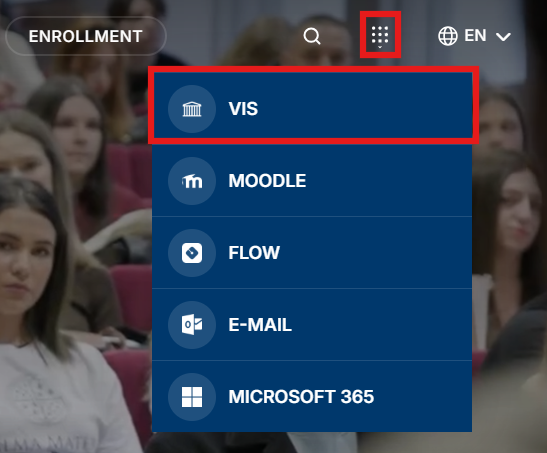
Click the “VIS” banner
Click the “VIS” banner.
Sign in with your Alma Mater Identity
Sign in with your Alma Mater Identity (your @almamater.si username and password).
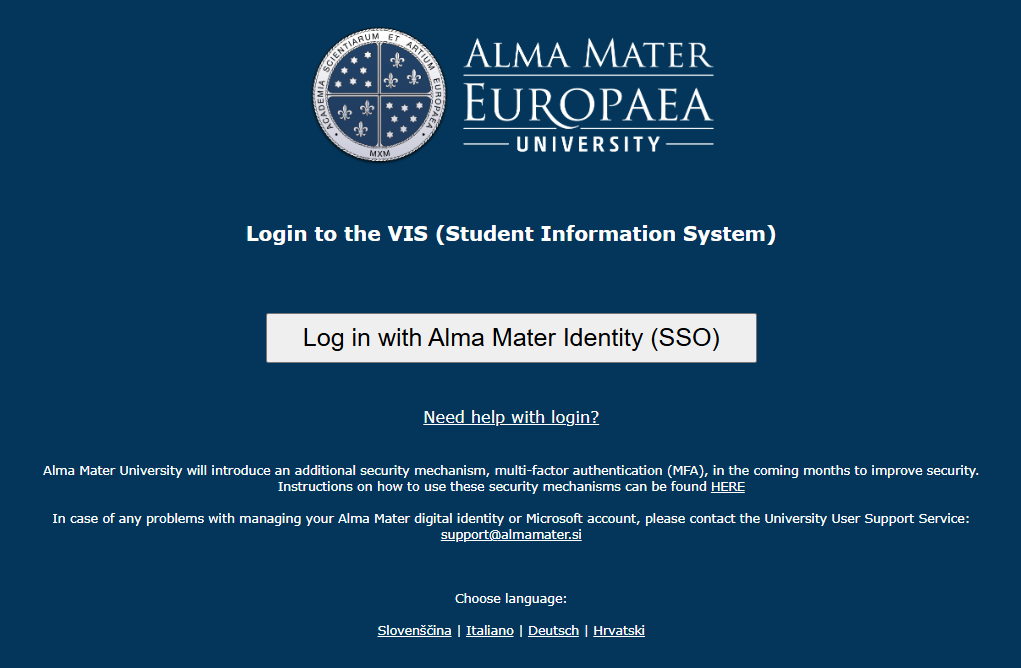
Important: If you use other Microsoft accounts (e.g. from other institutions or for personal use), we recommend signing in with your Alma Mater account either in incognito mode (private browsing) in your browser, or using another browser where you are not signed in to Microsoft services.
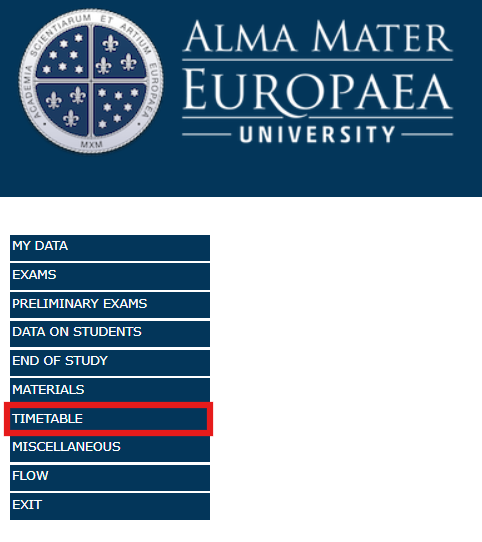
Open the timetables
Click “Timetable”, then “Timetables”.
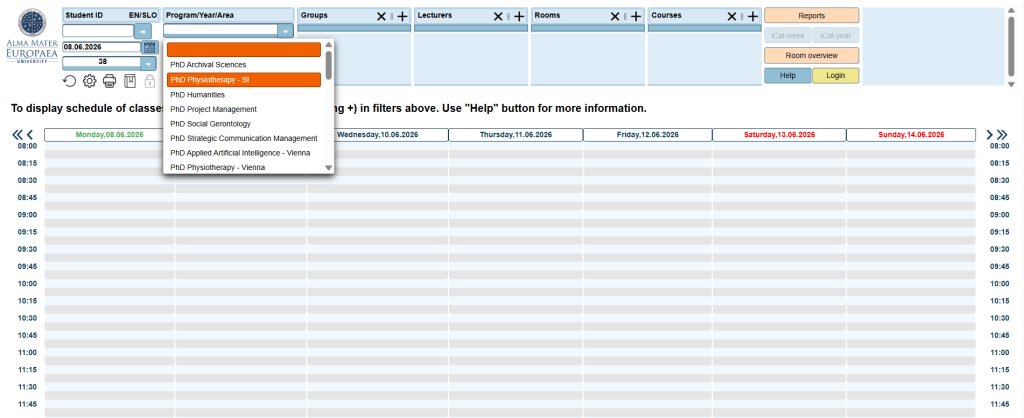
Select the timetable filters
Select your PROGRAM, YEAR, AREA and GROUPS.
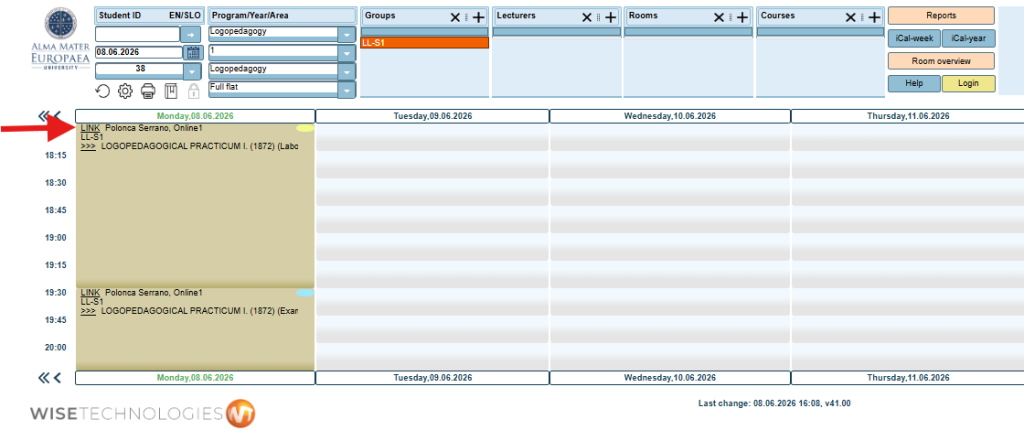
Activities with a ZOOM link
The activities will appear with a LINK to the ZOOM conference.
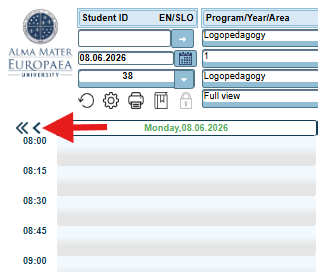
Move between weeks
To move between weeks, click here.
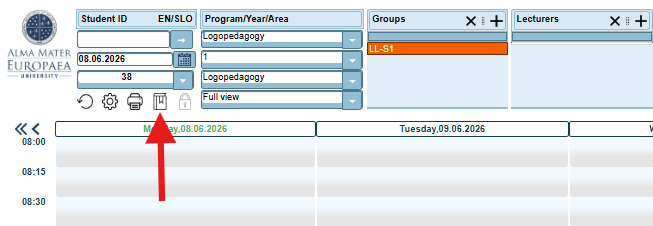
Create a permanent link
Click the quick-link icon for the timetable of the selected group, room, lecturer, or course. This creates a permanent link with the currently selected timetable filters.
Export the timetable to PDF
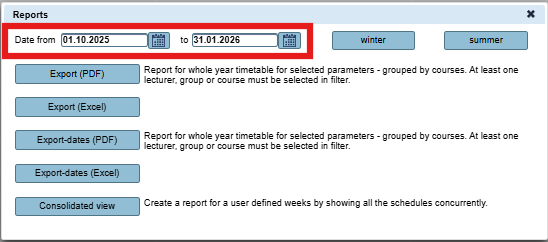
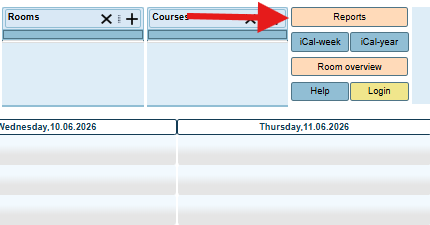
To export the timetable as a PDF, click “Reports”.
Choose the period and export format
Choose the time period and the export format (PDF or EXCEL).