
From September 21, 2026 you run online and hybrid lectures, seminar exercises, consultations, office hours and exam preparation sessions in Microsoft Teams. Some activities, for example some online exams, still take place in Zoom; the button in the timetable opens the right application (see ZOOM video conferencing).
Where to find the link
The meeting link is in the Wise Timetable at the activity. You do not receive a Teams invitation, and we no longer send a PDF with links.
Open your timetable. Every week you receive an e-mail reminder with a button that opens your timetable. You can also open it in VIS: TIMETABLE and then TIMETABLES.
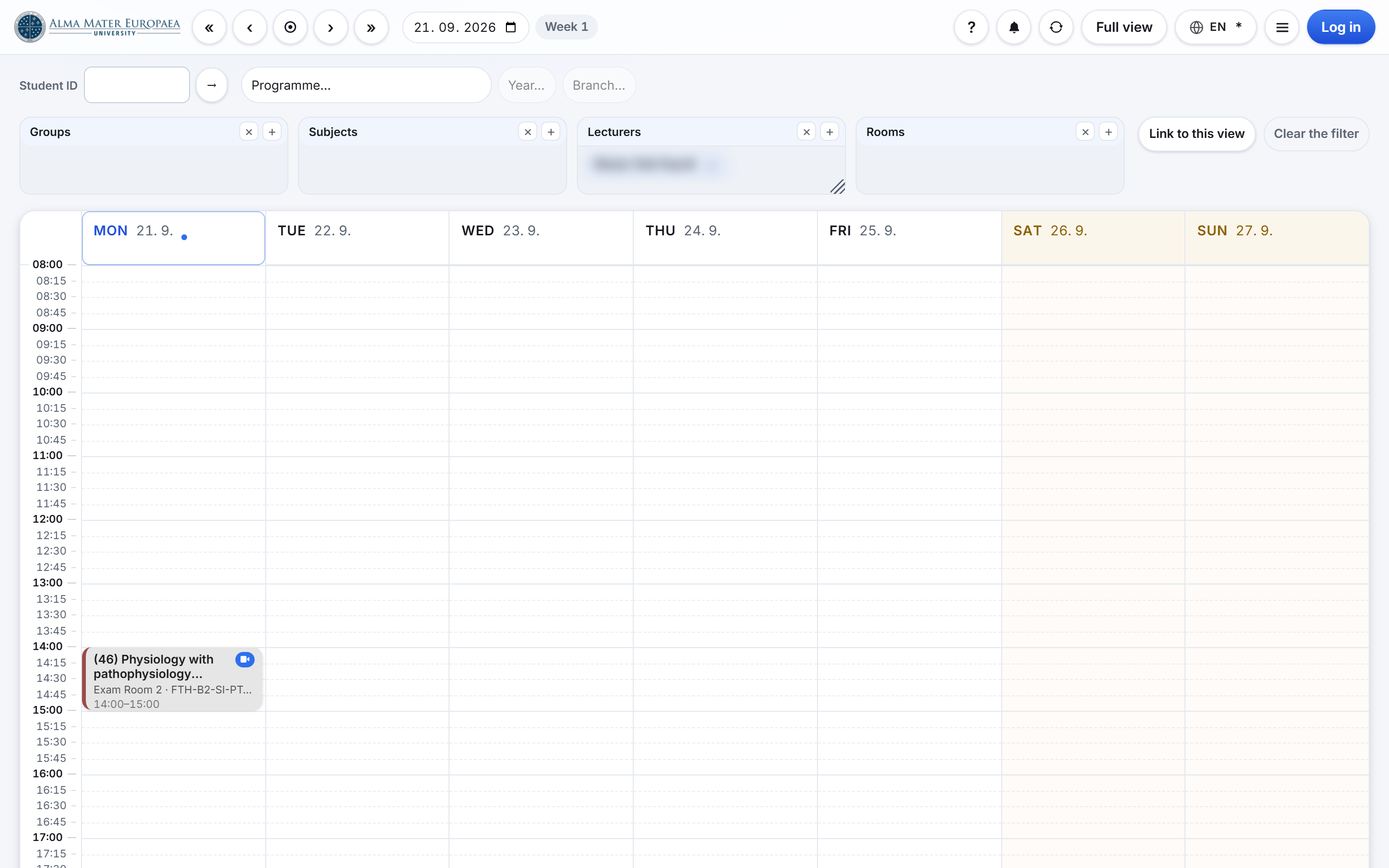
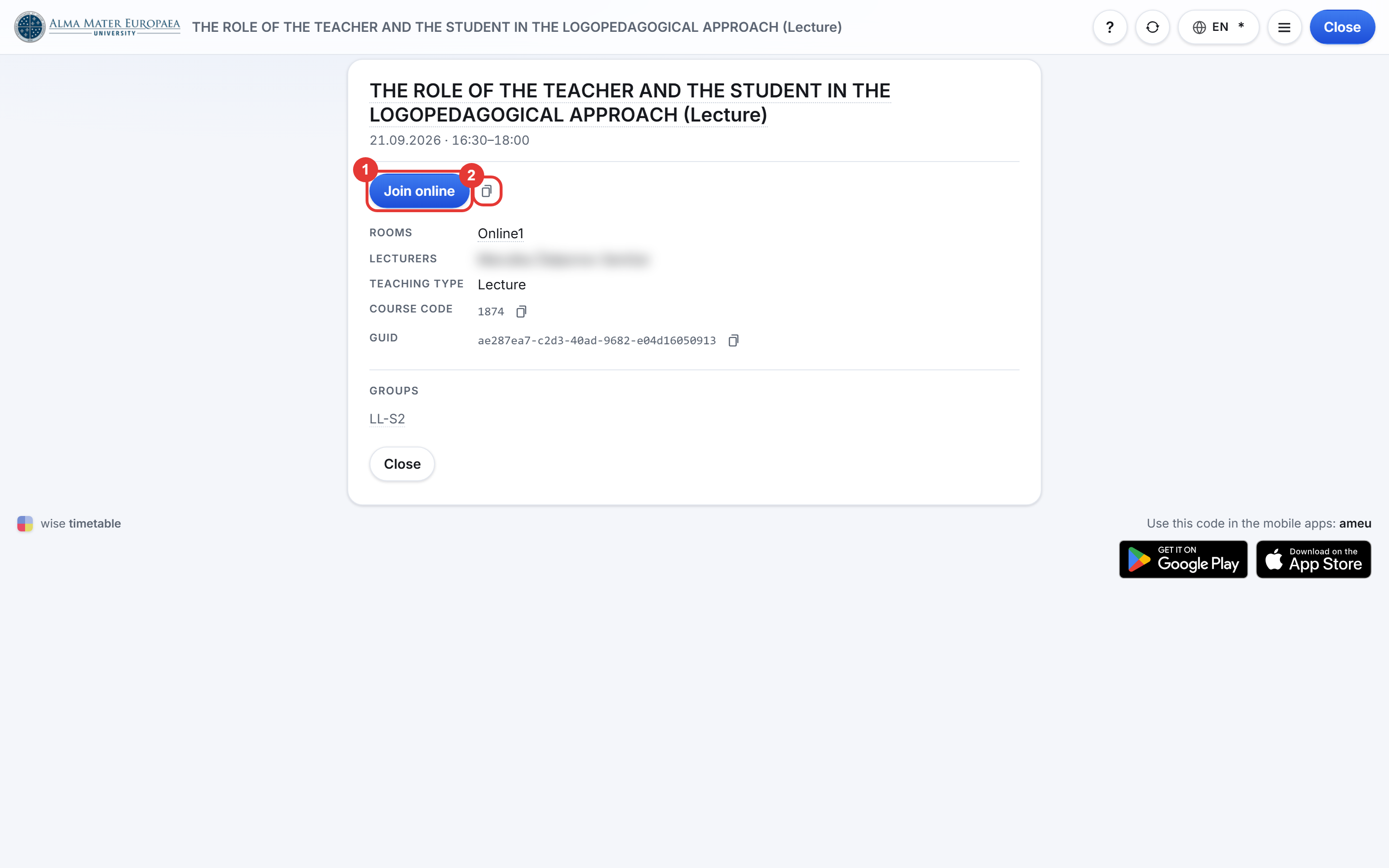
Open the activity. Click the activity card. For an online or hybrid activity it shows the Join online button, which opens the meeting in Teams. The Copy button next to it copies the link.
Other routes to the timetable (the Lecturers filter in the web timetable, a permanent link to the view and the calendar subscription in VIS) are described in the article Accessing the Wise Timetable.
Always start the meeting from the timetable. This way you use the right link even if the activity has changed.
Signing in and running the meeting
Sign in with your @almamater.si account. Only then are you, as the lecturer in the timetable, a co-organizer of the meeting.
- We recommend the Teams desktop app.
- The technician admits participants from the lobby; you can also admit them yourself if needed.
- By default, students cannot share their screen. In the list of participants, give the student who should present the presenter role.
- Microphone, camera, screen sharing and chat: see Meetings and video conferences.
Hybrid delivery in the classroom
- On the classroom computer, sign in to the Teams app with your own @almamater.si account. Sign out after the lecture.
- The technician helps you with this.
- A substitute lecturer who is not in the timetable contacts the technician.
Attendance
- You show the QR code for attendance from the FLOW system. Students sign in within the first 15 minutes and sign out at the end. Instructions are in the article Show the QR code for attendance.
- In hybrid delivery you do not show the QR code on the video conference.
Recordings
Recording starts automatically, and Teams notifies the participants. The technician publishes the recording in the course’s e-Classroom.
Change of delivery or cancellation
Report a change of the delivery mode or the cancellation of an activity to the Student Office in time.
Problems and help
- The technician helps you. In the classroom, the technician’s contact is on the lecturer’s desk. For online delivery, the technicians’ phone numbers by location are on the page IT coordinators by location.
- Common problems and solutions are in the article Troubleshooting in Teams.
- General support: support.almamater.si and support@almamater.si.