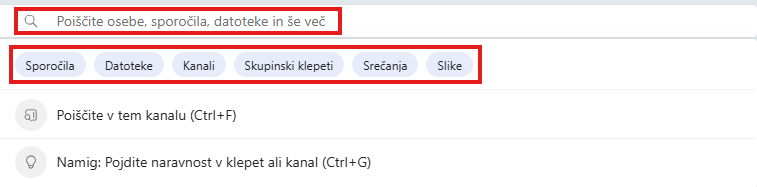
Conversations are a central part of Teams. They give every team a shared discussion that is saved and can be searched later. Conversations keep messages, shared files and links to meetings.
You can react to messages with emojis and add animated GIFs to your messages.
Starting a new conversation with a team
- Select Teams.
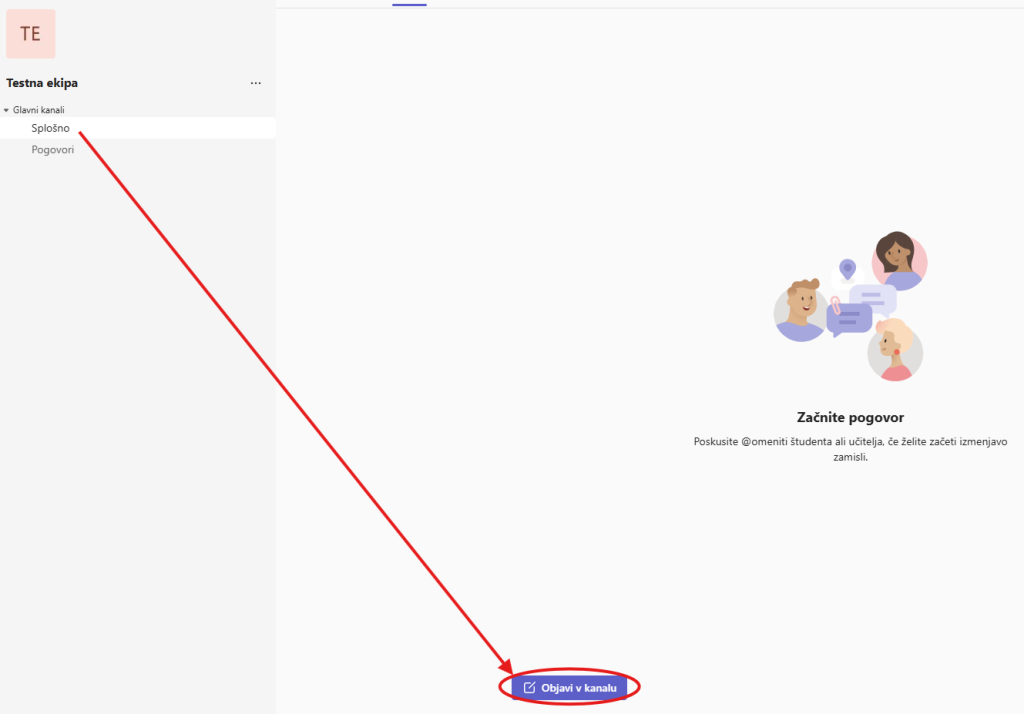
- Select the appropriate team and channel, then select Post in a channel.
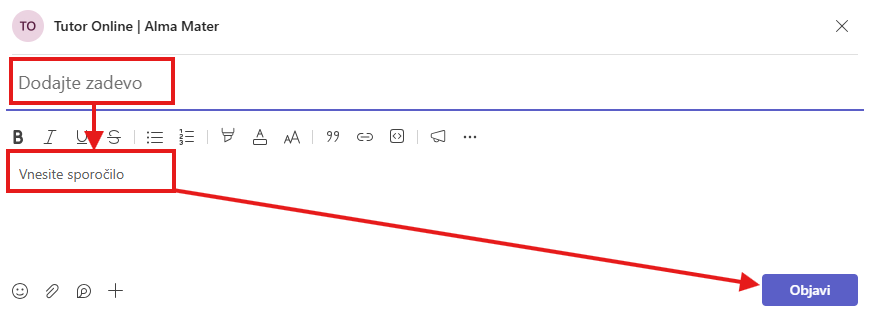
- In the new message box, enter a subject and the text.
- Click Post.
Starting a chat with a person or a group
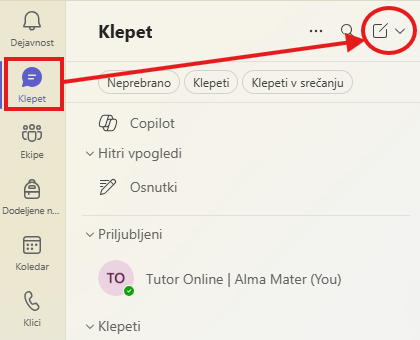
- Open the Chat section.
- Click the New chat icon.
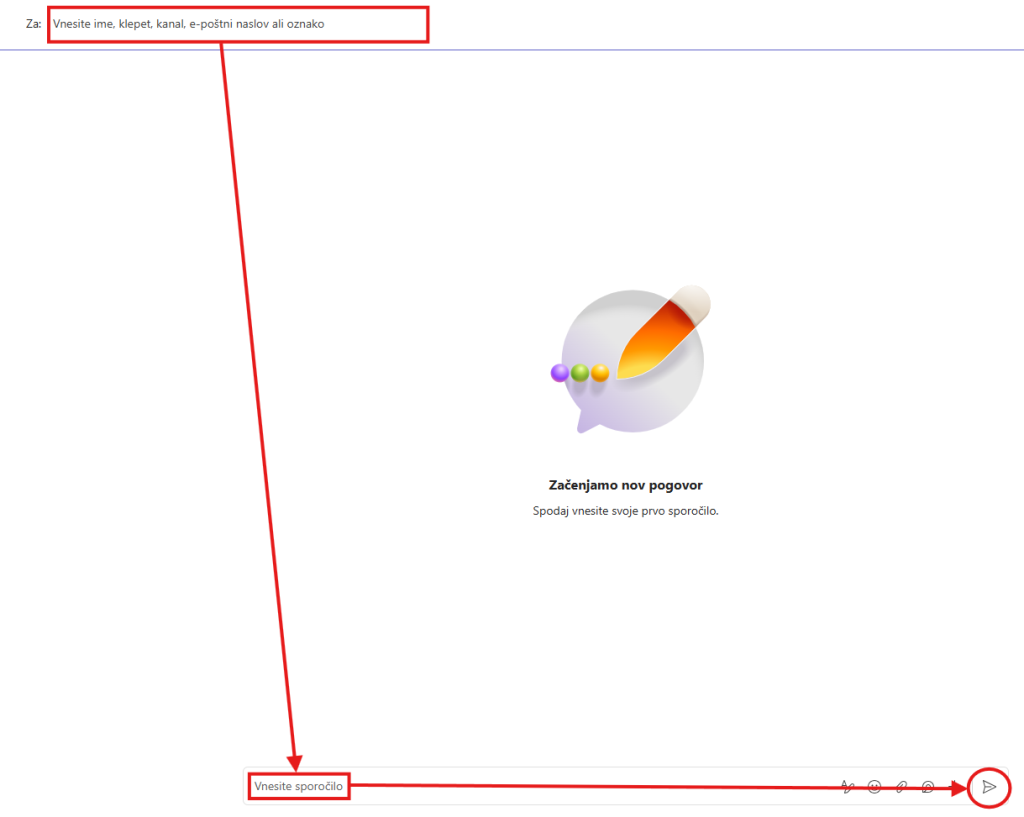
- In the top box, enter the name of the person or group you want to send a message to.
- In the bottom box, write your message and click Send.
Replying to a conversation
Conversations in channels are organised into threads. Replies appear below the original post, which makes it easier to follow several discussions at once.
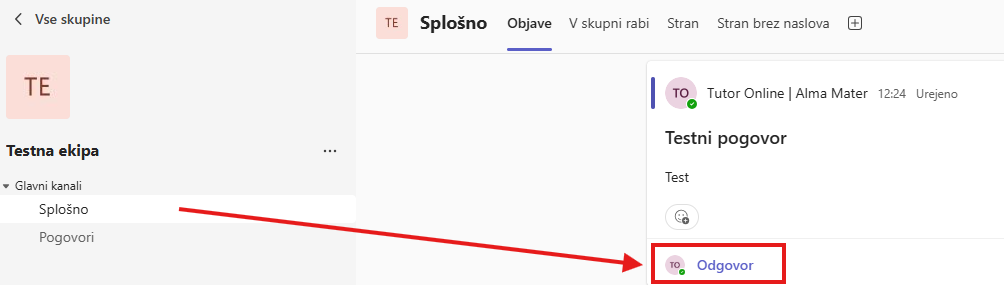
- Find the conversation you want to reply to.
- Click Reply.
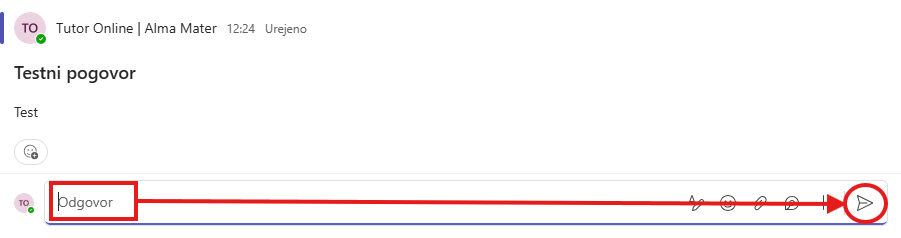
- Enter your message and click Send.
Sharing a file
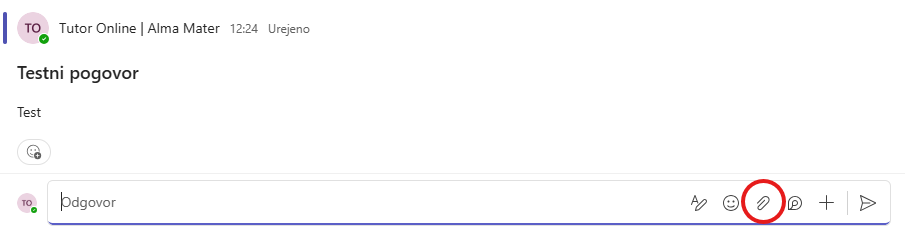
- In the channel conversation, below the message box, click Attach.
- Select the file source, for example Browse Teams and Channels, OneDrive, or Upload from my computer.
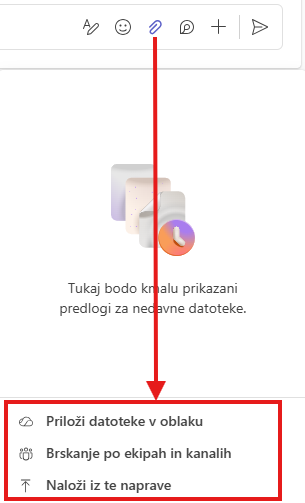
- Select the file and then the option to share a link.
- If you are uploading the file from your computer, select the file, click Open, and then Send.
Where are the files? You can later find all files posted in a channel on the Files tab.
Mentioning someone with @
An @ mention is a way to specifically alert a particular person in a conversation or a chat.
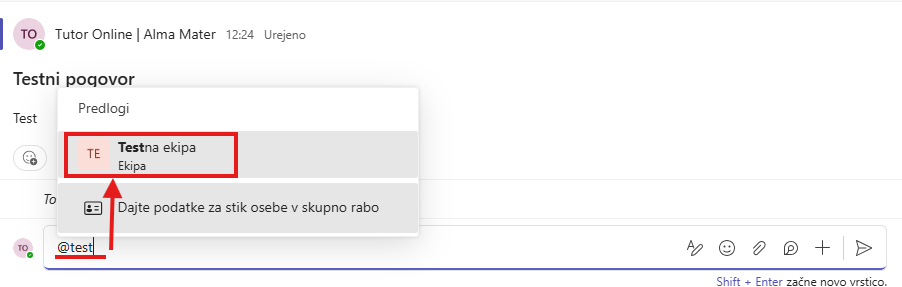
- In the message box, type the @ character and then the first few letters of the person’s name. You can also mention a whole team or channel if you have the necessary permissions.
- Select the right person from the list. Repeat the procedure for everyone you want to mention.
- Everyone who is mentioned receives a notification in the Activity feed.
Notifications
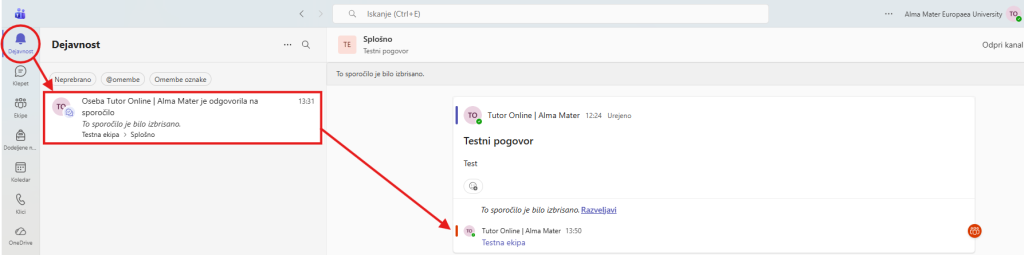
Notifications alert you when someone mentions you, reacts to your post, or replies in a thread you started.
- Click Activity.
- The feed shows a summary of events in the channels you follow.
- With the Filter option you can show only certain types of notifications, for example mentions or reactions.
- With the Feed > My activity option you can review your recent actions in Teams.
Searching for messages, people, and files
The search can cover your entire organisation as well as all the teams and channels you are a member of.
- In the search box at the top of the app, enter a word or a phrase and press Enter.
- Select the type of results: Messages, People, or Files.
- Click the result you want. If necessary, use additional filters to refine your search.