
In brief
- Online and hybrid lectures take place in Microsoft Teams.
- The link to the meeting is only in the Wise Timetable (the Join online button) and in the Studo app; it is not in the Teams or Outlook calendar.
- Sign in to Teams with your Alma Mater student account.
- Lectures are recorded.
What is new from September 21, 2026: online and hybrid lectures, seminar exercises, consultations, office hours and exam preparation sessions take place in Teams and no longer in Zoom, and you will find the link to the meeting in the new web timetable.
Where to find the link
Open the timetable through VIS. On almamater.si click the VIS banner, sign in with your Alma Mater identity and select TIMETABLE and then TIMETABLES. The links to meetings are in the timetable you reach by this route. Detailed instructions are in the article Accessing the Wise Timetable.
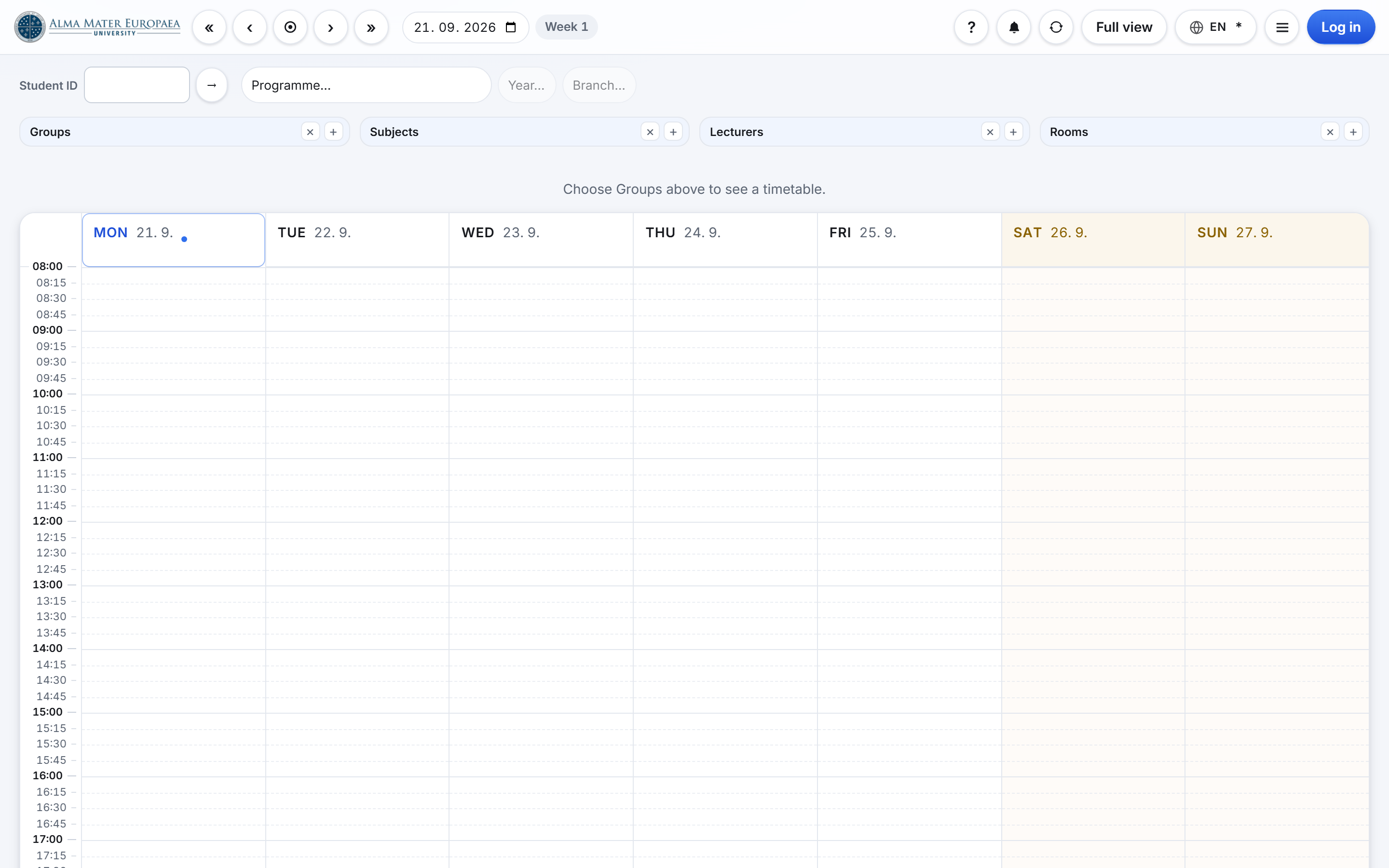
Open the activity and take the link. In the weekly view, click the activity card; the activity page opens. On it, click Join online, or copy the link to the meeting with the adjacent Copy button.
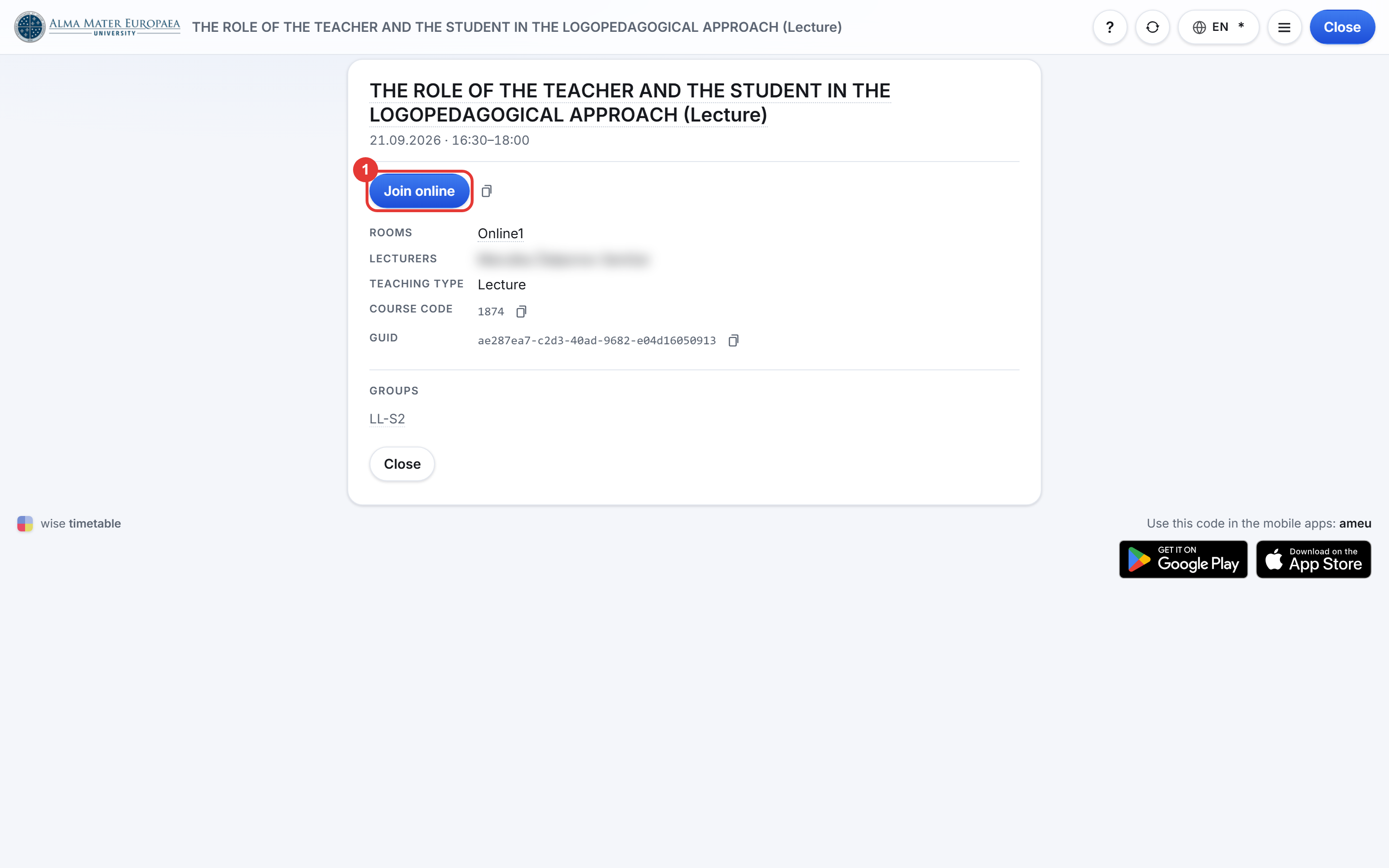
The Join online button only tells you that the activity has a link to a meeting; for now, the timetable does not say whether the delivery is online or hybrid. If you are not sure whether to attend the lecture in the lecture room or remotely, ask your lecturer.
Only some types of activity get a link:
- With a link: lecture, seminar exercises, exam, colloquium, consultations, office hours and exam preparation.
- Without a link: laboratory, clinical, practical and field exercises, practical exam, independent work and other.
On your phone, open the Studo app and go to its Calendar section; the link to the meeting is with the activity.
How to join
Open the link. On a computer, join the meeting in the Edge or Chrome browser or in the Teams desktop app. On a phone, only the Teams app works, because the mobile browser does not support meetings.
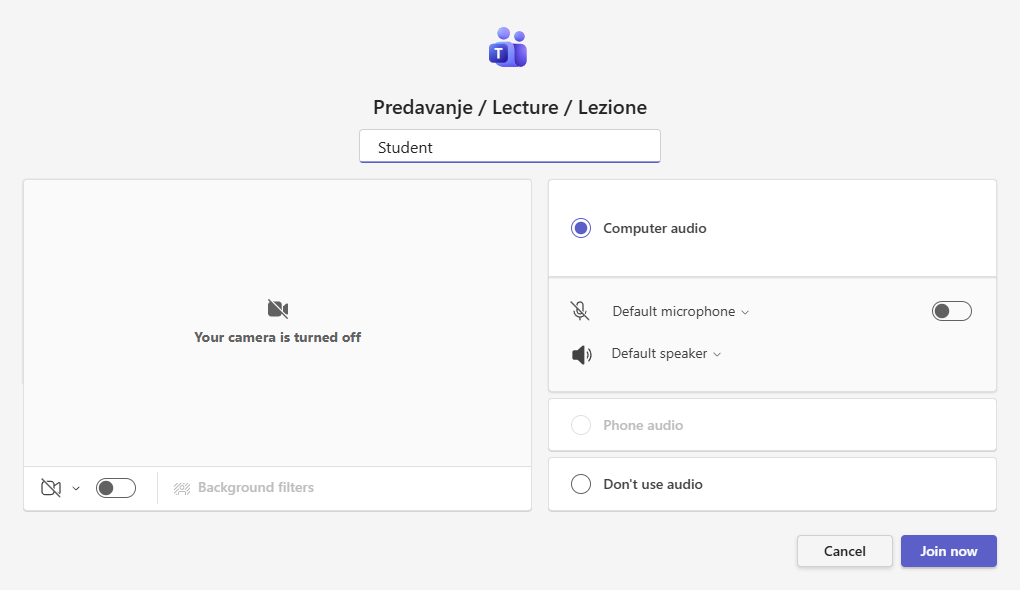
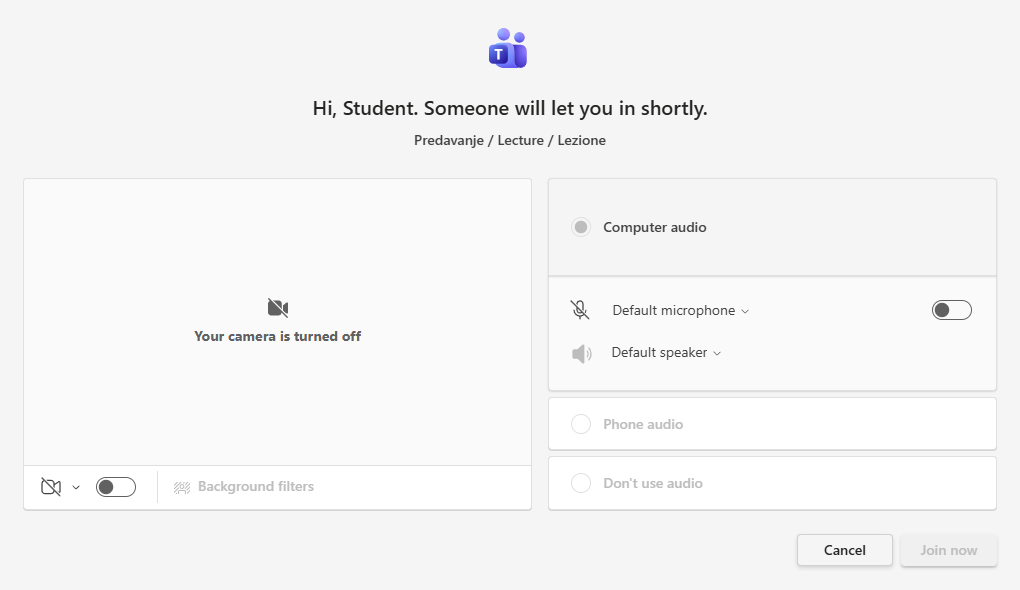
Enter the meeting. If you are signed in with your Alma Mater student account, you enter directly. With another account, or without signing in, you wait in the lobby until the technician or the lecturer admits you to the meeting.
During the meeting. Keep your microphone off until you speak. You can share your screen only once the lecturer makes you a presenter.

More about installation is in the guide Teams installation and first sign-in, and more about how a meeting runs is in the guide Meetings and video conferences.
Attendance
- Record your attendance with the QR code that the lecturer shows from the FLOW system: at the start to sign in and at the end to sign out. You scan the code with the Studo app.
- With hybrid delivery, the lecturer does not share the QR code in the video conference.
- With online delivery, the lecturer may show the QR code on the shared screen; if they do not, attendance is recorded from the Teams attendance report.
Even if an activity with in-person delivery has a Join online button, that does not mean you can attend remotely: with in-person delivery and with hybrid delivery, attendance counts only in the lecture room.
If you could not record your attendance, submit an attendance recognition request following the guide Instructions for attendance recognition request and forms.
Recordings
Recording starts automatically. Teams notifies all participants when the recording starts.
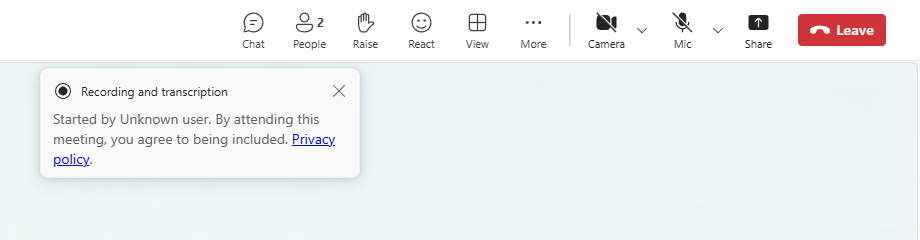
- The recording captures audio, video and the shared screen. If you do not want to appear in the recording, keep your camera and microphone off.
- The technician publishes the recording in the subject’s e-Classroom.
Where the recordings are, how to open them and how long they are available is described in the guide Watching lecture recordings (Teams). How Alma Mater handles personal data is set out in the privacy policy.
Where Zoom stays in use
Some activities, for example some online exams, still take place in Zoom. The Join online button in the timetable always opens the right application. The Zoom instructions are in the article ZOOM video conferences.
Troubleshooting and help
- There is no button. The activity is not online or hybrid, or the link is still being created after a change to the timetable; a new link appears in the timetable within one hour at the latest. If it is still missing after that, contact the Student Office.
- The link does not open or is wrong. Open it again from the timetable and not from a saved copy or an old message; if the meeting still does not open, contact the Student Office.
- I am waiting in the lobby. You are most likely signed in with another account. Sign out and sign in with your Alma Mater student account.
- There is no sound or picture. The guide Troubleshooting in Teams helps.
For sign-in and account problems, contact IT support; contacts are on the page IT coordinators by location.