
Resubmitting the assignment
Resubmission is possible only if the course instructor has enabled it and if the due date has not yet passed.
Open the same Turnitin assignment.
Check whether the existing submission has already been graded. If it has, consult the instructor before you resubmit.
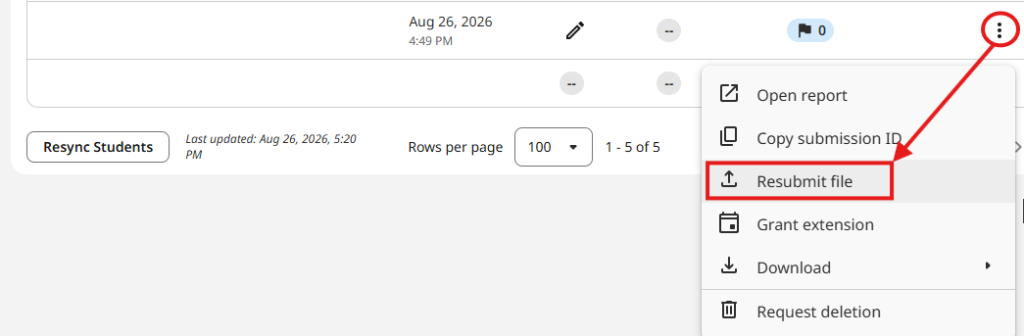
Open the More menu (three dots) and select Resubmit.
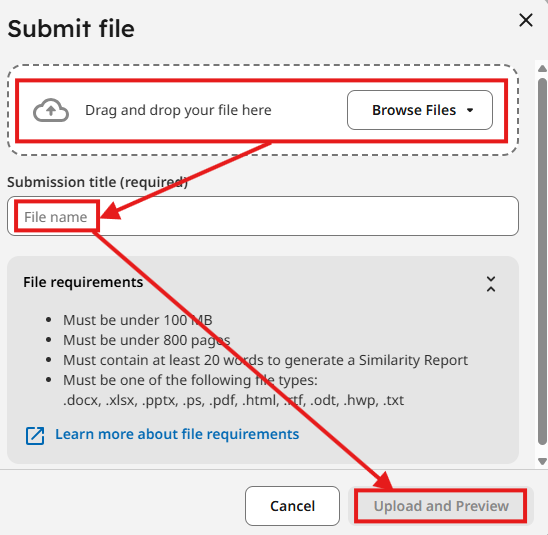
Upload the revised file and review the preview again.
Confirm the new submission and save the new Digital Receipt and Submission ID.
Caution: a resubmission overwrites the previous one. If the previous version had already been graded, the grading can be lost.
Limitation: in the new standard assignment, Turnitin allows up to three submissions or resubmissions within 24 hours, counted from the first submission. After resubmissions, a new Similarity Report may not appear immediately.
Can you delete an incorrectly submitted assignment yourself
After submitting, a student generally cannot delete the submission from the Turnitin assignment on their own. If resubmission is allowed, you submit the new file over the existing one. If there is no Resubmit option or the submission has to be removed, contact your course instructor.
What happens if you miss the due date
The instructor decides whether late submission is possible. If late submissions are allowed and you have not submitted the assignment before the due date, the system may let you make one submission after the due date; it is marked as late. If late submissions are not enabled, submitting after the due date will not be possible.
Recommendation: do not rely on the option of late submission. Submit the assignment early enough to leave yourself time for any problems with the file, the internet connection, or logging in.