
How to check that the assignment really was submitted
After a successful submission, Turnitin displays the details of the submission. In a standard assignment, a row appears with the title, the status, and the date and time of the submission.

- Check that the submission status and the date and time are shown.
- Save the Digital Receipt if it is available. You also receive the receipt by e-mail, so check your mailbox.
- Save the Submission ID. Together with the Digital Receipt, it is proof that the submission was made.
- If needed, download a copy of the submitted file and check that it is the correct one.
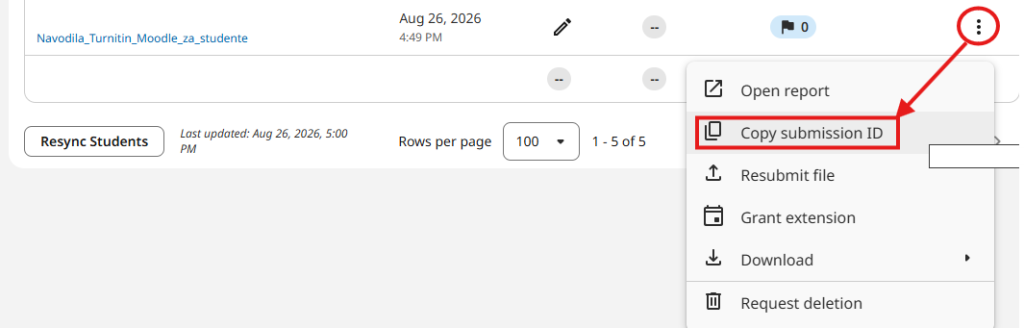
Recommendation: keep the Digital Receipt and the Submission ID at least until grading for the course is complete.
How to review your submitted assignment later
Open the same online classroom and, inside it, the Turnitin assignment you submitted your work to.
Find your row in the assignment inbox.

Open the More menu (three dots) to view the submission, copy the ID, or download the Digital Receipt.
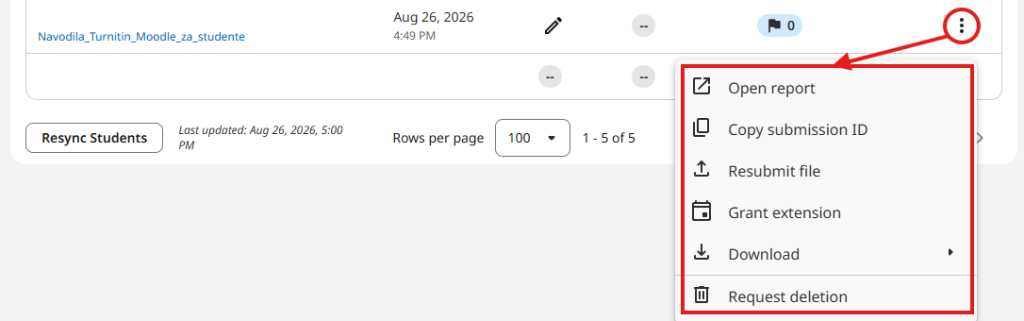
Download the original if the option is available, and check what you actually submitted.
Was this article helpful?
Thanks for your feedback!