
How to find the Turnitin assignment
Log in to Moodle. Use your student account.
Open the online classroom of the course for which you have to submit the assignment.
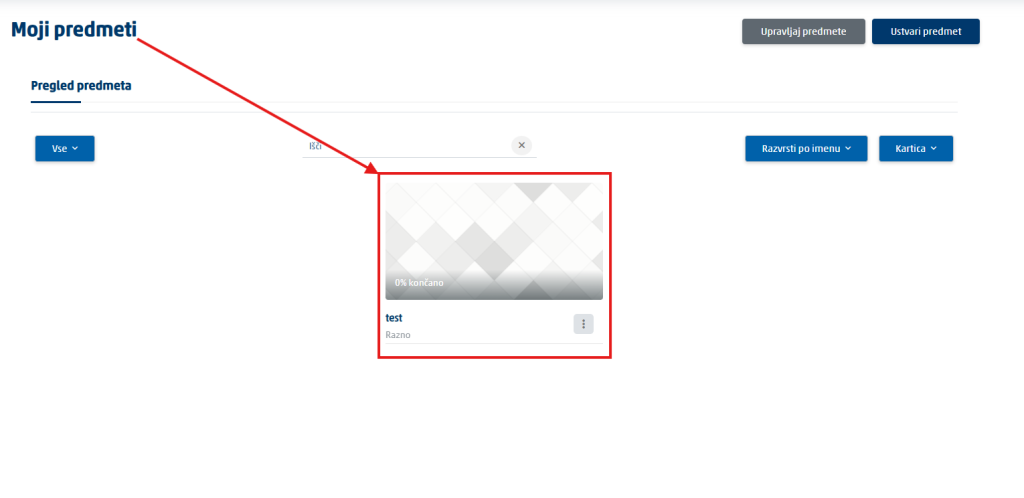
Find the right section. The assignment is published in a section, a week, or a topic block.
Find the activity with the title of the assignment. The name of the assignment does not necessarily contain the word Turnitin.
Click the title of the activity. Turnitin opens inside Moodle or in a new browser window.
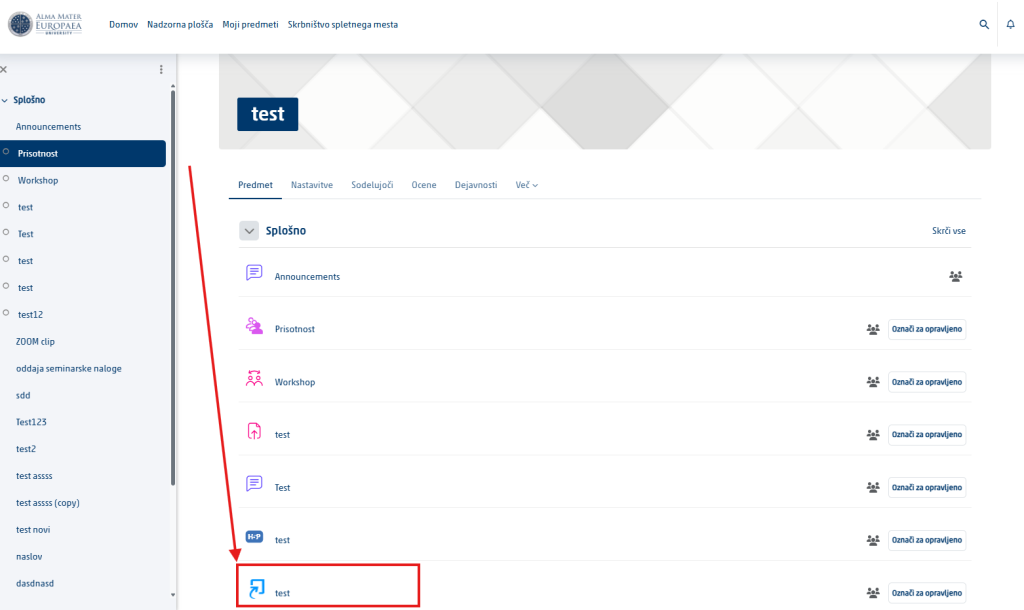
If you cannot see the assignment: check that you have opened the right online classroom and that the start date for submissions has already passed. If you still cannot find it, contact your course instructor.
What to check before submitting
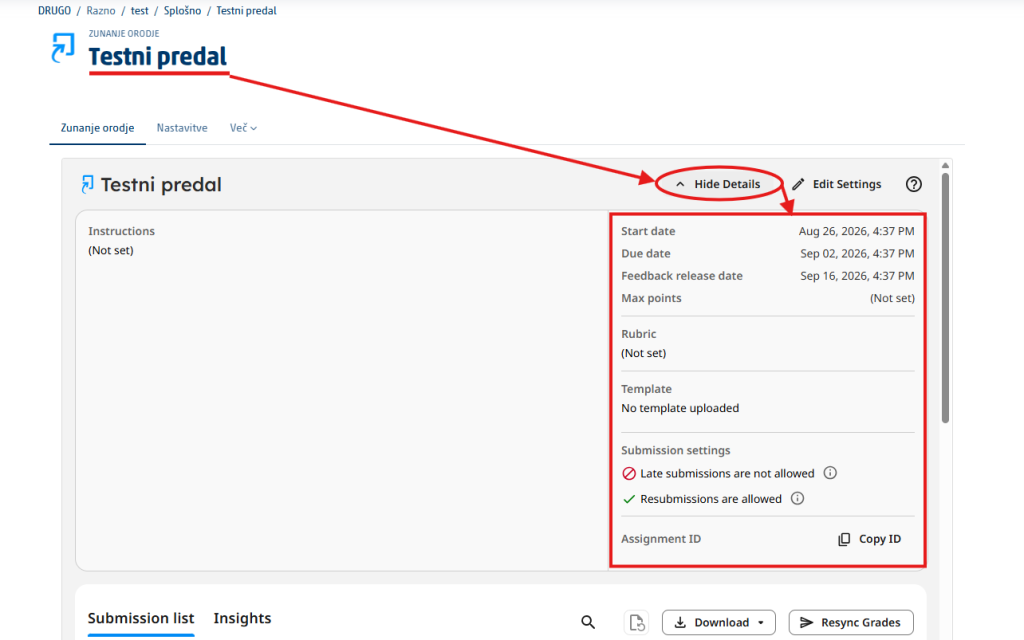
When you open the Turnitin assignment, first review the details set by the course instructor:
- Title: the name of the assignment.
- Instructions: what you have to submit and which requirements apply.
- Start date: from when submission is possible.
- Due date: by when you have to submit the assignment.
- Feedback release date: when grades and comments become visible.
- Max points: how many points can be achieved.
- Rubric: the grading criteria, if the instructor has added them.
- Late submissions: whether submitting after the due date is allowed at all.
- Resubmissions: whether you can submit a revised version before the due date.
Was this article helpful?
Thanks for your feedback!