
Editing your profile and settings
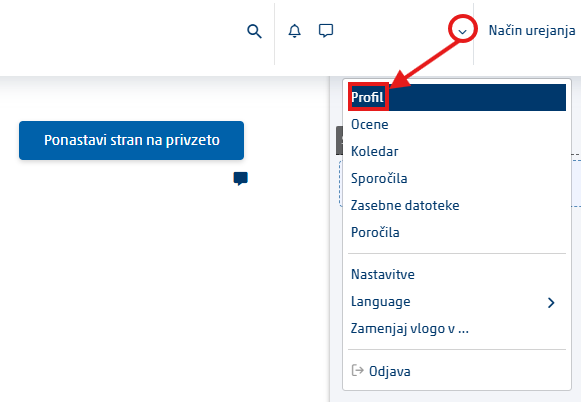
- Click your name or your profile picture.
- Select Profile.
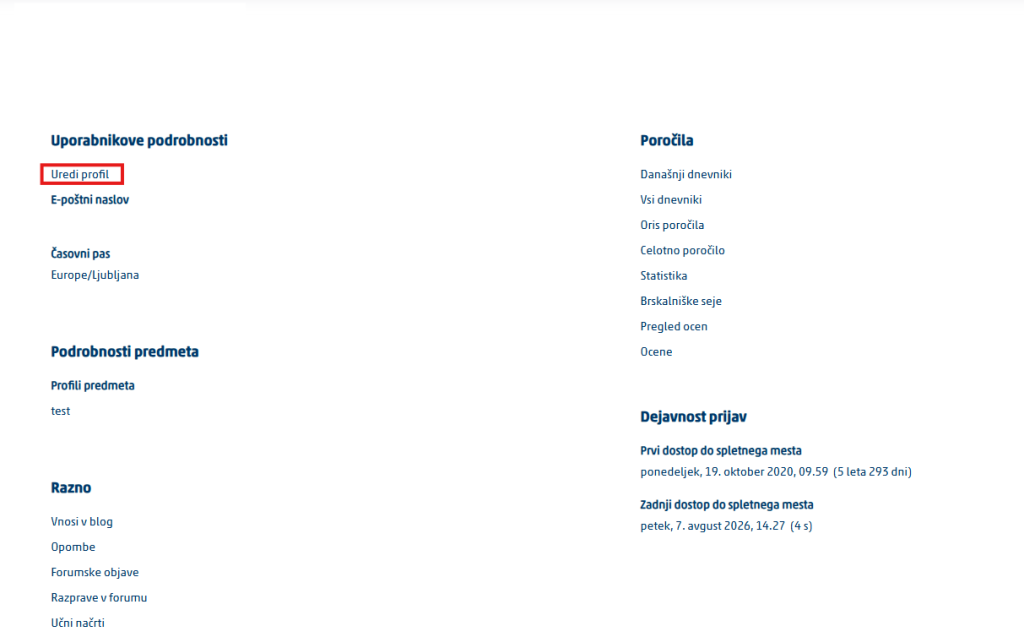
- Click Edit profile.
- If necessary, edit the details you are allowed to change, for example your profile picture or your description.
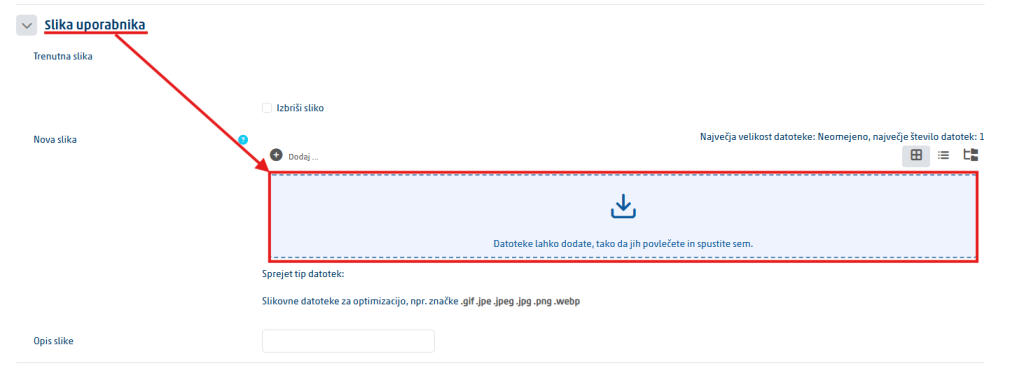
Privacy: Do not publish information that is not necessary for your studies. Use an appropriate profile picture and a professional description.
Managing your notifications
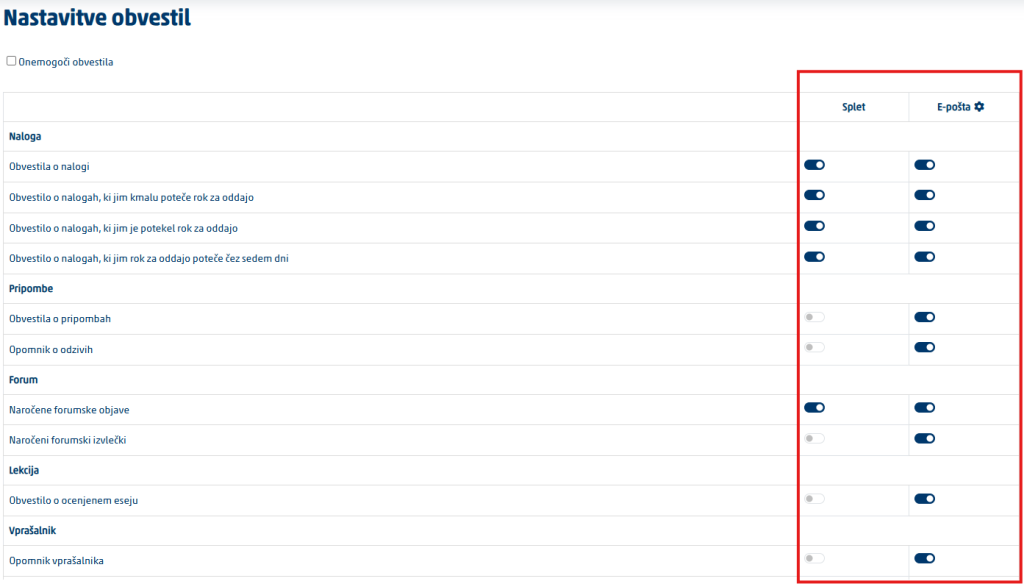
- To change which notifications you receive, click the bell icon and then the Settings icon.
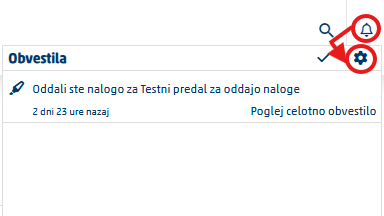
- In the notification settings, choose which notifications you want to receive and how.
Using Moodle on your phone
You can use Moodle in your mobile browser or in the official Moodle mobile app.
- Install the Moodle app from the official app store.
- Enter your institution’s Moodle web address.
- Log in with your username and password.
- Allow notifications if you want to receive reminders.
Recommendation: For submitting important seminar assignments and taking longer quizzes, use a computer instead.
Most common problems
| Problem | What to do |
|---|---|
| I cannot log in | Check your account, your password and the web address, and check whether Caps Lock happens to be on. After several failed attempts, use password recovery or contact support. |
| I cannot see my course | Check the filters and that you are using the right user account. If you still cannot find the course, contact the instructor or the Student Office. |
| I cannot upload a file | Check the type, the size and the name of the file. Also try a different browser. |
| My assignment is not marked as submitted | Check whether, after saving, you still have to click Submit assignment and confirm the submission. |
| I cannot post in a forum | The forum may be read-only, or you may not be enrolled in the course yet. |
| The quiz does not open | Check the start date, the deadline, the number of attempts and your internet connection. |
Recommendations for new students
- Log in to Moodle several times a week, not only before a submission deadline.
- Regularly check your notifications, the forums, the timeline and the calendar.
- Read the instructions for every assignment in full.
- Give your files clear names, for example Surname_Name_Seminar_assignment.pdf.
- Submit your assignments early enough to leave time for solving technical problems.
- Check the submission status after every submission.
- If you run into problems, take a screenshot and state the course, the activity and the time of the problem.
- Do not share your password with other people.
Was this article helpful?
Thanks for your feedback!