
Posting in forums
A forum is intended for discussions, questions, announcements and exchanging opinions. Some forums allow reading only, while others also allow posting.
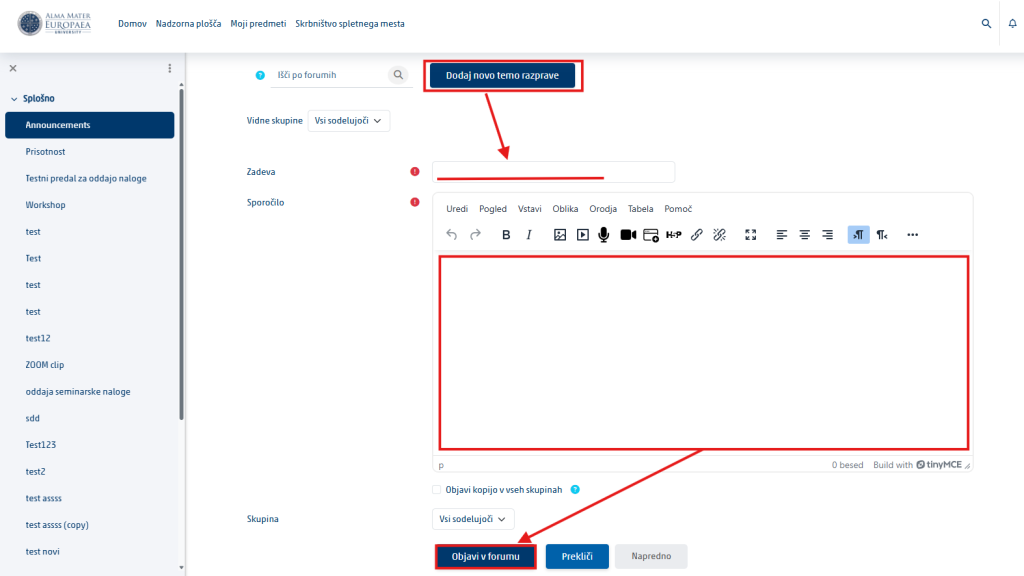
Creating a new discussion topic
- Open the Forum.
- Click Add a new discussion topic.
- Enter a clear topic title.
- Write your message.
- Add an attachment if necessary.
- Click Post to forum.
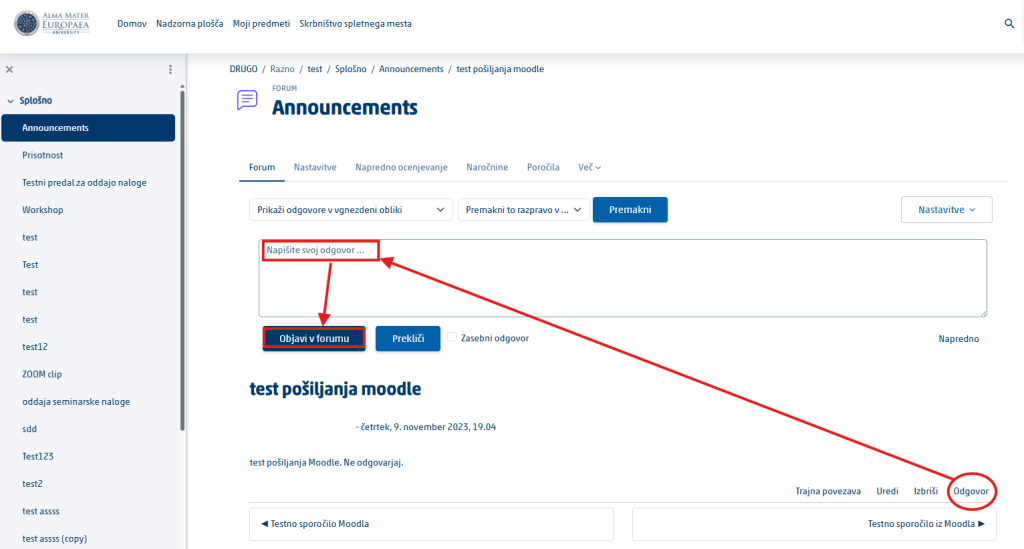
Replying to an existing post
- Open the discussion topic you want.
- Below the post, click Reply.
- Write your reply.
- Click Post to forum.
Communication rules: Write clearly and respectfully. Check your grammar before posting, do not publish personal data and stay on the topic of the discussion.
Notifications and messages
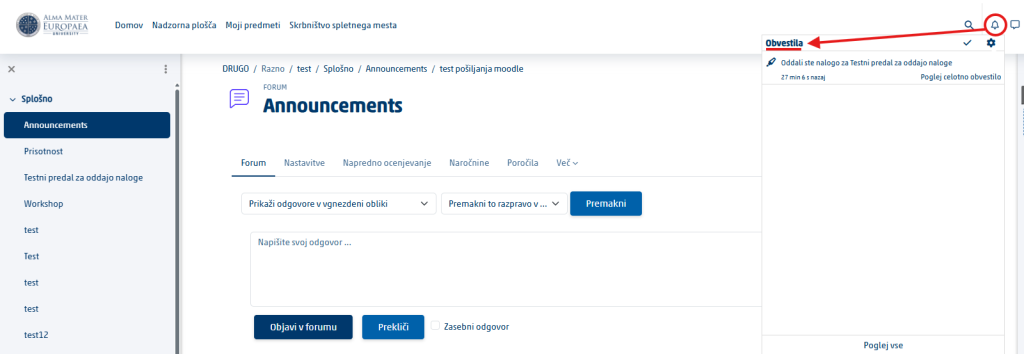
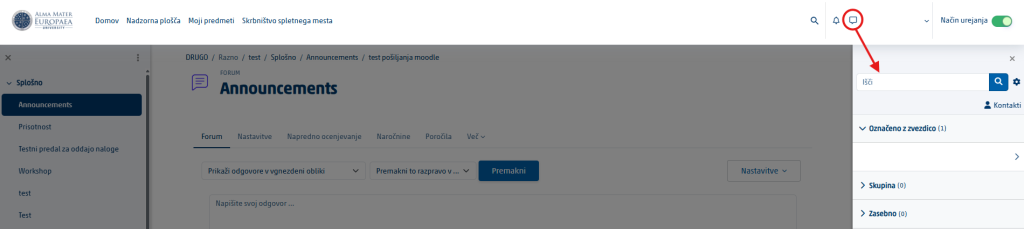
Moodle can notify you about new posts, grades, messages and deadlines. Notifications are usually shown next to the bell icon, and private messages next to the messages icon.
- Click the bell icon to review your notifications.
- Click the messages icon for private messages.
Also check your university e-mail inbox regularly, because Moodle can send notifications by e-mail.
Calendar and deadlines
The calendar shows due dates for assignments, quizzes, events and other activities. Some events are added automatically, and you can add others yourself.
- On the Dashboard or in the menu, open the Calendar.
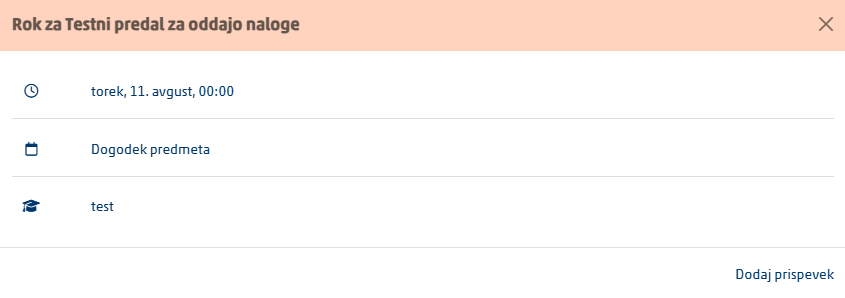
- Click an event to show its details.
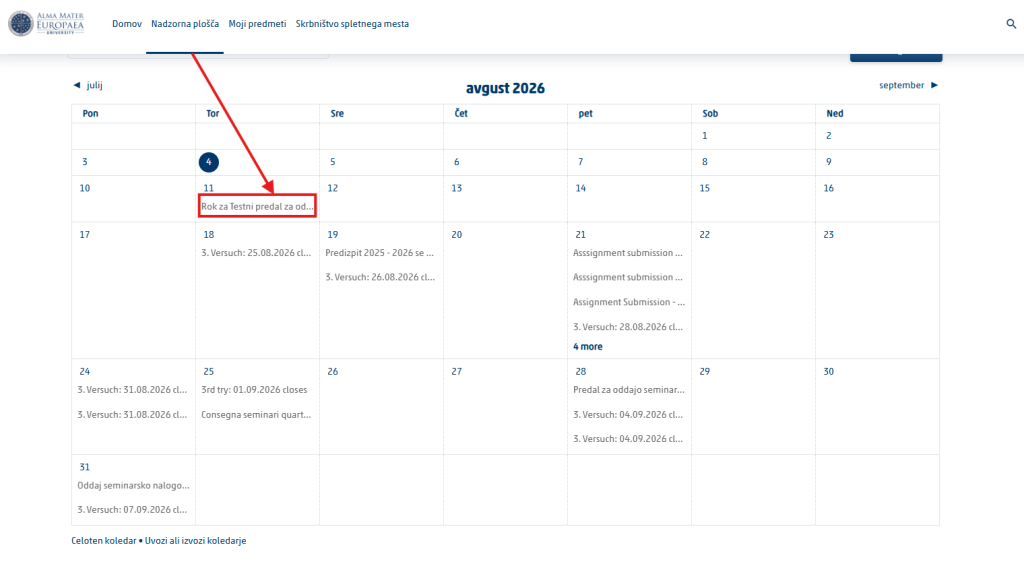
- Check the date, the time and the link to the activity.
- For important deadlines, also set your own reminder on your phone or in your personal calendar.
Was this article helpful?
Thanks for your feedback!