
Taking quizzes and tests
- Open the quiz and read the instructions first.
- Check the time limit, the number of attempts allowed and the deadline for completing it.
- Click Attempt quiz now.
- Answer the questions and save your answers as you go, if that option is available.
- At the end, click Finish attempt.
- Review the summary and click Submit all and finish.
Important: Do not close the browser or interrupt your internet connection while you are working. In a timed quiz, the clock as a rule does not stop.
Reviewing grades and feedback
- Click your name or your profile picture.
- In the menu, find Grades.
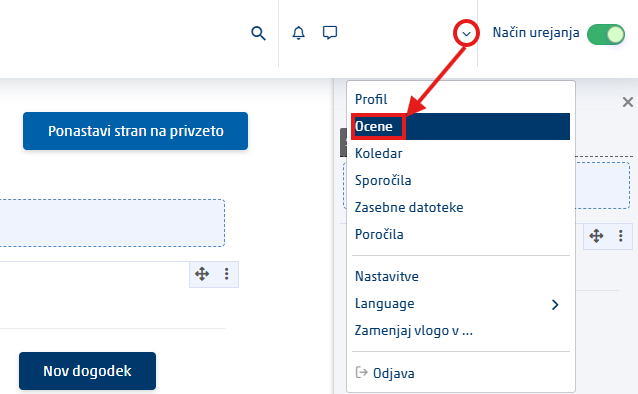
- Select the course whose grades you want to check.

- Review the grades for individual activities.
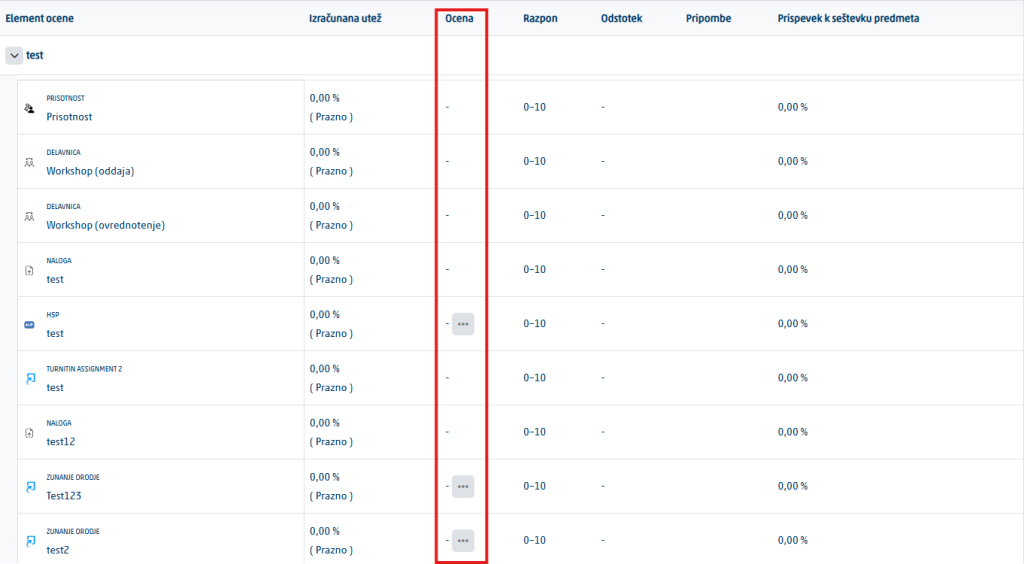
- For an assignment, also open the instructor’s comments, annotations or corrected file.
Note: Not all instructors publish grades in the same way. If you cannot see a grade, it does not necessarily mean that the assignment has not been reviewed.
Was this article helpful?
Thanks for your feedback!