
Where to check the similarity score
If the course instructor has allowed students to view the report, a percentage appears next to the submission in the Similarity column. Clicking it opens the Similarity Report in the Turnitin Feedback Studio viewer.
Open the Turnitin assignment and find your submission.
In the Similarity column find the percentage that is shown.
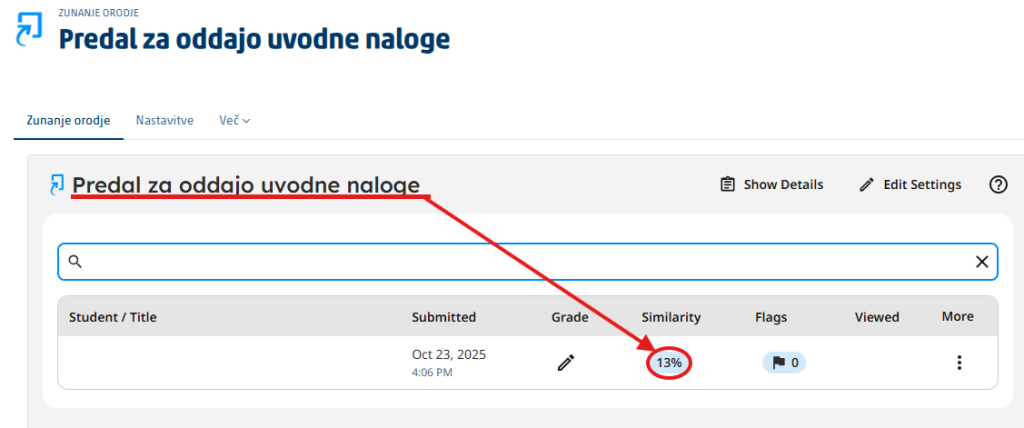
Click the percentage to open the report.
Review the report. Look at the highlighted parts of the text and the list of sources that your text matches.
If there is no percentage: this does not necessarily mean that something is wrong – the instructor may have disabled viewing of the report, or the report may still be generating.
How to understand the Similarity Report
The similarity score tells you what share of the text in the submission matches the sources that Turnitin compares submissions against.
- Click an individual highlighted match in the document and check which source the text matches.
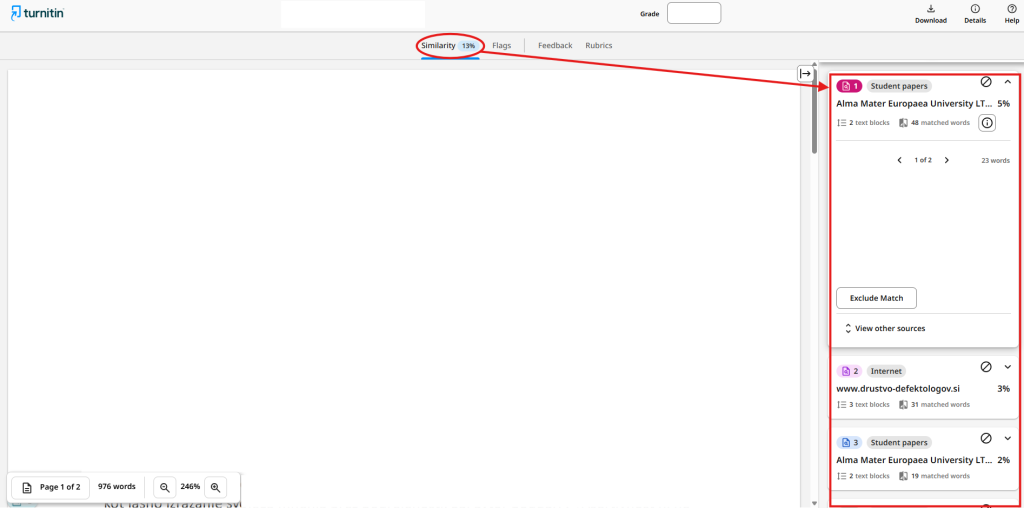
- Check that the quotation is correctly marked with quotation marks and a citation.
- Check your paraphrases: replacing a few words is generally not enough – you have to restate the content in your own words and cite the source.
- Check the bibliography or the list of references.
- If the title page, a standard phrase, or a required template is what matches, judge the match in context.
Key point: there is no universal “safe percentage.” Even a low similarity can contain improperly borrowed text, while a high similarity can consist of correctly cited sources. Follow the instructor’s instructions and the rules of the institution.
The instructor’s grade and comments
Once the instructor has graded the assignment and the feedback release date has passed, the grade and the comments become visible in the Turnitin assignment.

- Clicking the grade opens Feedback Studio with the grade and the comments.
- If the instructor has used comments or QuickMarks, you see them at the relevant places in the document.
- If a rubric was used, you can review the grading for each individual criterion.
- Depending on the course settings, the grade may also appear in the Moodle Gradebook.