
Step-by-step instructions
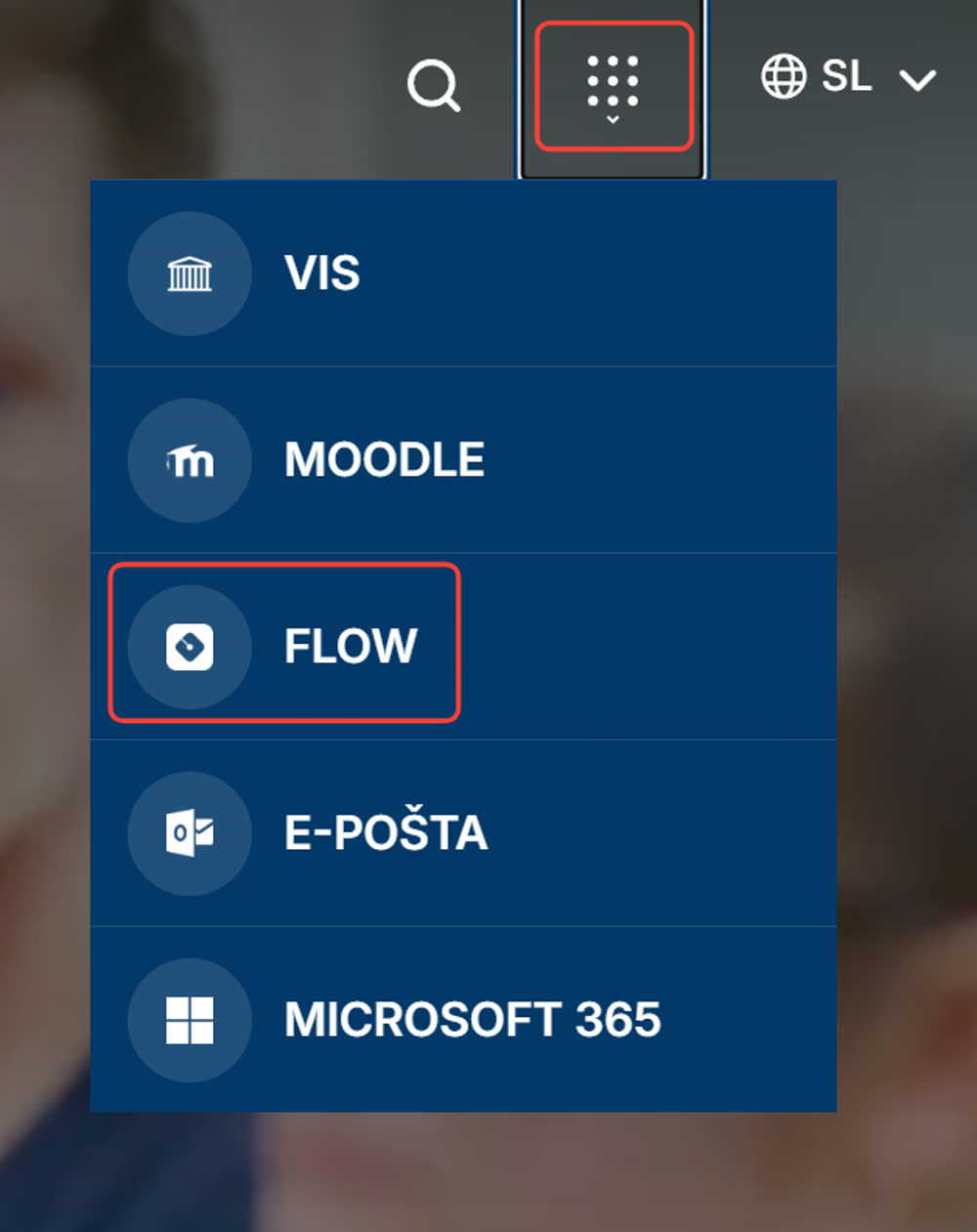
Sign in with your Alma Mater Identity
If you are not yet signed in, click “LOGIN VIA ALMA MATER IDENTITY (SSO)” and sign in with your @almamater.si credentials (firstname.lastname@almamater.si and password).
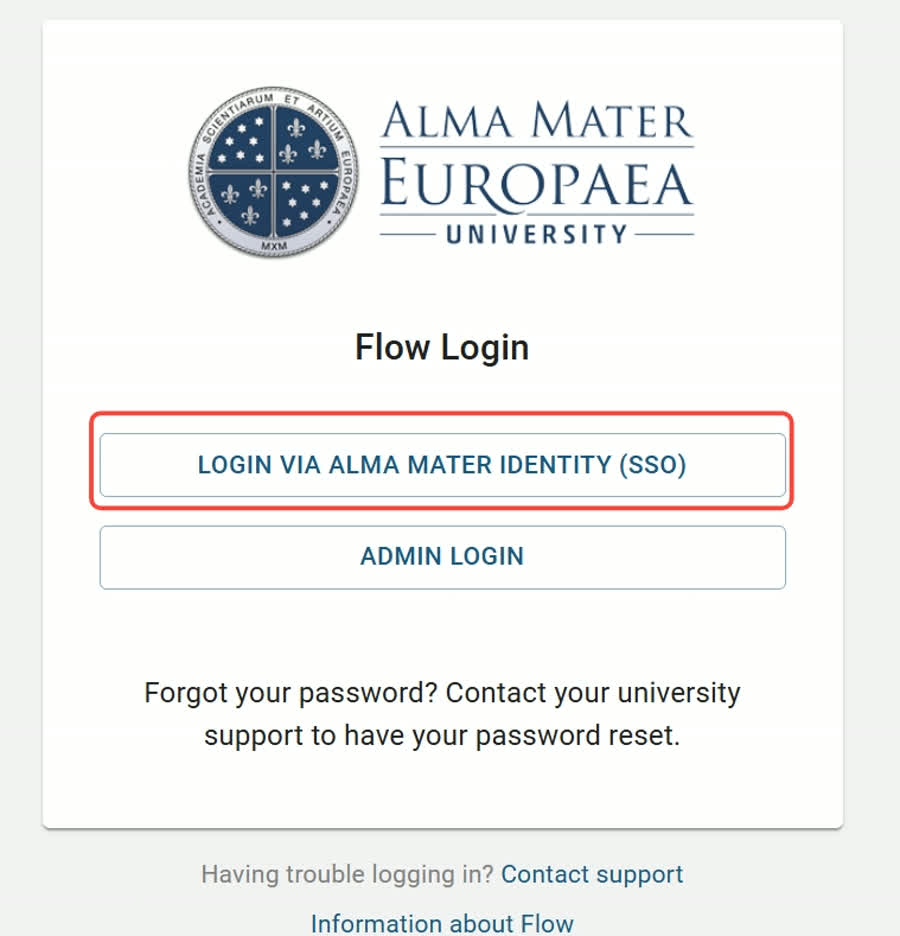
Important: If you use other Microsoft accounts (e.g. from other institutions or for personal use), we recommend signing in with your Alma Mater account either in incognito mode (private browsing) in your browser, or using another browser where you are not signed in to Microsoft services.
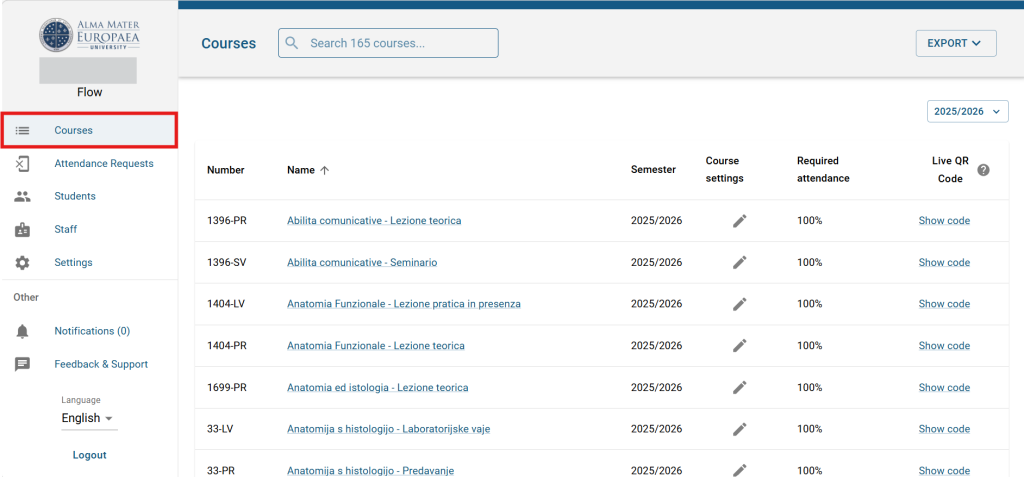
Select the course and activity
In the “Courses” menu, select the current course and activity type (e.g. a lecture).
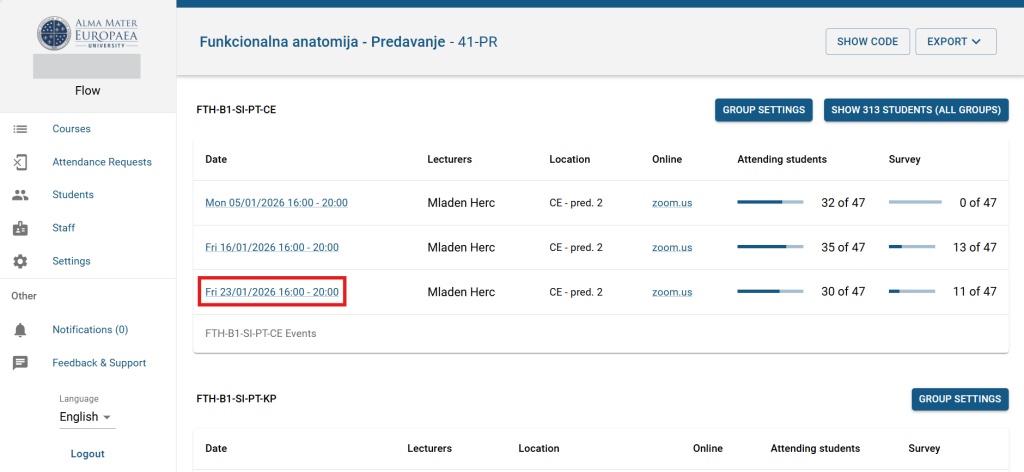
Select the session
Under the appropriate group, select the activity session.
Open the student status
For the desired student, click the “Not present” submenu in the STATUS column.
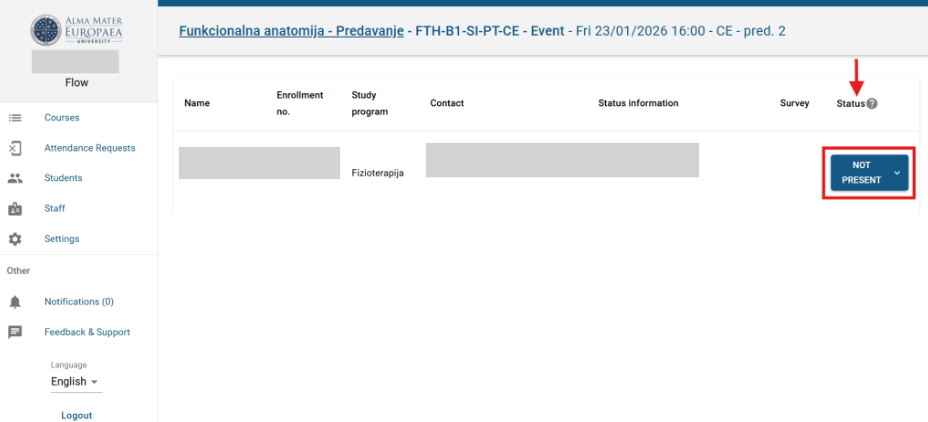
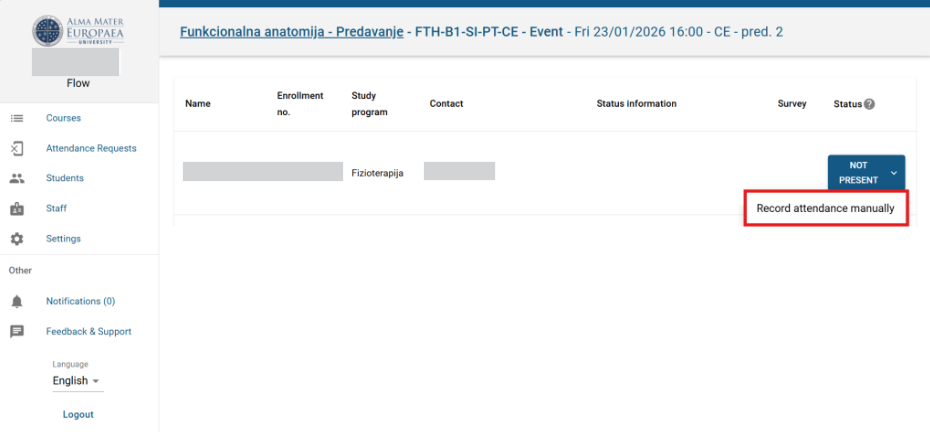
Record attendance manually
Click “Record attendance manually”. In the same place you can also remove attendance if it was assigned incorrectly.
You have manually confirmed or removed the student’s attendance.