
Step-by-step instructions
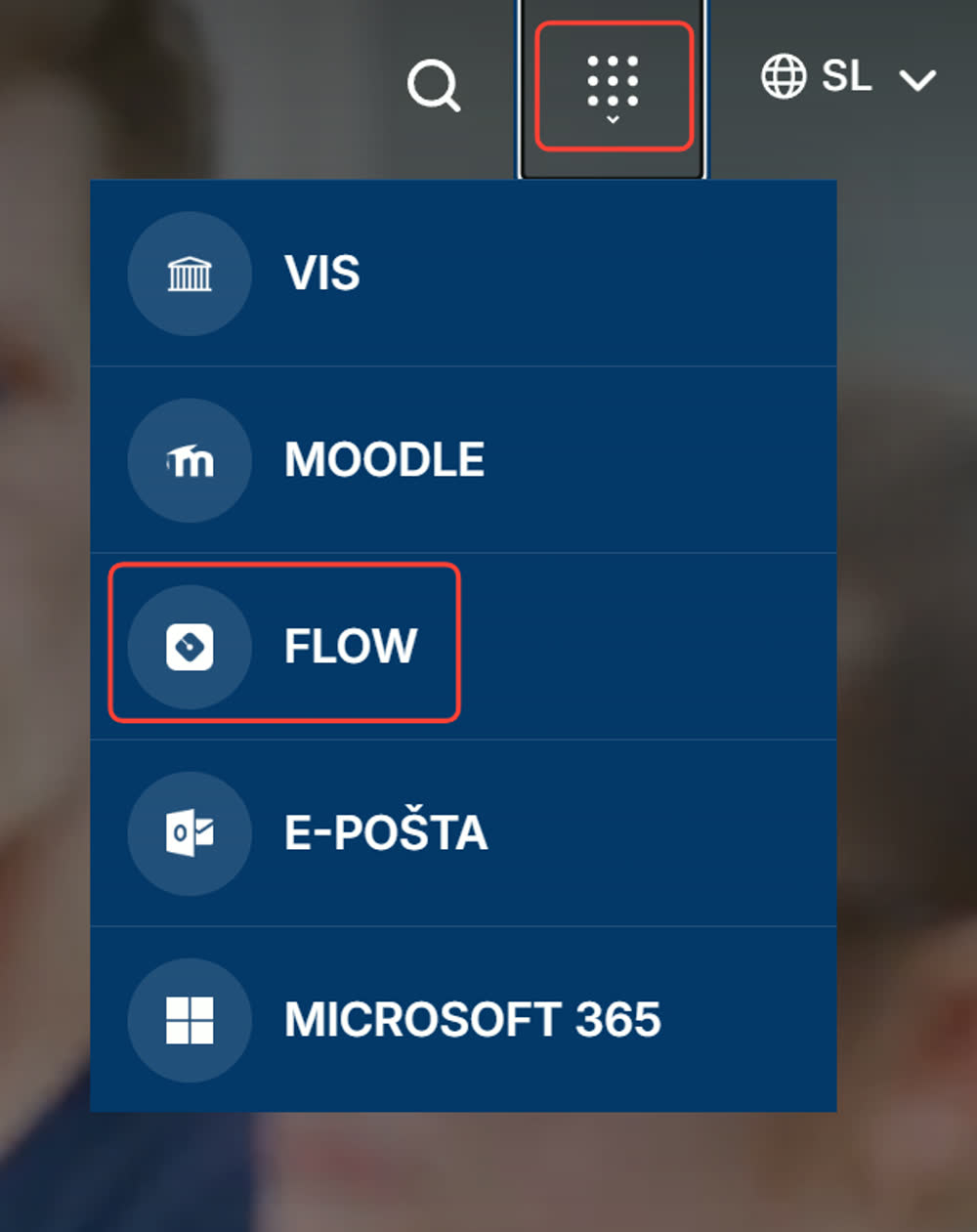
Sign in with your Alma Mater Identity
If you are not yet signed in, click “LOGIN VIA ALMA MATER IDENTITY (SSO)” and sign in with your @almamater.si credentials (firstname.lastname@almamater.si and password).
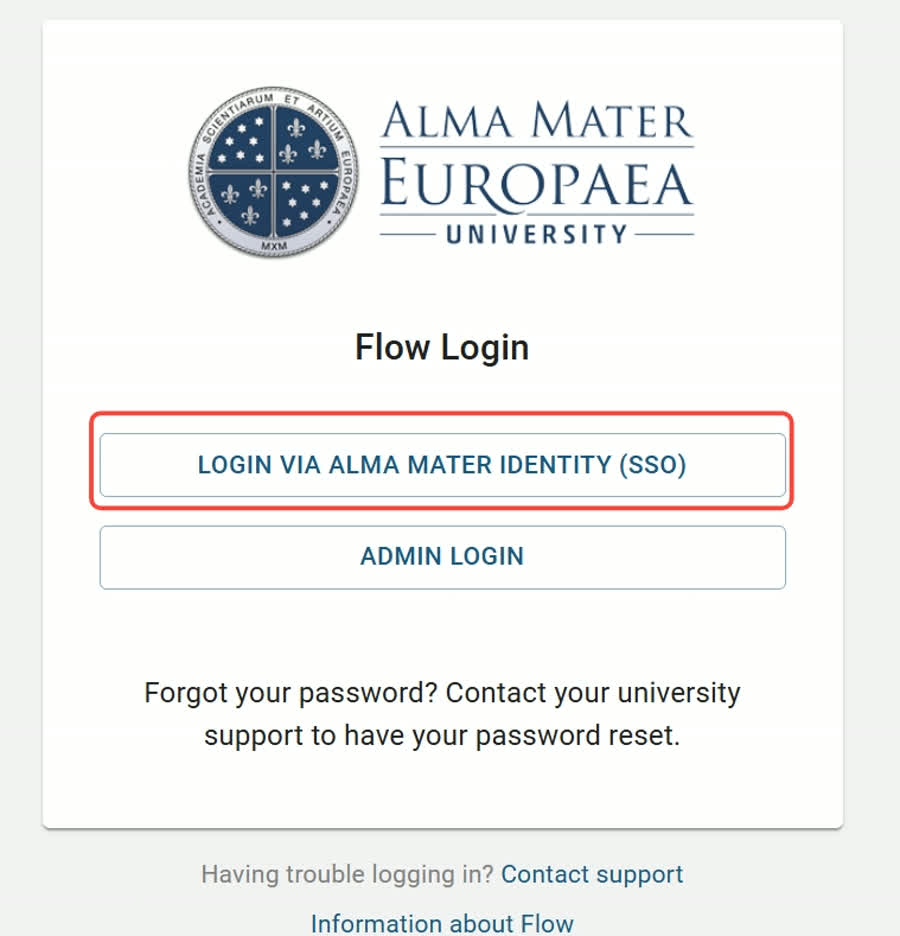
Important: If you use other Microsoft accounts (e.g. from other institutions or for personal use), we recommend signing in with your Alma Mater account either in incognito mode (private browsing) in your browser, or using another browser where you are not signed in to Microsoft services.
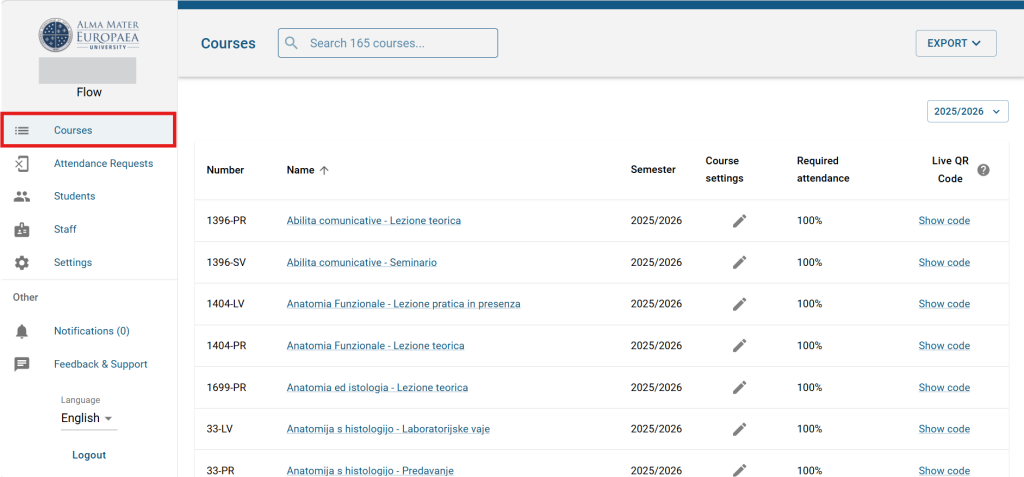
Open Courses
After signing in, the FLOW portal opens. Click “Courses”.
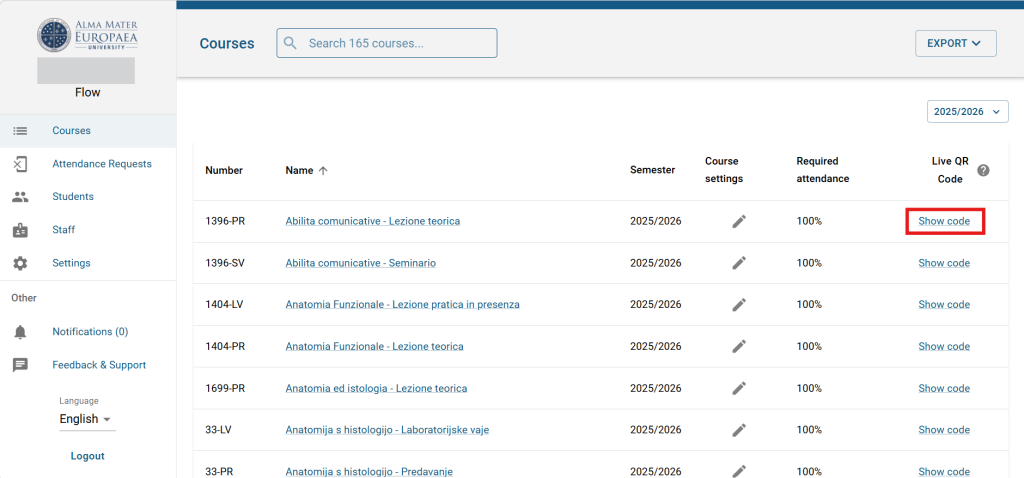
Show the QR code
Click “Show QR code”.
WARNING: If you are running an in-person activity at the AMEU location, before displaying the QR code make sure that you are not sharing your screen in Zoom (Share Screen). The QR code is intended only for students physically present in the lecture hall.
Check the sign-in QR code
Make sure “check-in QR code” is selected on the right. Students who scan the code are recorded automatically.
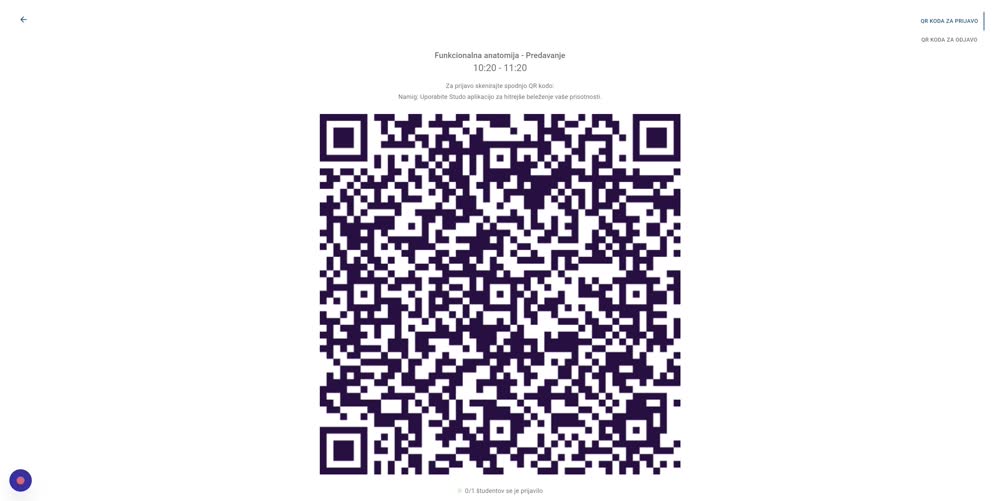
At the end of the lecture, open the QR code display again — the “check-out QR code” will be shown.
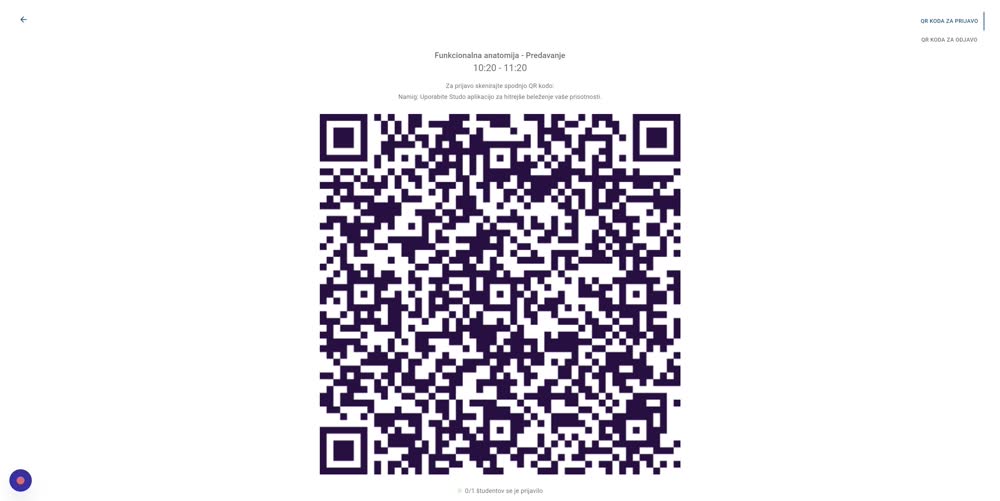
Sign-out QR code
In the top-right selector, the sign-out “check-out QR code” is shown at the end of the lecture.
Manual attendance entry
If a student cannot sign in, you can record their attendance manually. See the subarticle “Manually confirm attendance”.
Success! FLOW has recorded all student attendance in the web interface, where you can view statistics (surveys, attendance), attendance recognition requests (submitted summaries), or export the data as CSV.