
Accessing course materials
Materials may be published as PDF files, Word documents, PowerPoint presentations, videos, web links, folders or pages in Moodle.
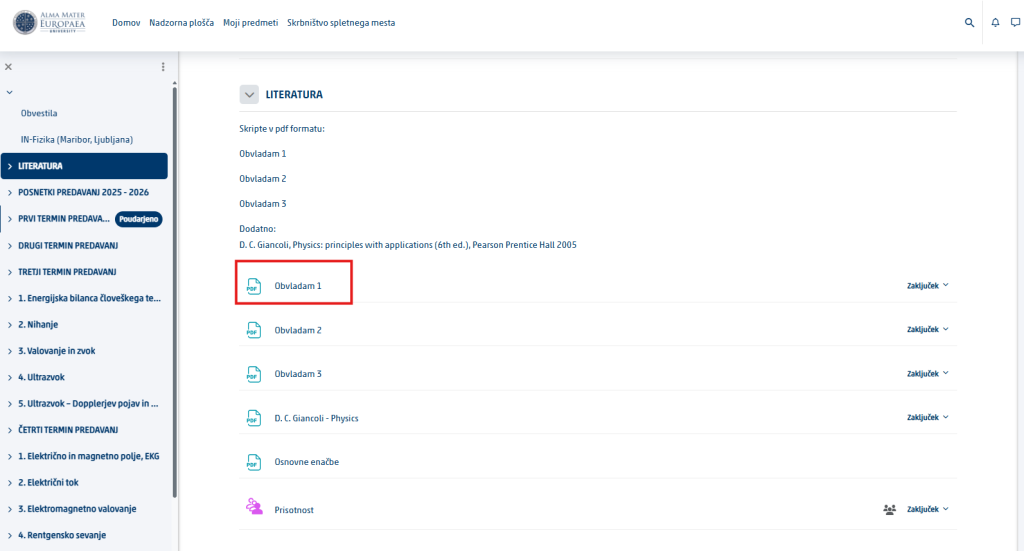
- Open the online classroom for the course.
- Find the relevant topic, section or week.
- Click the name of the material.
- The material opens in your browser or is downloaded to your computer.
Downloading materials
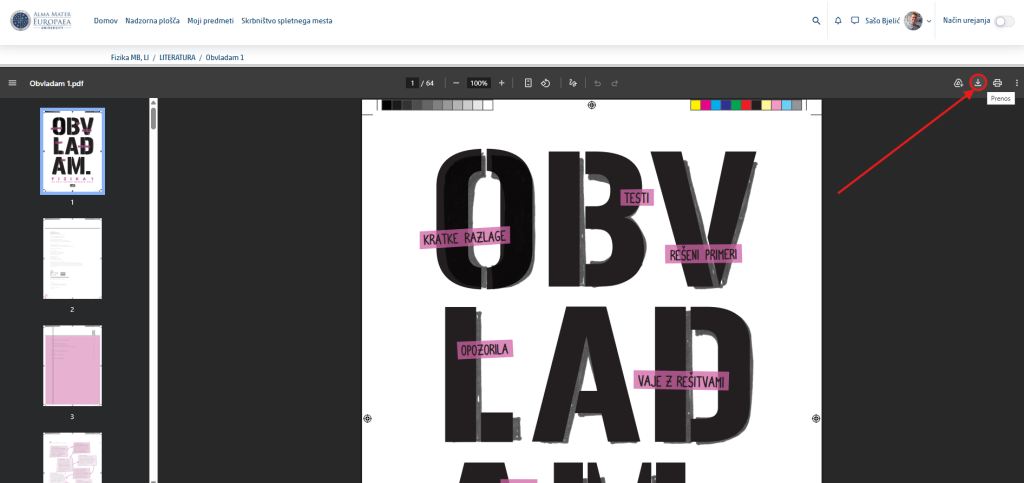
- If the document opens in the browser, look for the download icon.
- Click Download.
- Choose the folder where you want to save the file.
- After the download, open the file from the Downloads folder or from the folder you chose.
Tip: Save materials in tidy folders organized by course. That way you will find them more easily later.
Submitting a homework or seminar assignment
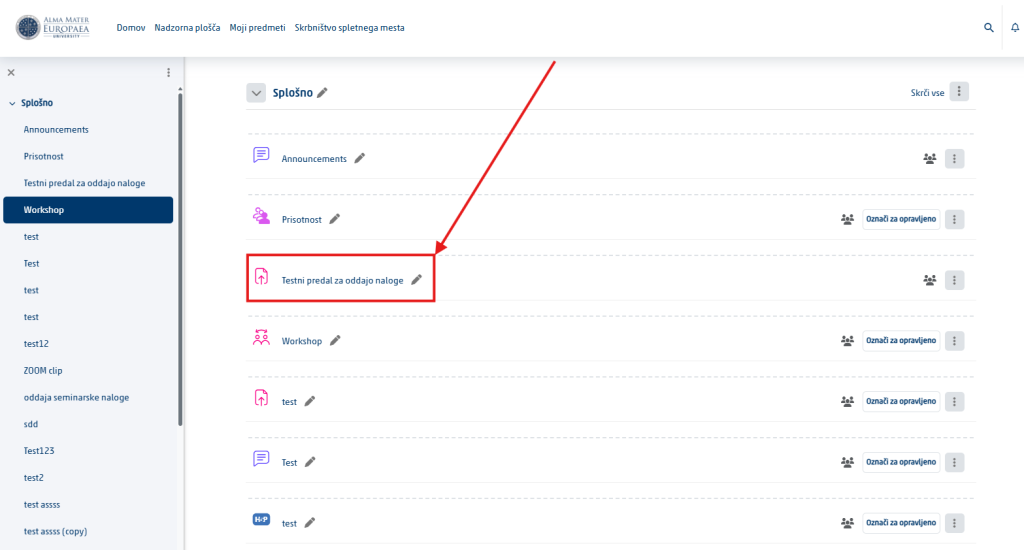
An assignment in Moodle is usually marked with an icon and the activity title. Always read the full instructions before you submit.
- Open the online classroom for the course.
- Find the assignment submission box and click it.
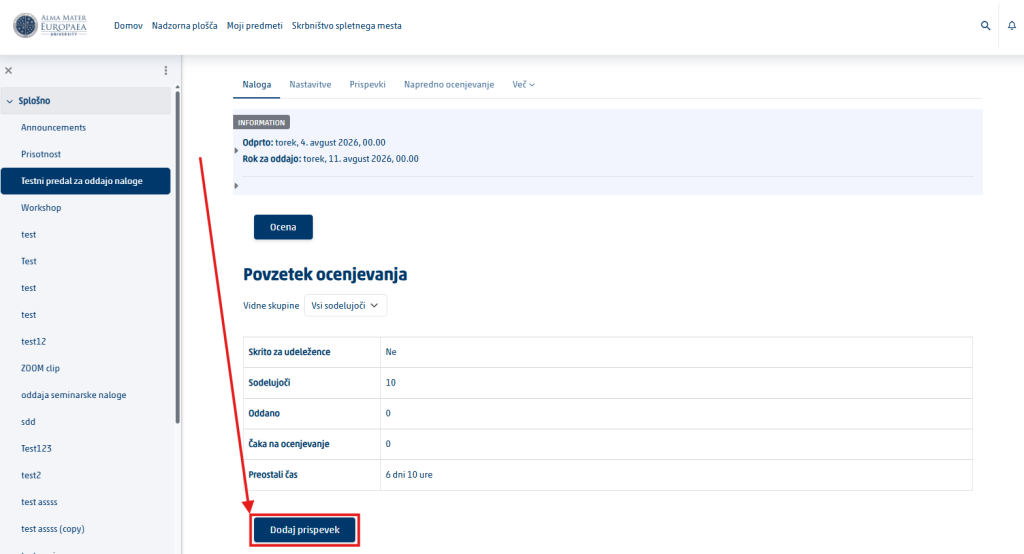
- Read the instructions, the due date, the allowed file types and the maximum file size.
- Click Add submission.
- Drag the file into the marked area or click the add file icon.
- Select the file on your computer and upload it.
- Click Save changes.
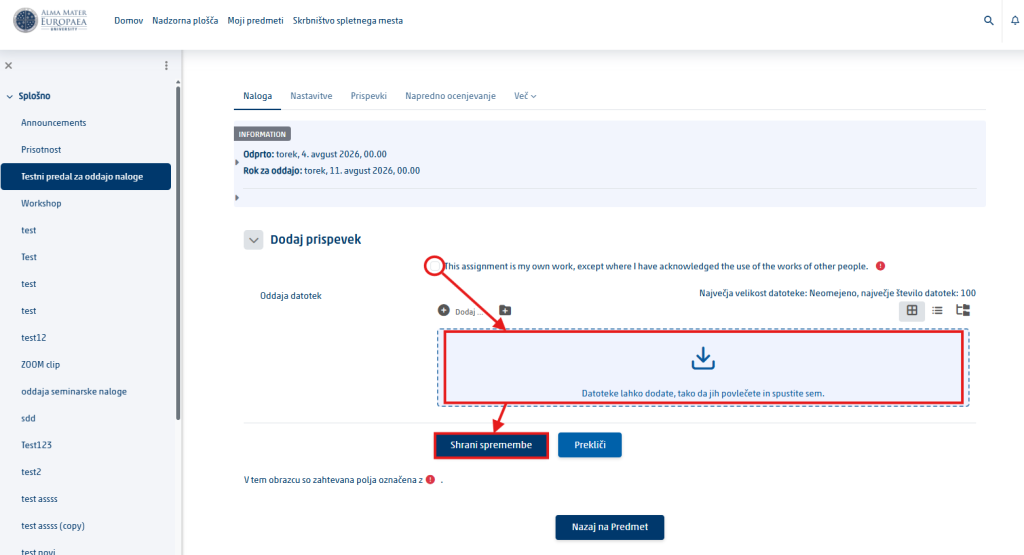
- If an additional Submit assignment button appears, click it and confirm the submission.
Very important: An uploaded file is not always finally submitted. Check the submission status. As a rule it should say Submitted for grading or similar.
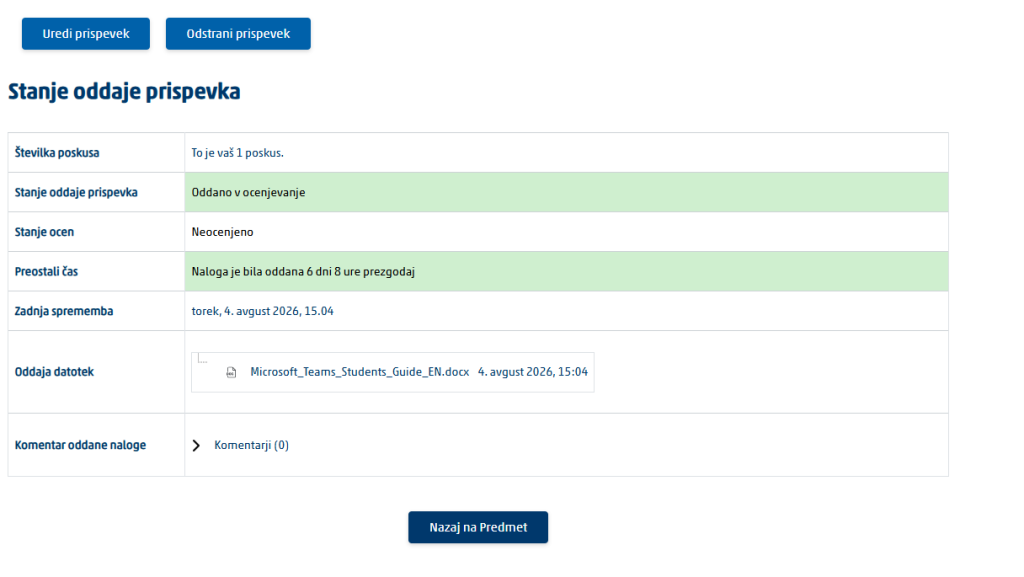
Checking your submission
- Check that the correct file name is shown.
- Check the submission time and the submission status.
- If possible, open the uploaded file and check that it is the right one.
- If resubmission is allowed, you can replace the file before the deadline expires.
If the deadline passes
After the deadline, Moodle may block the submission or mark it as late. In that case, contact the course instructor. Do not send the assignment by e-mail unless the instructor expressly allows it.
Was this article helpful?
Thanks for your feedback!