
When creating a new Standard Assignment, review all four groups of settings: the assignment details, grading, submissions and the Similarity Report.
Basic assignment details
- Title: a required field. Use a clear title, for example “Seminar paper – first deadline”.
- Instructions: write what the student must submit, in what format and by when. The instructions are visible to the student before submission opens.
- Start date/time: the time from which submission is allowed.
- Due date/time: the time until which submission is allowed, unless late submissions are enabled.
- Feedback release date/time: the time when grades and comments become visible to students. On its own, this setting does not determine when the student sees the similarity score.
- Max points: the highest possible grade or number of points.
- Template: if you wish, upload a template that the student can download. Turnitin automatically excludes the text of the template from the Similarity Report.
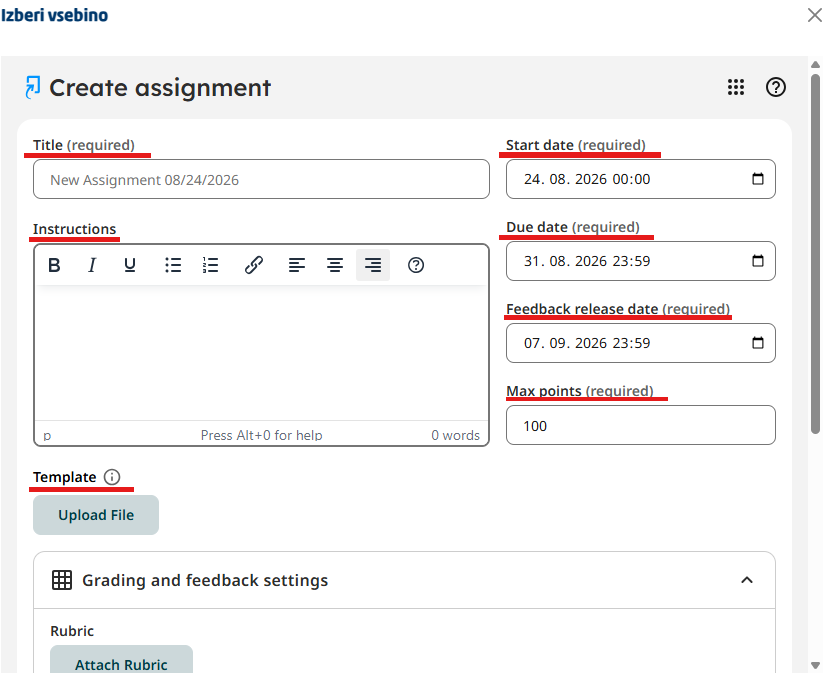
Note: you enter these details when creating the assignment. Later, the title, the start date and the due date are edited in Moodle, while the remaining settings are edited in Turnitin – see Editing an existing assignment.
Grading and feedback
- Rubric: you can select an existing rubric, create a new one or open the rubric manager.
- Hide student details for anonymous grading: if you turn this on, student names are hidden until the feedback release date.
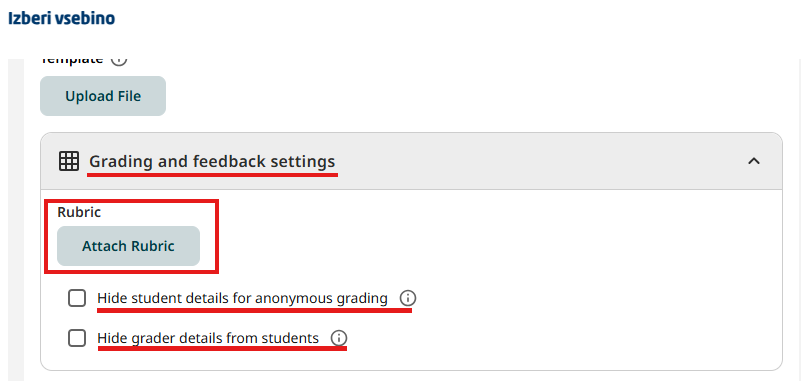
Warning: if, in anonymous grading, you reveal the identity of an individual student before the feedback release date, that action cannot be undone.
Submission settings
- Allow late submissions: a student who has not submitted the assignment before the due date can make one late submission after the due date.
- Allow resubmissions until due date: enables resubmissions up to the due date. For the new Standard Assignment, Turnitin allows up to three submissions or resubmissions within 24 hours, counted from the first submission.
- Allow unsupported file types: also allows the submission of files for which Turnitin may not be able to generate a Similarity Report.
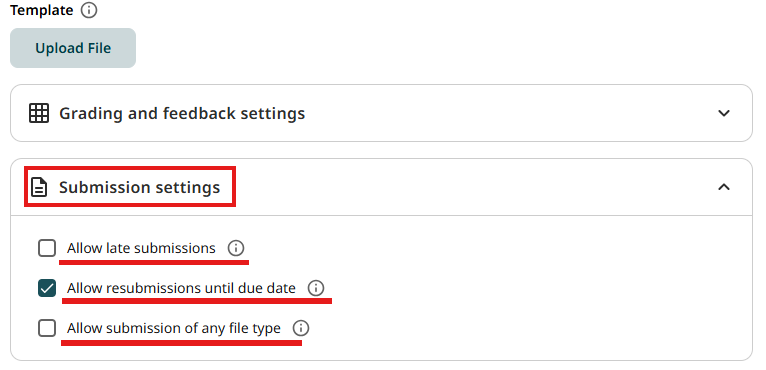
Warning about resubmissions: a new submission overwrites the previous one. Turnitin therefore recommends that, when resubmissions are enabled, you wait with grading until the due date has passed – a grade you have already entered would be lost on resubmission.
Similarity Report settings
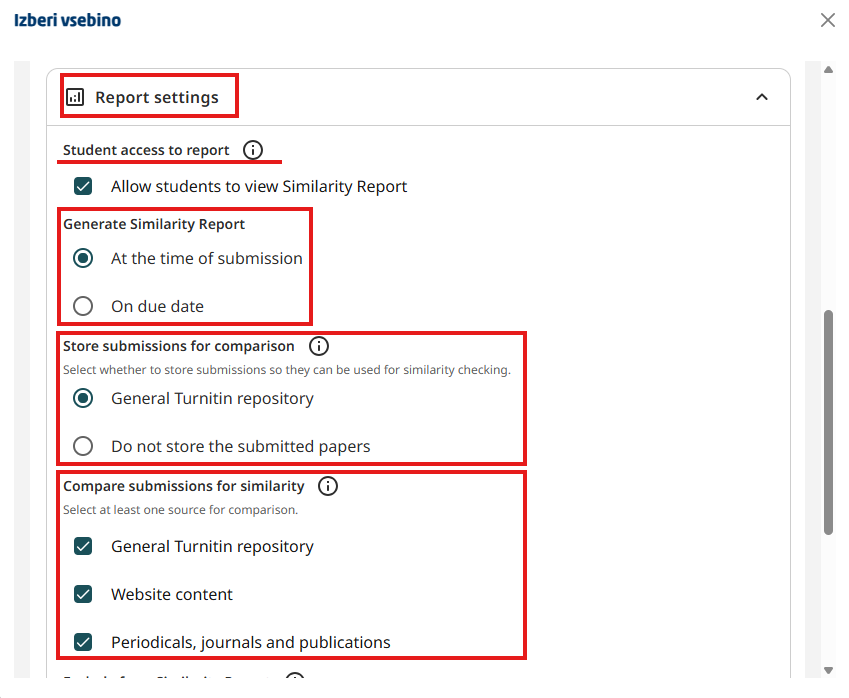
- Store student submissions for comparison: you decide whether submissions are stored in the standard Turnitin repository, in a private institutional repository, or not stored at all. The available options depend on the institution’s settings.
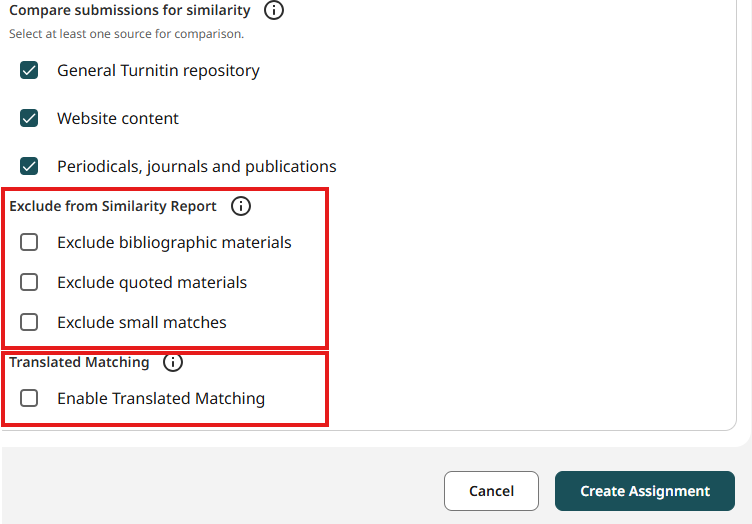
- Compare submissions: you decide what Turnitin compares submissions against – submission repositories, internet content, and journals and other publications. At least one source must be selected.
- Generate report: the report can be generated on submission or on the due date. If submissions are stored in a repository, the generation time affects when submissions are compared with each other.
- Report access: you decide whether the student sees their Similarity Report. This does not affect access to grades and feedback.
- Translated Matching: if it is included in the license, Turnitin runs an additional comparison of non-English texts based on an English translation.
- Exclusions: if needed, exclude the bibliography, quoted text and matches shorter than a set number of words.
Recommendation: before publishing the assignment, check three things above all – where submissions are stored, what they are compared against, and whether students will see the Similarity Report. These settings should be aligned with the rules of Alma Mater Europaea and with the purpose of the specific assignment.