
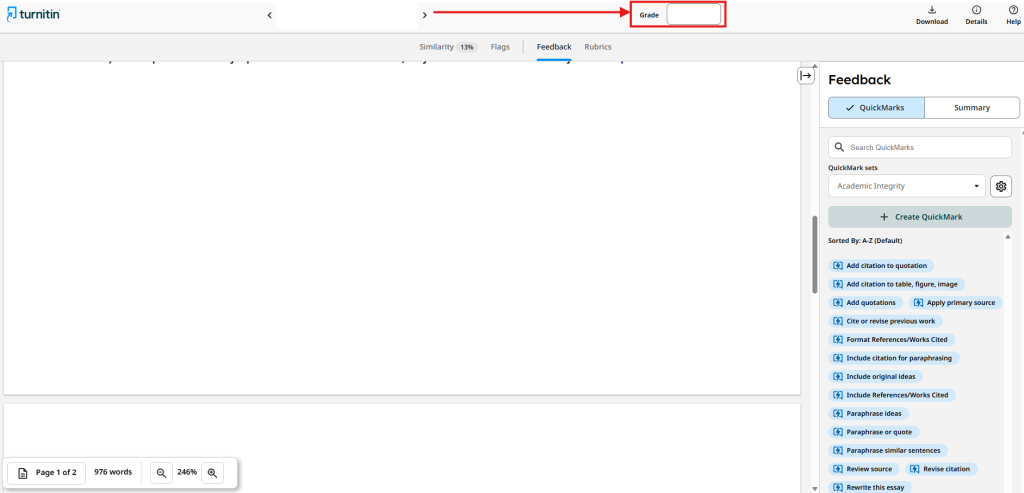
In the Turnitin Feedback Studio viewer you can comment directly on the submission, use the QuickMarks library, write a summary comment, grade with a rubric and enter the final grade. The exact appearance depends on whether the assignment is a new Standard Assignment or Standard (Classic).
Comments and QuickMarks
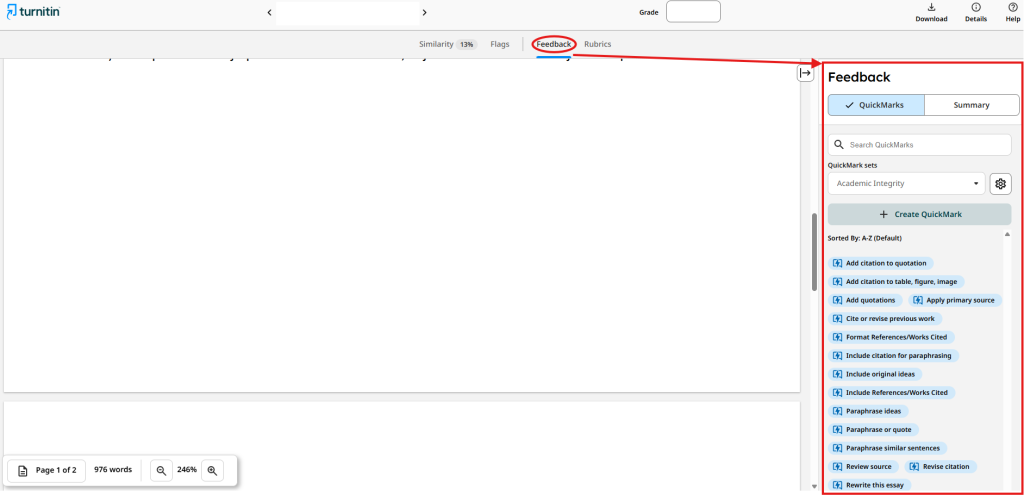
You manage feedback in the Feedback side panel.
- QuickMarks are ready-made comments that you can quickly add at the relevant places in the text.
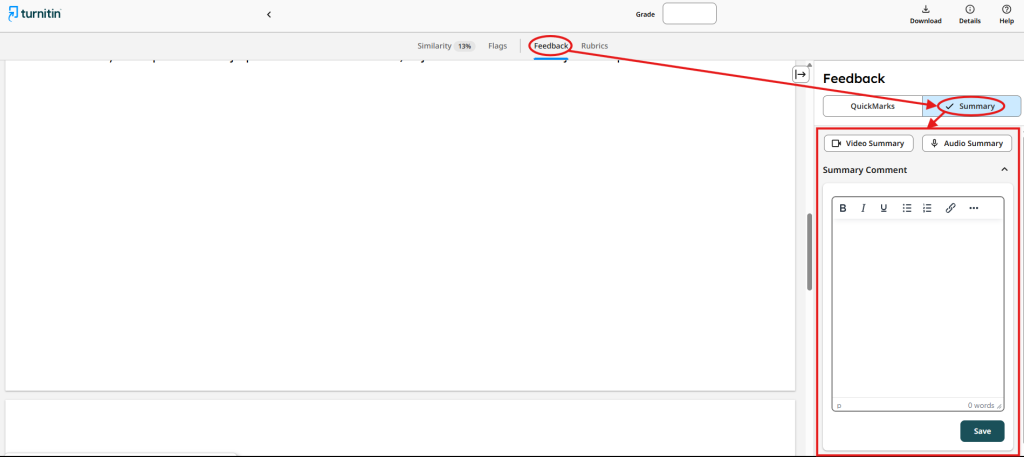
- The Summary comment refers to the submission as a whole.
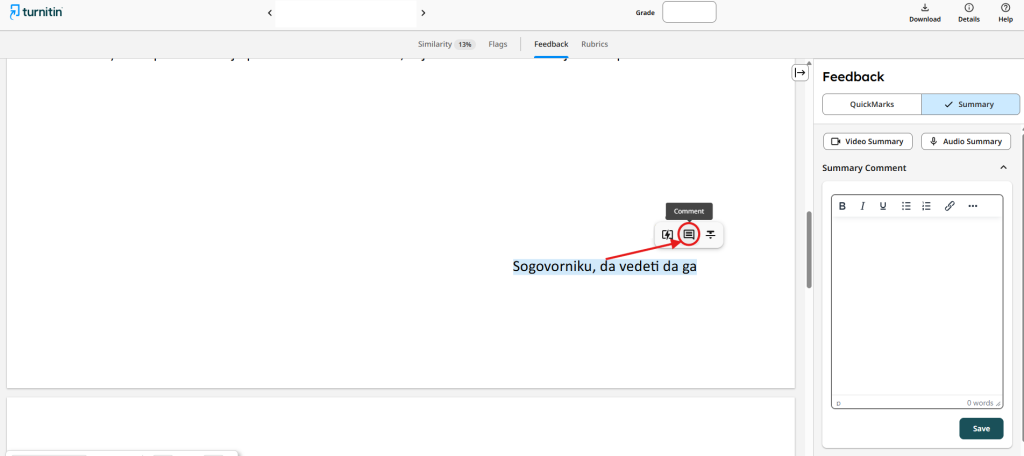
- An inline or margin comment lets you give precise feedback on a specific part of the student’s work. Select the part of the text you want and click Comment.
Grading with a rubric
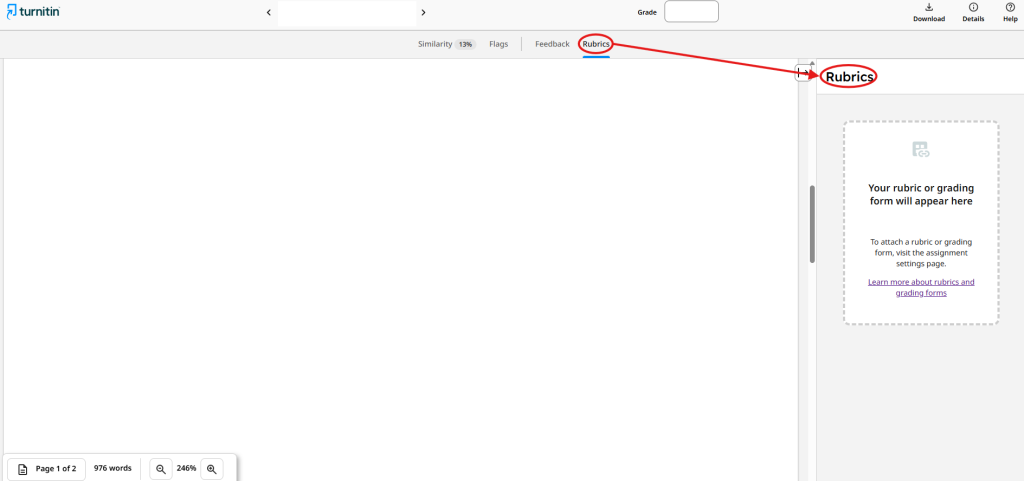
- If a rubric is attached to the assignment, open it in the Grading side panel.
- Score the individual criteria of the rubric.
- If needed, select Apply to grade so that Turnitin transfers the rubric result into the overall grade.
Final grade
- Enter or confirm the overall grade in the viewer.
- Once entered, the grade is passed to the Gradebook in Moodle. For the new Standard Assignment, it can take about two to five minutes for it to appear there.
Was this article helpful?
Thanks for your feedback!