
Reviewing student submissions
Once submission starts, open the Turnitin activity in Moodle. The assignment inbox appears, where you monitor the status of submissions, the submitted files, the similarity scores and the grades.
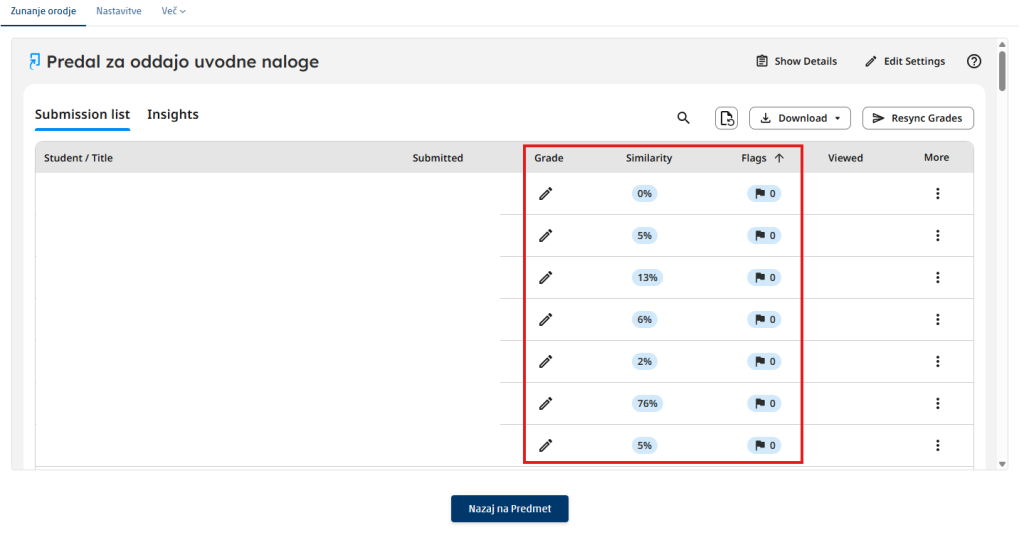
- Check which students have already submitted the assignment and which have not.
- Check the submission date and time, especially when the due date matters.
- To review the content, add comments and grade, open an individual submission in the Turnitin Feedback Studio viewer.
If the report is not ready yet: a gray icon or a missing percentage means that the report is still being generated or that the assignment settings specify a later generation time.
What the similarity score means
The similarity score tells you what proportion of the text in a submission matches the sources Turnitin compares submissions against. Turnitin explicitly emphasizes that it does not detect plagiarism automatically: the report marks the matches, while you judge their context and academic appropriateness yourself.
Key rule: a high score on its own does not mean plagiarism, and a low score does not prove that the work is free of problems. Always review the specific matches, the way sources are cited, the bibliography, any template used and the nature of the assignment.
How to review the report
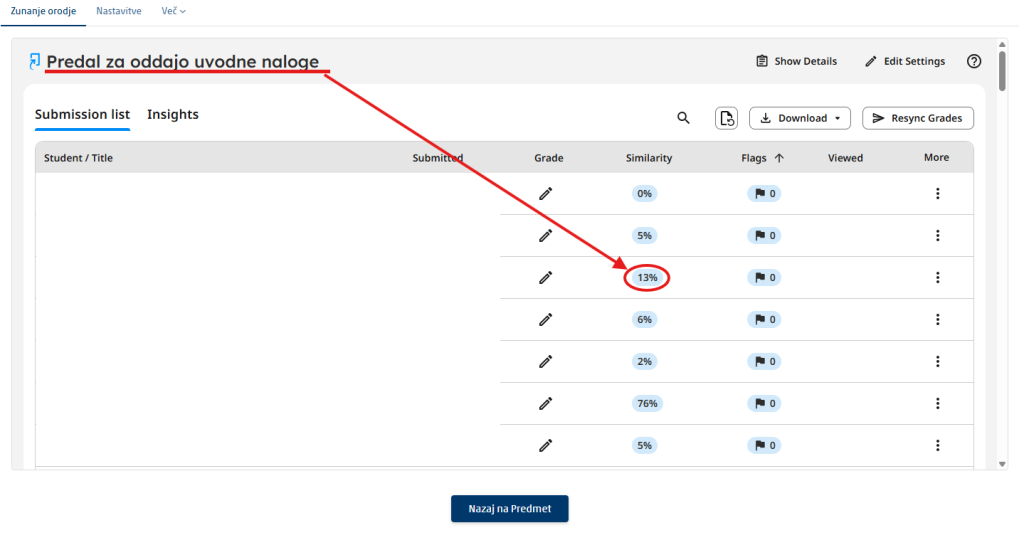
Click the similarity score. In the assignment inbox, open the report of an individual student.
Review the marked matches. Check which passages match and which sources they match.
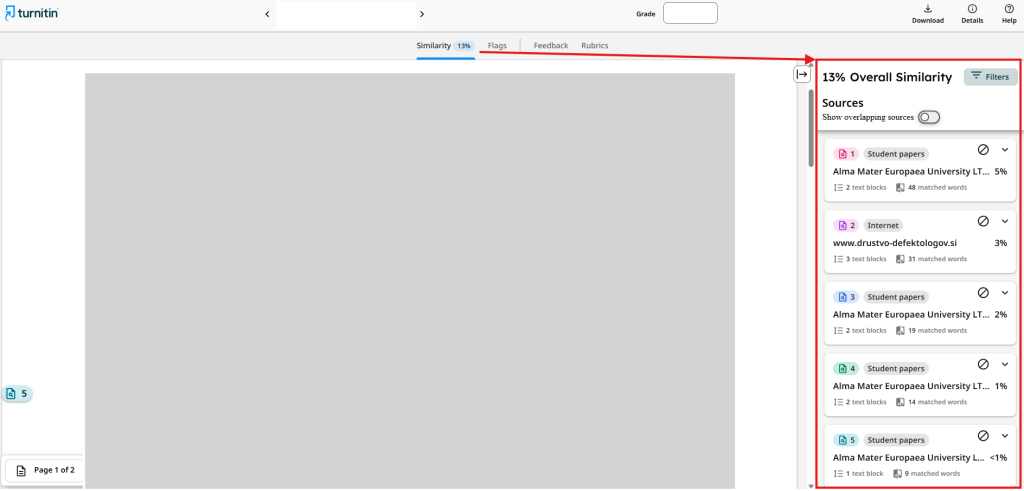
Check the citations and the bibliography. Correctly cited text can still affect the similarity score. If needed, use the filters or the exclusions, provided they are methodologically justified.
Assess the substantive context. Base your judgment of academic integrity on the report and on professional judgment, not on the score alone.