
You start the procedure in the course in which you want to enable assignment submissions.
Creating a Turnitin assignment
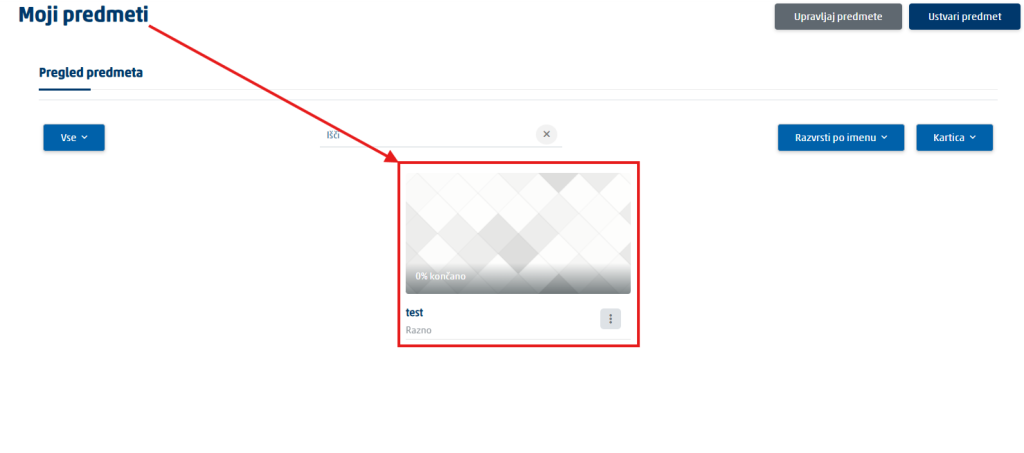
Open the course in Moodle. Log in to Moodle and open the online classroom of the relevant course.
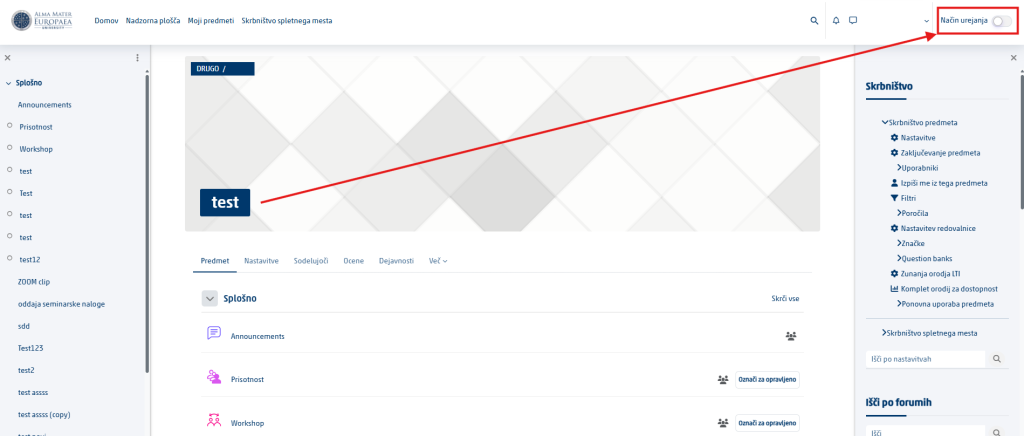
Turn on edit mode. In the course, turn on the Edit mode toggle.
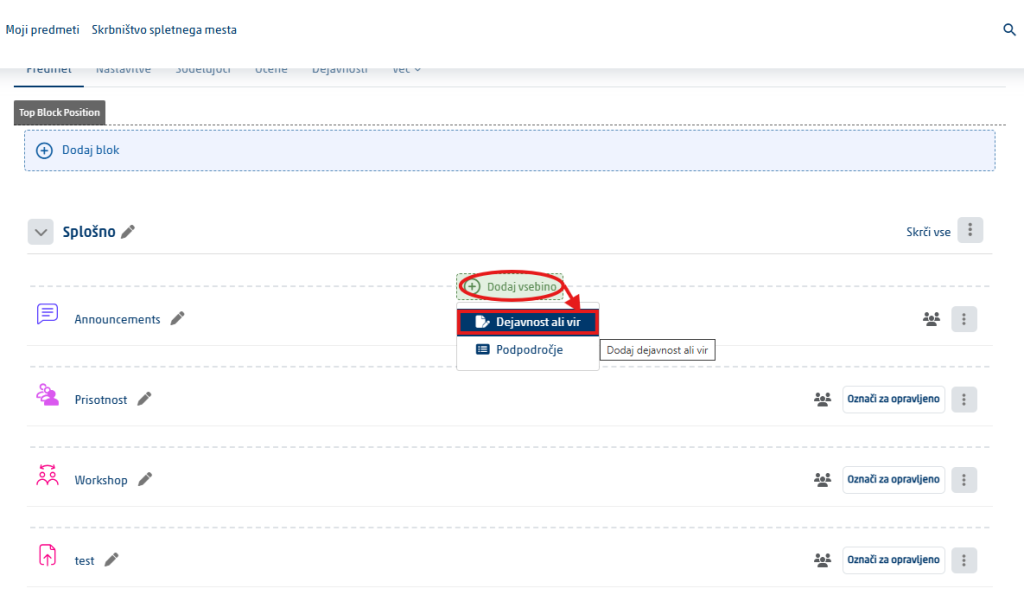
Add an activity or resource. In the section or week you want, click Add an activity or resource.
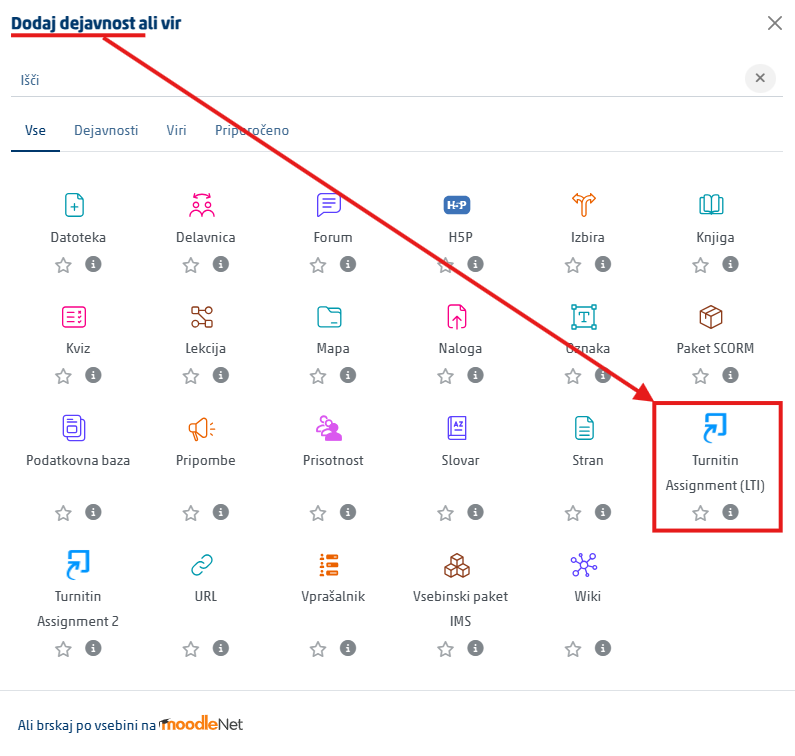
Select Turnitin. If Turnitin is shown directly among the activities, select it. If it is not there, select External tool and then find Turnitin among the preconfigured tools.
Open the content selection. Click Select content. This step enables deep linking and opens the selection of Turnitin assignment types and tools.
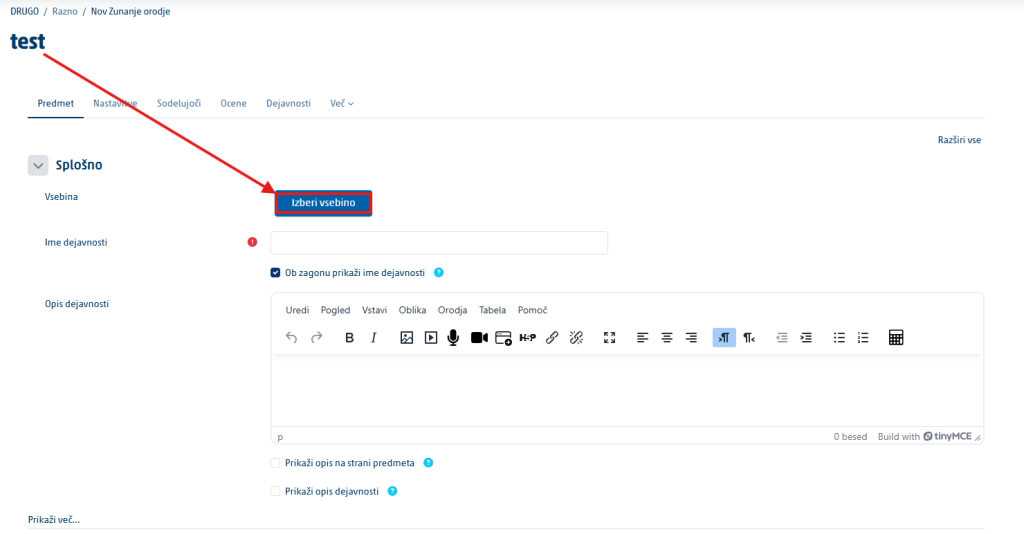
Choose the assignment type. Select the appropriate type, enter the required details and create the assignment.
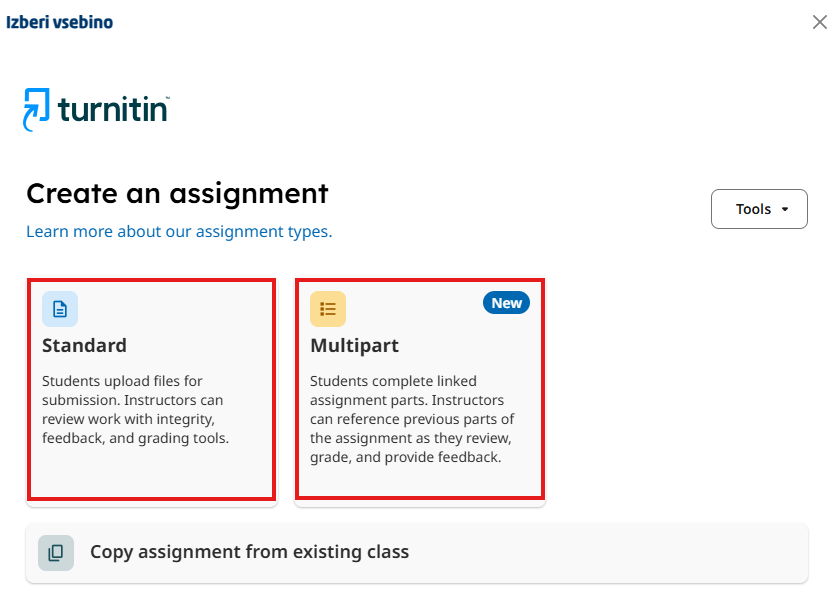
Which assignment type to choose
Depending on the institution’s license, Turnitin offers several assignment types. The official guide lists, among others, Standard, Standard (Classic), Clarity, Multipart and Handwritten Assignment. For ordinary seminar papers, project work and other written assignments, the most common choice is the new Standard Assignment.
Note: the instructions that follow describe the settings of the new Standard Assignment in detail, because it is precisely there that the official LTI 1.3 guide clearly distinguishes what is edited in Moodle and what in Turnitin. The older version is called Standard (Classic).