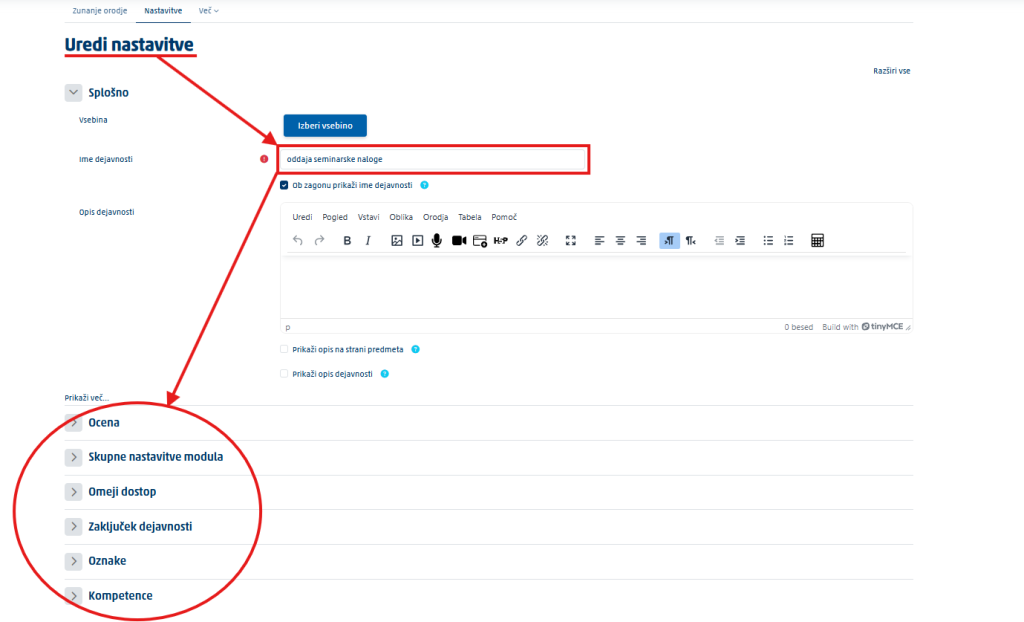
You edit some settings in Moodle and others in Turnitin – it depends on the assignment type.
Where each setting is edited
| Setting | New Standard Assignment | Standard (Classic) |
|---|---|---|
| Title | Moodle | Moodle |
| Instructions | Turnitin | Moodle |
| Maximum grade or points | Turnitin | Moodle |
| Start date | Moodle | Turnitin |
| Due date | Moodle | Turnitin |
| Feedback release date | Turnitin | Turnitin |
Important: do not edit existing assignments through Select content. The official Turnitin guide explicitly warns that changes you make there are not saved.
How to open the settings
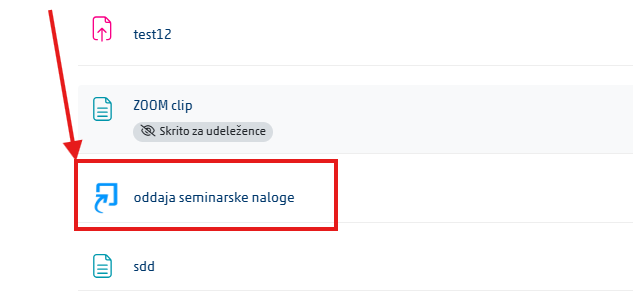
Open the assignment in Moodle. Click the name of the Turnitin activity in the course.
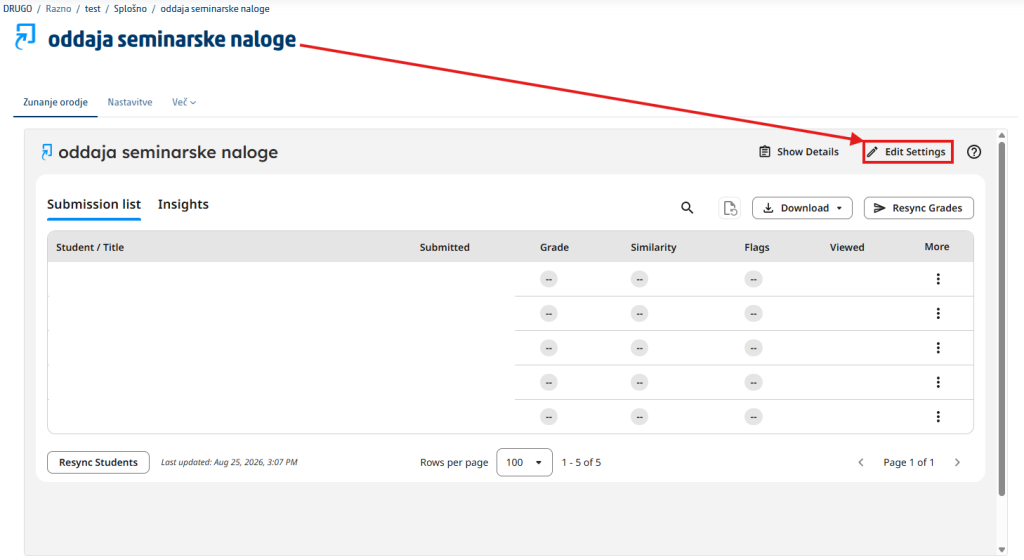
Open the settings in Turnitin. Use the pencil icon or the Settings option, if it is available.
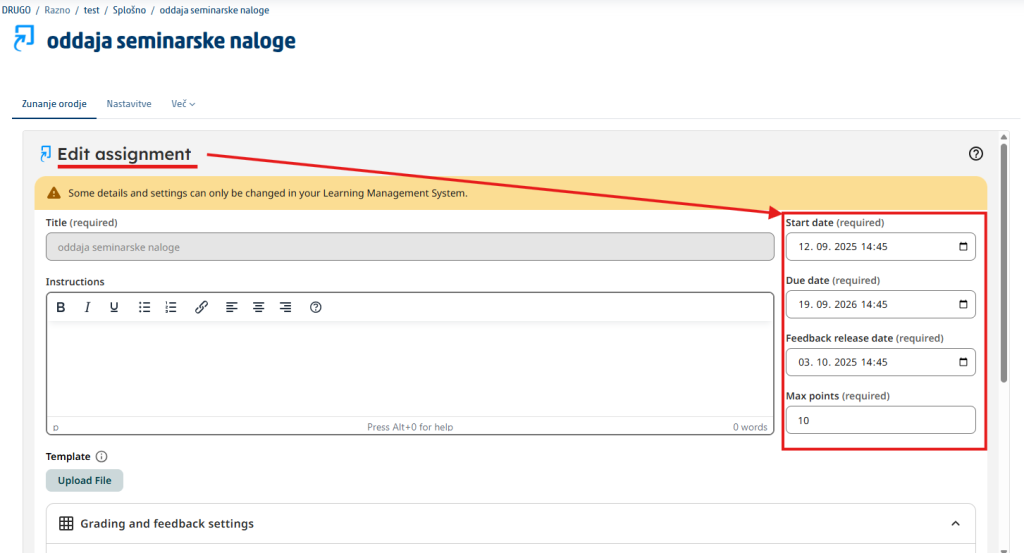
Change the options you need. Edit the instructions, the feedback release date, the submission settings, the report settings and other options managed by Turnitin.
Open the assignment settings in Moodle. For the title, the start date and the due date, open the activity and click the Settings tab.
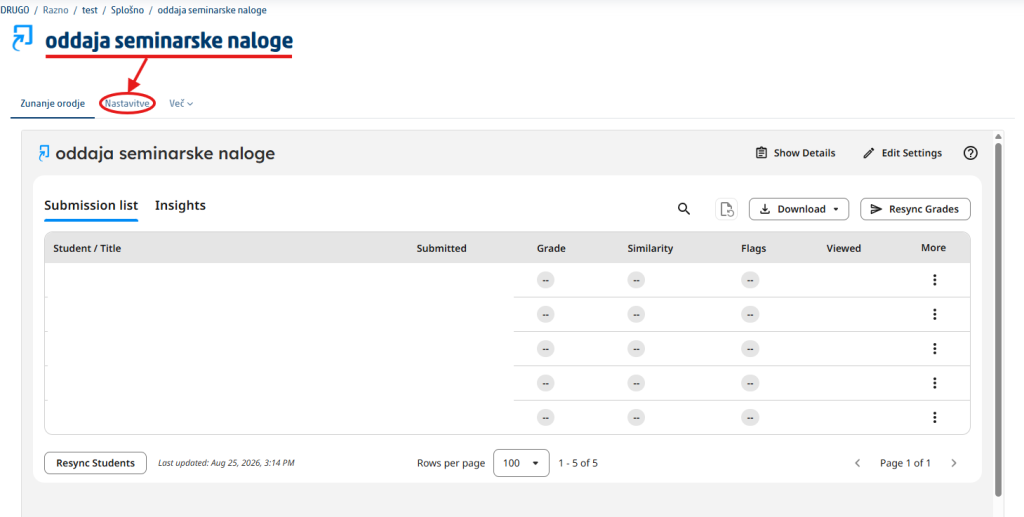
Edit the remaining Moodle options. In the same settings you can also define access restrictions, tags and similar options.